Zoom DSR integration
Automate privacy request handling by integrating MineOS with Zoom.
Missing an action you need, or an integration we don't support yet? Contact your Customer Success Manager.
MineOS connects to your Zoom account through the MineOS app on the Zoom App Marketplace. It finds the requester as a user in your Zoom account by email, and can preview them, send them a copy of their Zoom data, or delete them.
How It Works
-
Preview: MineOS shows the requester's basic Zoom profile (name, email, user type, status and the date the user was created), so you can confirm it's the right person.
-
Get a copy: MineOS sends the requester a copy of their Zoom data:
- Profile
- Scheduled meetings and past meetings they hosted or joined
- Webinars
- AI meeting summaries
- Cloud recordings
- Zoom Phone call history, call recordings, voicemails and SMS
- Team Chat messages they sent
- Whiteboards, clips and docs
The copy holds the details Zoom keeps about each item, such as the title, date, duration, participants, and file type and size. It doesn't include the files themselves: recordings and voicemails are listed, but the audio and video aren't attached. Download links, passcodes and other access details are removed.
-
Delete: MineOS deletes the requester's Zoom user. Zoom permanently deletes their meetings, webinars, cloud recordings, whiteboards, clips, notes and docs with them. Cloud recordings skip the trash and can't be recovered.
Note: Data that your Zoom account doesn't have (for example, no Zoom Phone or webinar licence), or whose optional permission you didn't approve when connecting, is skipped.
Before You Start
- You need a Zoom account admin to connect MineOS. The admin approves the MineOS app for the whole account.
- When connecting, Zoom shows the permissions MineOS asks for. The permission to delete users is required. The others are optional, and each one only adds a type of data to Get a copy (for example, Zoom Phone, Team Chat or whiteboards). Approve all of them to get the fullest copy.
Setting Up
-
Log in to MineOS. On the left sidebar, click Inventory → Add data source, search for Zoom and add it.
-
Open the Zoom system and go to the DSR & integrations tab. If the system already has an instance, click Add instance.
-
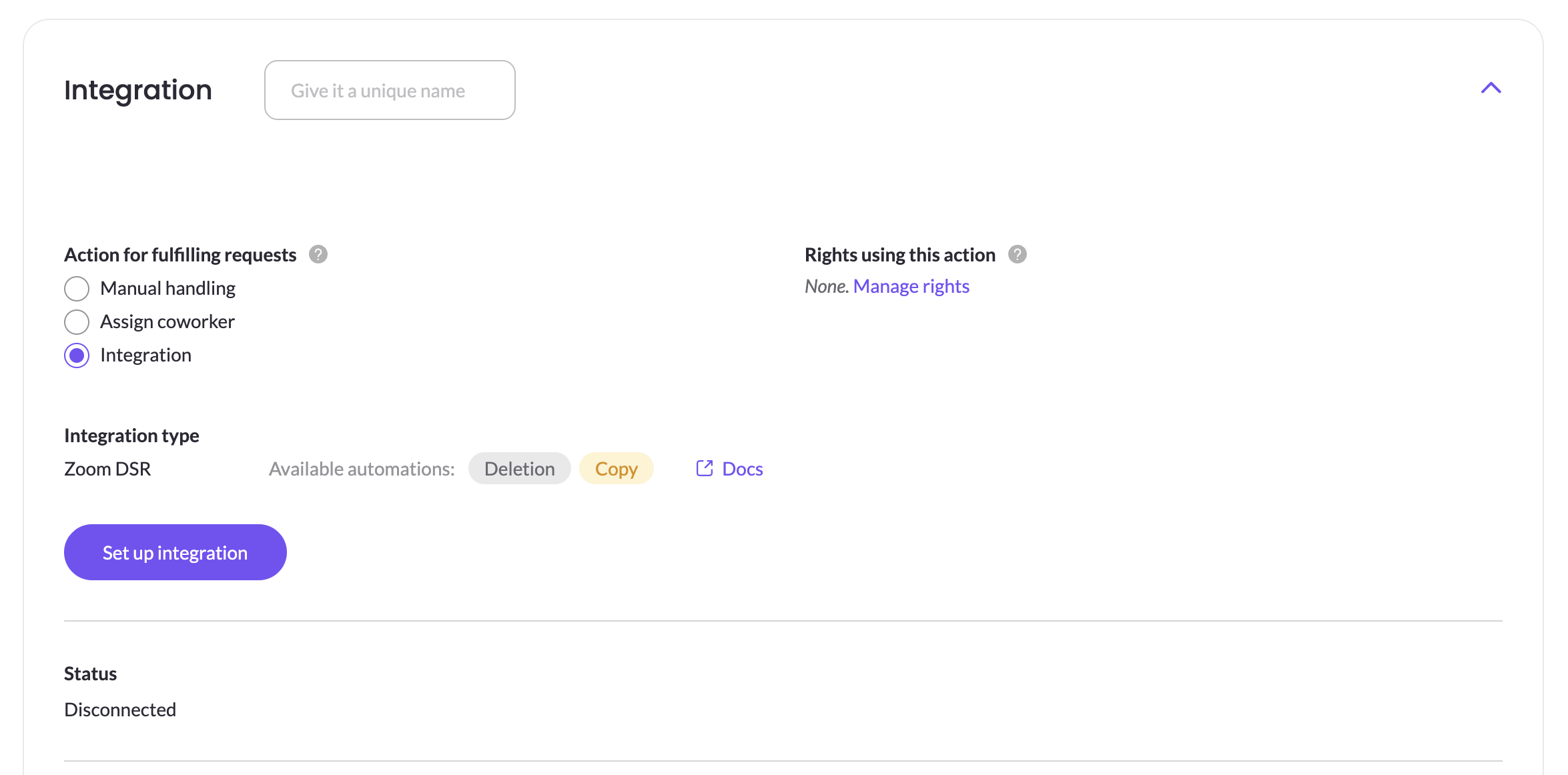
Under Action for fulfilling requests, select Integration. The Integration Type is pre-selected as Zoom DSR, then click Set up integration.
-
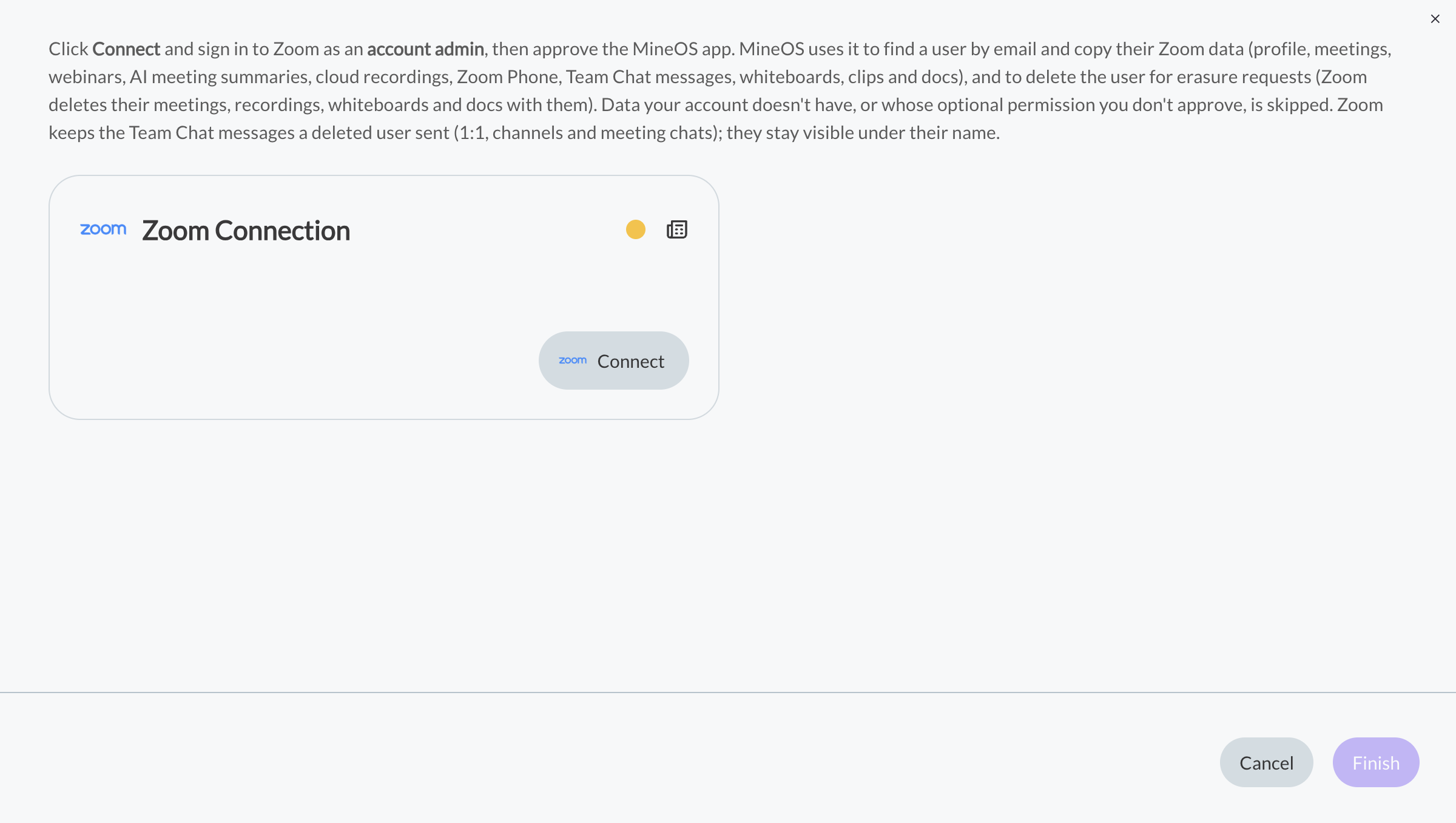
Click Connect and sign in to Zoom as an account admin.
-
Review the permissions and approve the MineOS app.
-
Click Finish.
You're done! MineOS has been connected to your Zoom account.
Using the Integration in Requests
To handle requests automatically, add the Zoom DSR integration to the workflows of the privacy rights it should handle: deletion, get a copy, or both.
Limitations
- Team Chat messages stay after deletion. Messages the user sent in 1:1 chats, channels and meeting chats are kept by Zoom and still appear under their name. Get a copy includes them.
- Zoom Phone call recordings and voicemails stay after deletion. Zoom keeps them in the account's logs. Call history and SMS may also remain.
- Zoom's delete doesn't cover every erasure requirement. Account-level logs and other people's records of the user (for example, meetings they joined) stay. For full erasure, you can also use Zoom's own data request tools or contact Zoom Support.
- Some history is limited to 6 months. Zoom only keeps 6 months of history for past meetings, Zoom Phone call history, call recordings and voicemails. Everything else goes back to when the user was created.
- Very large accounts may get a partial copy. MineOS has a limited time to collect the data. If it runs out, the copy includes everything found so far and notes what wasn't searched.
- Only users in your Zoom account are covered. People outside your account, such as guests and webinar registrants, aren't found.
Troubleshooting
The requester isn't found
MineOS looks up the user by the email on their Zoom account. Check that the request uses the same email. Users who haven't accepted their Zoom invite yet aren't found.
Deletion fails for an admin or the account owner
Zoom doesn't allow deleting the account owner, and may block deleting admins. Change the user's role in Zoom first, or delete them in Zoom directly.
Deletion fails with a permission error
The delete permission wasn't approved. Reconnect the integration and approve all the requested permissions.
Some data is missing from the copy
Your Zoom account may not have that product (for example, Zoom Phone or webinars), or the permission for it wasn't approved when connecting. Reconnect and approve it to include it.
Connecting fails
Make sure you sign in to Zoom as an account admin.
Need Help?
If you need any help with this integration, please contact your Customer Success Manager. They will be happy to assist you!
Updated about 14 hours ago