
Data flow
See how personal data moves between your systems, vendors and other parties for each processing activity, including where it crosses borders.
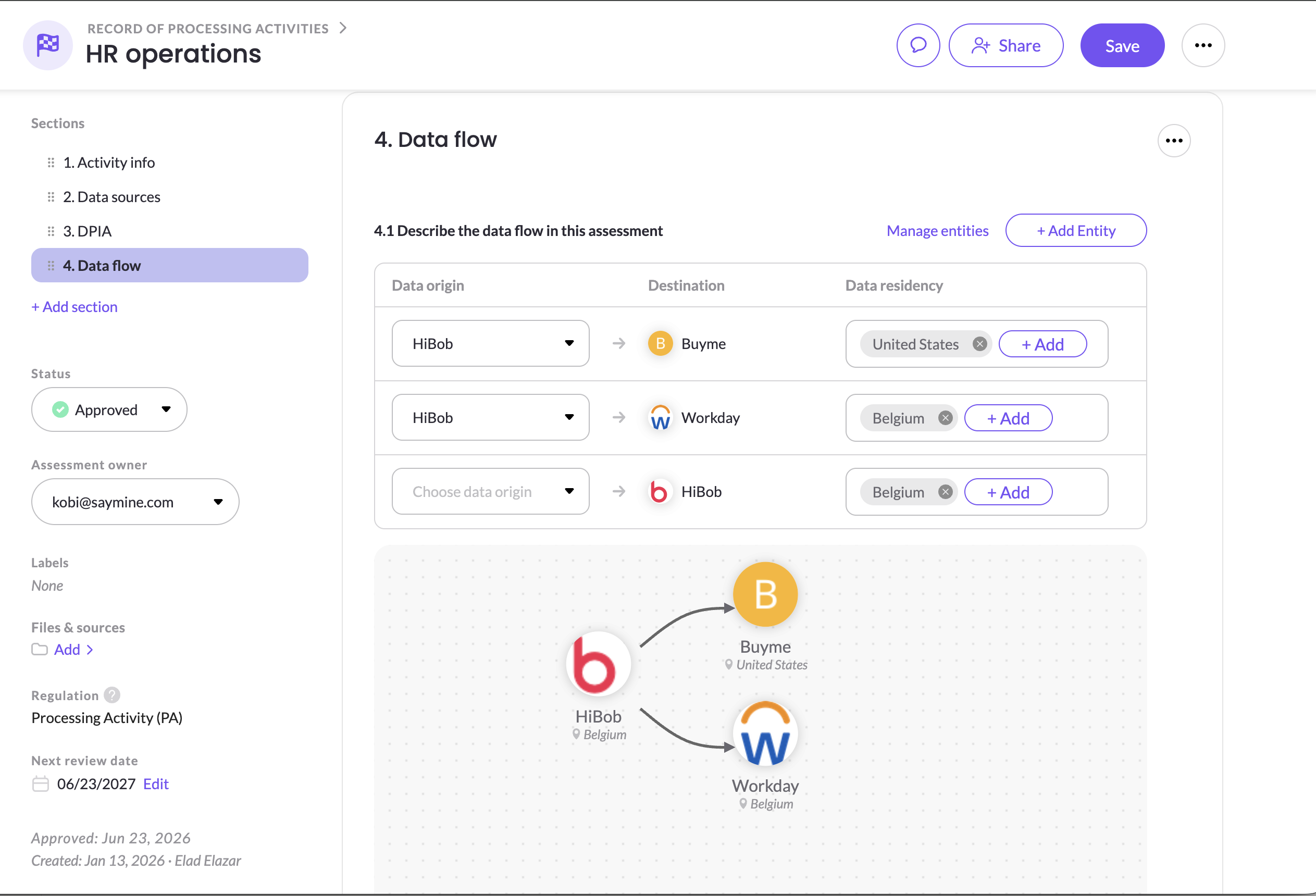
A data flow shows how personal data moves for a specific business purpose: which systems and parties receive it, and where they're located. Data flows make it easy to explain a processing activity at a glance, spot data leaving your main region, and show auditors and regulators how data actually travels through your organization.
Before you start, make sure your processing activities are set up and linked to their data sources. See Map data sources with processing activities.
What a data flow shows
| Element | What it represents |
|---|---|
| Data sources | The systems in your inventory linked to the processing activity. They're included automatically. |
| Other entities | Parties outside your inventory that receive or provide data, such as government agencies, partners, or paper-based processes |
| Direction | Whether each party is an origin of the data, a receiver of it, or both |
| Locations | Where each party is based, so you can see when data crosses borders |
Open a data flow
- In the left navigation, under Data mapping, select Processing activities.
- Open a processing activity.
- Scroll to the Data flow section.
Every data source linked to the processing activity appears in the data flow automatically, as a Receiver by default.
If you don't see a Data flow section
The Data flow section is part of MineOS's default processing activity template. If your organization has customized the template and removed it, you can add it back:
- Open your processing activity template in the template editor.
- Add the Data flow section.
- Save the template.
New processing activities created from the template will include the data flow. Changes to a template don't apply to processing activities already created from it, so for existing activities, add the section directly in each one.
Build out a data flow
- In the Data flow section, review the data sources included automatically.
- Set each one's role, for example whether it's where the data originates or where it's sent.
- Add any other entities involved, such as an agency, a partner or an offline process.
- Save your changes.
When website scanning finds new third-party systems collecting data on your website, they're added to your inventory along with their locations, and your data flows update to reflect them. [confirm: still applies]
Use data flows to spot transfers
Many privacy laws worldwide restrict or set conditions on transferring personal data across borders. Data flows show each party's location, so you can quickly see when a processing activity sends data outside your main region.
When you spot a transfer, you can:
- Check its safeguards, such as contractual clauses or certifications, with the vendor
- Run a transfer assessment. See Creating Assessments.
- Flag a risk if safeguards are missing. See Flagging risks in assessments.
Tips
- Complete your processing activities first. Data flows are only as accurate as the data sources linked to each activity.
- Keep vendor locations current. Vendor scout can fill in hosting locations automatically. See Research Vendors with Mira AI (Vendor Scout).
- Add the parties you don't manage, such as regulators or payroll providers. They often matter most for transfers.
Related articles
- Map business purposes with processing activities: link data sources to business purposes
- Map international transfers with Mira: let the Transfer agent identify transfers for you
Updated 21 days ago