
Cloud discovery - Google Cloud
Connect your Google Cloud organization to discover the databases, warehouses and storage buckets your teams run, and where they’re hosted.
Cloud discovery finds the data stores your engineering teams run in your cloud accounts, and where each one is hosted. Connecting Google Cloud discovers services across the projects in your organization, such as Cloud Storage, Cloud SQL, BigQuery, Bigtable, Cloud Spanner, Firestore, AlloyDB, Firebase and Filestore.
Before you start
You'll need permission to grant IAM roles at the organization level in Google Cloud, and your organization's display name as it appears in the Google Cloud console.
Step 1: Get your MineOS service account
MineOS creates a dedicated Google service account for your company. You grant it read-only access to your organization.
- Sign in to MineOS.
- In the left navigation, under Data mapping, select Radar.
- Click Radar Setup.
- Under Cloud, select Google Cloud.
- Copy the service account email shown on the screen.
Step 2: Grant the service account access in Google Cloud
-
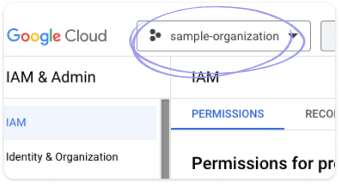
In the Google Cloud console, select your organization from the resource picker at the top of the page.
-
Go to IAM & Admin › IAM.
-
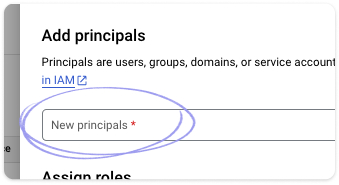
Click Grant access.
-
In New principals, paste the MineOS service account email.
-
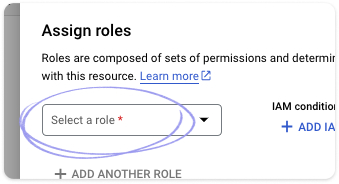
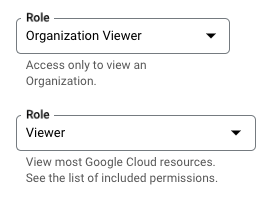
In Select a role, choose Basic › Viewer.
-
Click Save.
Grant the role at the organization level, not on a single project, so MineOS can discover data stores across all your projects.
Step 3: Connect in MineOS
- Go to your GCP setup page in your MineOS account
- Enter the chosen organization display name to scan
- Sign in with a Google user within that organization to confirm you are part of the organization
- If the Google sign-in is successful, scanning will start automatically.
This may take some time, the scanning results will start appearing in the Radar in your MineOS account.
MineOS checks that it can reach your organization and its projects. A message confirms the connection was successful, and discovery starts.
Permissions
| Role | Why MineOS needs it |
|---|---|
| Viewer | Read-only access to list your organization's projects, their services and data stores, and their locations, without changing any resources or data |
Troubleshooting
| Message | What to check |
|---|---|
| Could not find GCP organization with display name | The name you entered matches your organization's display name exactly, and the Viewer role was granted at the organization level |
| No projects for company organization | Your organization contains at least one project, and the service account can see it. [confirm: projects inside folders are discovered] |
What happens next
Discovered data stores appear in Radar, with the project they belong to and where they're hosted. Add the ones that hold personal data to your inventory, and connect them to classification to see what data they contain. See Reviewing findings and Classification quickstart.
Related articles
- Discover your data sources with Radar: all discovery methods
- Visualize data flows: see where data is hosted for each processing activity
Updated 20 days ago