
Website Scanner & Cookie Classification
How the Website Scanner discovers cookies and trackers on your website, how to allow-list it, and how cookies are classified into consent categories.
The Website Scanner automatically visits your website with a real browser, records every cookie and storage operation that occurs, and identifies the specific element responsible for setting each one. This data powers your cookie policy and the per-element blocking performed by the MineOS CMP - when a visitor opts out of a category, the MineOS CMP removes exactly the right element from the page.
How the scan works
- Crawls your site with a real browser. The scanner uses headless Chromium and visits pages just as a real user would. It follows internal links across your configured domains, and if your site exposes a
sitemap.xmlit uses that to discover additional URLs. - Auto-accepts cookie banners. Before each page loads, the scanner pre-seeds consent state for major CMP platforms - including OneTrust, Cookiebot, TrustArc, Quantcast, Didomi, Usercentrics, Termly, Osano, Complianz, CookieYes, HubSpot and Iubenda - so scripts in the "consent given" path actually execute. When pre-seeding isn't possible, it falls back to clicking the "Accept All" button using generic text matching.
- Intercepts every cookie and storage operation. The scanner observes JavaScript cookie writes, HTTP
Set-Cookieresponse headers, local storage and other storage technologies. - Traces each cookie to a blocking target. For every tracker observed, the scanner records the chain of HTML elements that led to its creation and identifies the single most specific element a CMP can block (for example,
script[src='https://www.googletagmanager.com/gtag/js']). - Produces a scan report. The final output lists every cookie's name, domain, expiration, description, category and the page where it was first seen.
What the scanner can detect
- First-party and third-party cookies set via JavaScript (
document.cookie) - Cookies set via HTTP response headers (
Set-Cookie) localStoragewritessessionStoragewritesindexedDBoperations- Tracking pixels
- The originating script, iframe, image, or link element for each cookie or tracker
- The page URL where each item was first observed
How user behavior is simulated
The scanner navigates each page like a real visitor:
- Waits for the page to fully load, including network idle
- Performs real scrolling from top to bottom
- Waits between pages so tag managers and analytics scripts have time to fire
Allow-listing the scanner
Some WAFs, rate-limiters, or bot-detection systems may block or challenge the scanner. To ensure scans complete successfully, your security team may need to add an exception.
User Agent String
The scanner uses a standard Chromium user agent string, with an added section the specifically mentions MineOS:
Mozilla/5.0 (X11; Linux x86_64) AppleWebKit/537.36 (KHTML, like Gecko; compatible; Mineos/1.0; +http://mineos.ai/) HeadlessChrome/141.0.7390.37 Safari/537.36Source IP range
Add the scanner's source IPs to your allow-list.
35.187.32.89
34.59.157.213
CAPTCHA / bot challenges
Pages that require CAPTCHA completion cannot be scanned. If a critical section of your site is behind a CAPTCHA, that portion will not appear in scan results.
Configuring the domain
You configure the scanner by adding domains to be scanned in the portal. The scanner then visits each domain and discovers other pages by following internal links and (if available) reading sitemap.xml.
Subdomains
Subdomains are scanned separately. Scanning example.com does not include blog.example.com, shop.example.com, or any other subdomain.
www.example.comandexample.comare treated as the same site.- All other subdomains require their own entry in your scanned-domains collection.
Redirects
If a page redirects to a different domain, the scanner follows the redirect to load the page, but it will not crawl further into the external domain. Links pointing to other domains are not followed.
Scan scope and limits
Each scan is bounded by a maximum number of pages (10K) and maximum link depth.
Scan frequency
Scans automatically run every 7 days for all configured domains.
Limitations
Heads upNo automated website scanner can capture 100% of cookies and trackers on every website. The limitations below explain what the scanner does and does not cover, so you can supplement scan results with manual cookie entries where needed.
- Pages behind login or CAPTCHA. Content that requires authentication or a human-verification challenge cannot be scanned.
- Action-triggered cookies. Some cookies are only set in response to specific user actions (completing a purchase, submitting a form, watching a video). These may not be captured because the scanner does not simulate those actions. You can add these cookies manually.
- Server-conditional cookies. When your server sets the same cookie via more than one code path (for example, a fallback path triggered only under specific conditions), the scanner sees only the path that ran during the scan. After that source is blocked, a subsequent scan may reveal the alternative path.
- Cross-origin iframes. When a cookie is set by a script inside an iframe from a different origin (common for ad networks), the scanner identifies the iframe itself as the blocking unit, not the specific script inside it.
- Service workers. Cookies set as a result of requests served by a service worker may not be attributed correctly. The scanner blocks service workers to try and minimize this.
- Encryption. The scanned domains must be served through https with a valid certificate. The scanner will not scan websites without it.
Viewing scan results
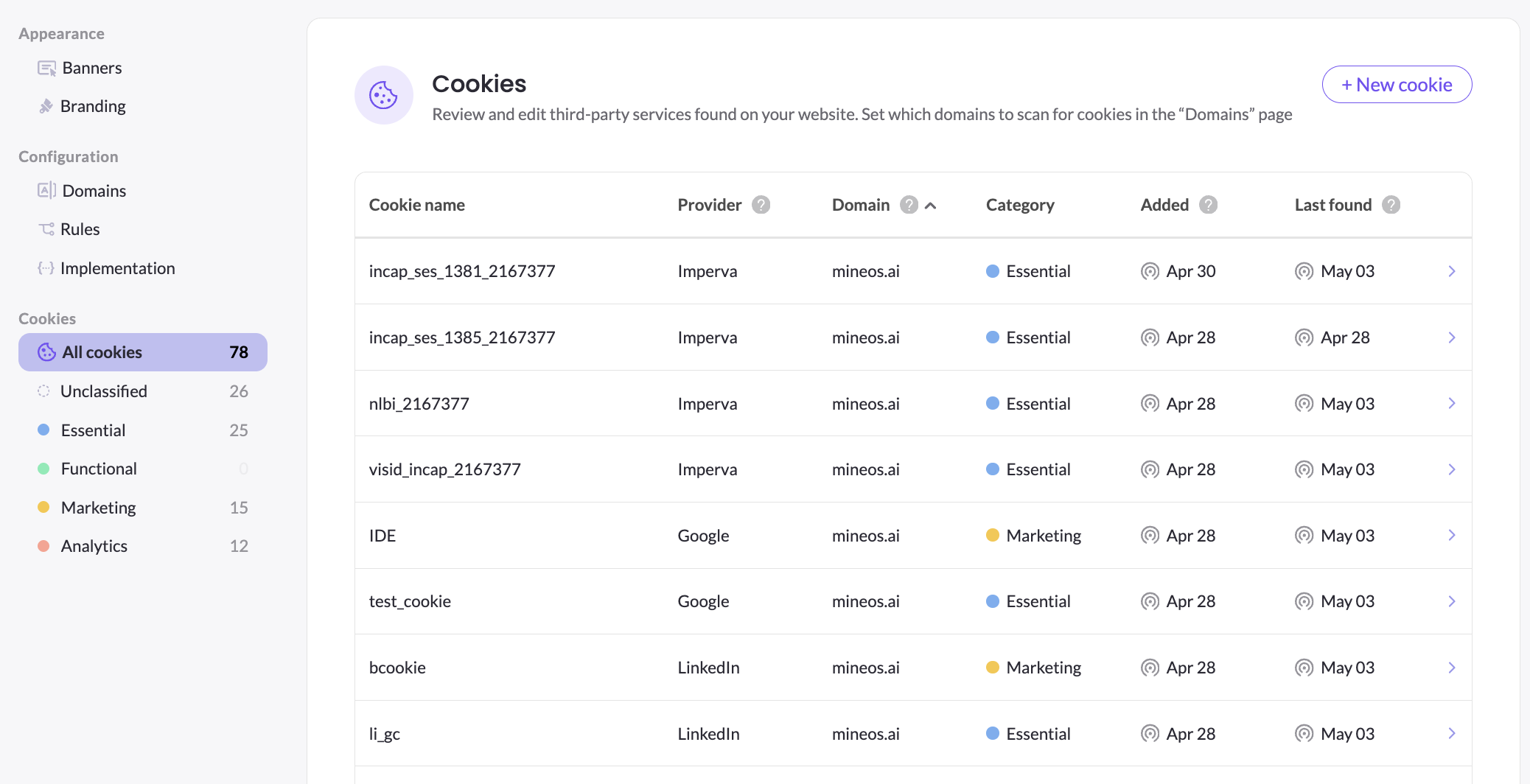
After a scan completes, results appear on the Cookies page of the portal. For each cookie you can see:
- Cookie name and the domain it is set on
- The category it has been classified into
- The provider that sets it (e.g. Google, Facebook, first-party)
- The page URL where it was first detected — helpful for confirming "yes, this is on my site"
- Its expiration (max age) and security attributes (Secure, HttpOnly, SameSite)
Troubleshooting
| Symptom | What to check |
|---|---|
| Scan finds zero cookies | Confirm the scanner's source IPs are allow-listed at your WAF / CDN. If the site requires login or CAPTCHA, the scanner cannot reach the protected pages. |
| Scan finds fewer cookies than expected | Some cookies only appear in response to user actions (form submit, checkout) that the scanner doesn't simulate. Cookies on subdomains require a separate scan per subdomain. |
| A specific cookie keeps reappearing after blocking | The server may be setting it via a different code path that wasn't observed in the previous scan. Re-running the scan after the block is in place usually reveals the second source. |
| A third-party cookie can't be blocked individually | When the cookie originates from a script inside a cross-origin iframe, the iframe itself is the blocking unit — blocking the script inside it is not possible. |
| The cookie banner blocked the scan | The scanner auto-accepts banners for the major CMPs. If your site uses a custom banner with no "Accept All" button matching common text patterns, the scan may fail to get past it — contact support. |
| Invalid HTTPS | The scanner only scans websites served through HTTPS with a valid certificate. |
Cookie Classification
Every cookie discovered by the scanner is assigned to one of five consent categories:
| Category | Purpose |
|---|---|
| Necessary | Strictly required for the site to function |
| Preferences | Remembers user settings and preferences |
| Analytics | Helps you understand how visitors interact with the site |
| Marketing | Used to deliver personalized advertising |
| Unclassified | Cookies whose category could not yet be determined |
How automated classification works
Classification runs in two stages:
- Known-cookie catalog match. Each discovered cookie is first matched against a maintained reference catalog of well-known cookies covering Google, Facebook, LinkedIn, TikTok, and many other major providers. When a match is found, the cookie inherits the category, provider name, and description from the catalog.
- AI-based classification. If no catalog match is found, AI-based classification analyzes the cookie's characteristics and assigns a category.
If the AI is not able to classify the cookie with high enough confidence, the cookie is placed in the Unclassified category for you to review and assign manually.
Unclassified Cookies
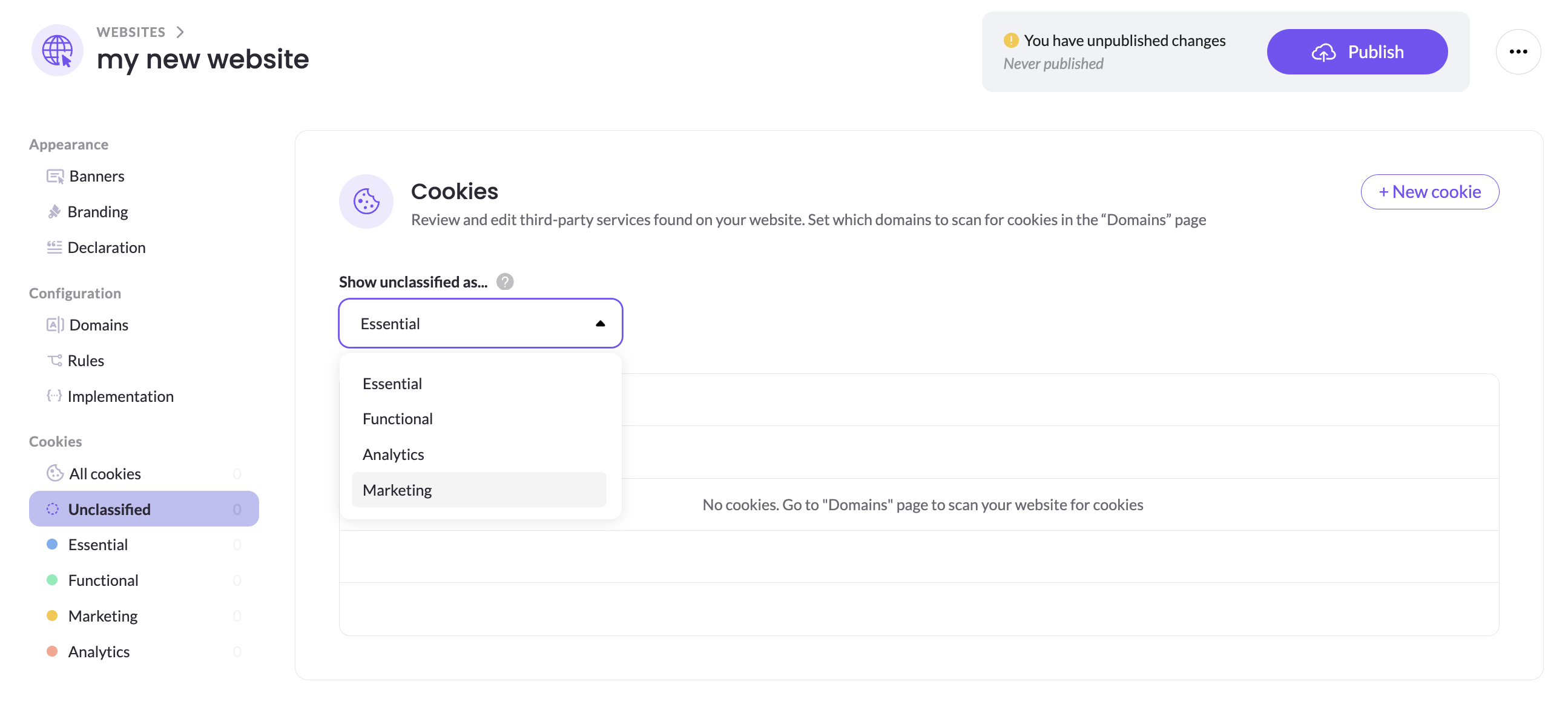
When unclassified cookies are found, they are clearly marked in the Cookies list as 'unclassified. Note: They are never shown to visitors as 'unclassified'; they are associated with the default category until you classify them.
The default category can be selected from the 'unclassified' section:
For each successfully classified cookie, you'll see:
- Category (Necessary, Preferences, Analytics, or Marketing)
- Provider name (e.g. Google, Facebook)
- Description of what the cookie does
Manually classifying cookies
Any cookie can be edited from the Cookies page in the portal.
Adding a cookie manually
You can also add a cookie manually if you know about a cookie your site uses that hasn't been detected yet — for example, one that only appears after completing a purchase or other action the scanner doesn't reproduce.
Manually added cookies behave the same as detected ones:
- They appear in the cookie list shown to your visitors
- They appear in the cookie declaration
- They require manual blocking to be set up through script attributes. See Blocking Modes: Automatic vs Manual
When changes take effect
After you re-classify, add, or remove cookies, the new configuration applies to your live banner the next time the configuration is published from the portal.
Updated 11 days ago