
Setting Up Conditional Logic
Control which elements appear on the form based on how a data subject answers earlier questions.
Key concepts
Before setting up conditions, it helps to understand two terms used throughout this article:
- Parent element — the element whose answer triggers the condition. The data subject answers this element, and their answer determines whether the child element appears.
- Child element — the element that is shown or hidden based on the parent's answer. By default it is hidden, and only appears when its conditions are met.
A parent element must always appear above its child element in the form.
Condition types
Each condition rule uses one of two matching types:
| Type | The child element appears when… |
|---|---|
| Has some of | The data subject selects at least one of the specified answers |
| Has exactly | The data subject selects all of the specified answers and no others |
Which elements can be a parent
Only the following element types can serve as a parent (condition source):
| Element | Condition type |
|---|---|
| Country | Always "Has some of" — cannot be changed |
| State | Always "Has some of" — cannot be changed |
| Privacy right | Always "Has some of" — cannot be changed |
| Data subject | Always "Has some of" — cannot be changed |
| Multiple choice (custom) | Both "Has some of" and "Has exactly" are available |
Which elements cannot have conditions applied
The following elements cannot be made into child elements — they are always visible on the form because their Required toggle is permanently enabled: Header, Country, Email, and Privacy right. An element that must always be shown cannot be made conditional.
Chaining conditions
An element can be both a parent and a child at the same time. For example, a State field can be shown only when Country = United States (making State a child of Country), and a follow-up question can be shown only when State = California (making that question a child of State). This creates a chain of conditions that narrows the form progressively based on the data subject's answers.
Multiple conditions on one element
A child element can have up to 10 conditions. When more than one condition is set, all conditions must be satisfied simultaneously — conditions are evaluated with AND logic. Within each condition, the answer matching follows the condition type (Has some of / Has exactly).
Adding a condition
-
Expand the element you want to show conditionally (the child element)
-
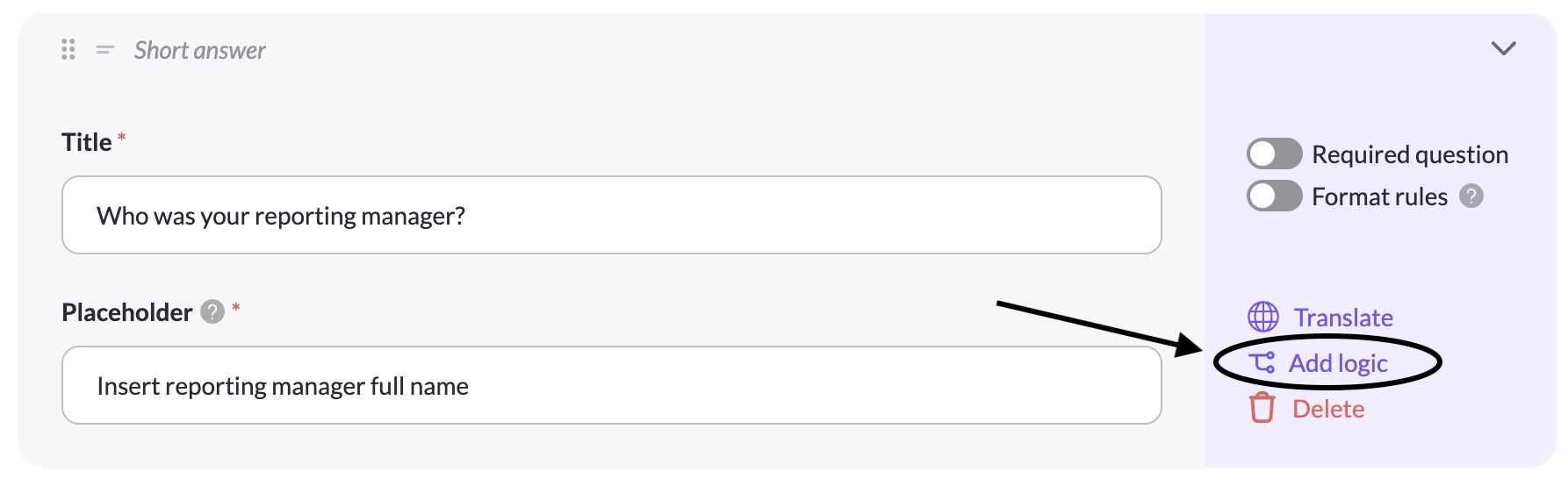
Click Add logic in the element's right sidebar
-
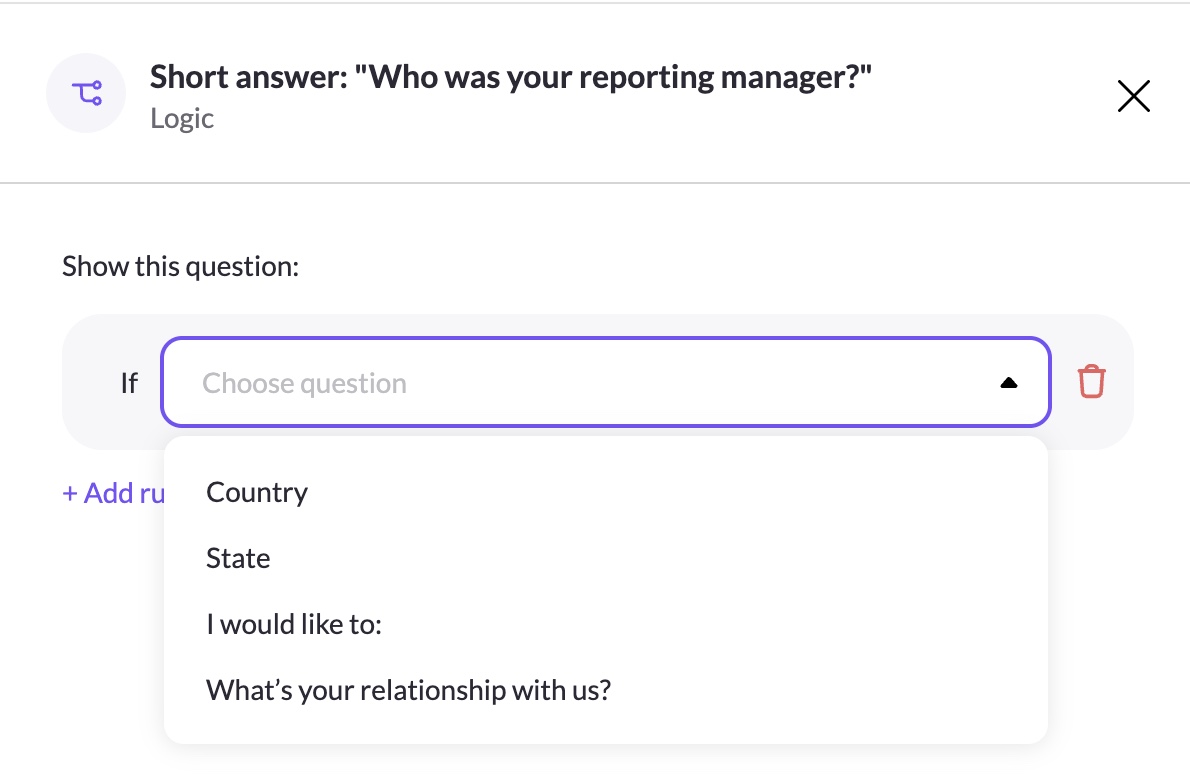
Select the parent element from the dropdown — only supported parent types that appear above the child are shown
-
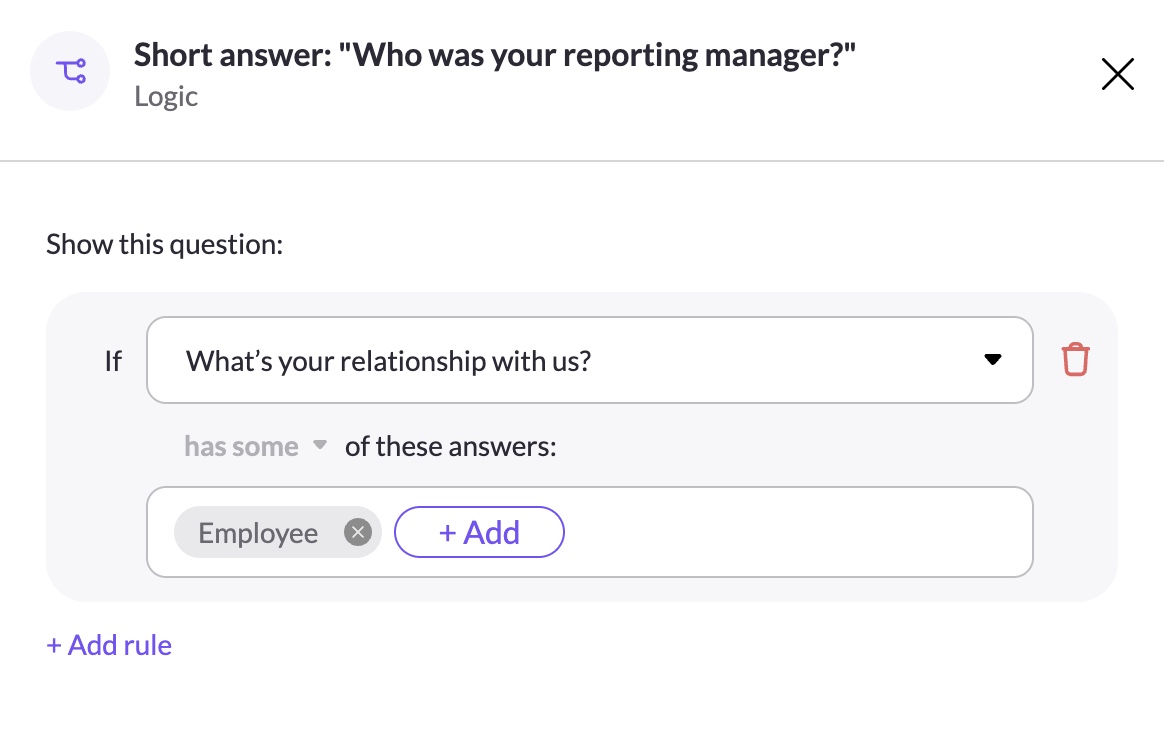
Select the answer(s) that should trigger this element to appear
-
Select the condition type (Has some of or Has exactly)
-
Optionally click + Add rule to add another condition (up to 10)
-
Click Save draft to save your changes
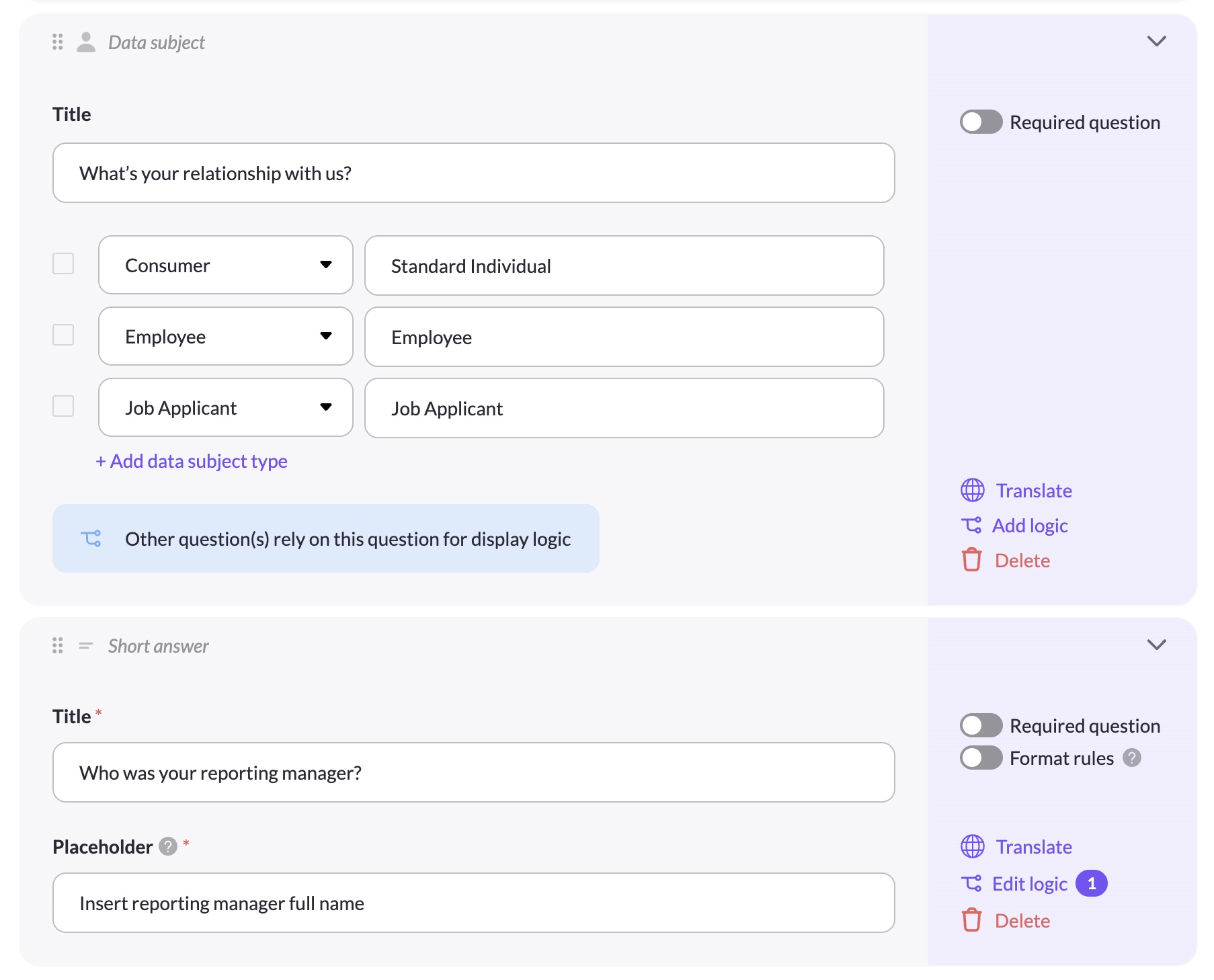
Once saved, two indicators appear in the form to confirm the condition is in place:
- On the child element: a numbered badge appears on the Edit logic button showing how many conditions are set on it
- On the parent element: a blue banner appears reading "Other question(s) rely on this question for display logic"
Removing a condition
Click on Edit logic and click the remove icon next to any condition rule. If all rules are removed, the child element becomes unconditionally visible.
Things to keep in mind
- If you reorder elements such that a child ends up above its parent, the condition is automatically removed. See Reordering Elements.
- Conditions are evaluated live on the form — the child element appears or disappears instantly as the data subject makes their selections.
Updated 4 months ago