
Draft Assessments with Mira AI
Mira's Privacy Specialist drafts suggested answers with evidence for your RoPA, DPIA, TIA, and other assessments — so your team spends time on decisions, not research.
Mira's Privacy Specialist is an AI writing assistant that prepares suggested answers with evidence for assessments — RoPA, DPIA, TIA, vendor security, AI governance, and more. It uses your assessment context, linked data sources, uploaded documents, form submissions, and business details to draft answers it can confidently defend, leaving anything uncertain blank.
Where to find it
Open any assessment → click Mira AI in the top-right corner.
If the button is disabled, go to Mira AI agents in the navigation → Assessments autofill and turn on the agent there.
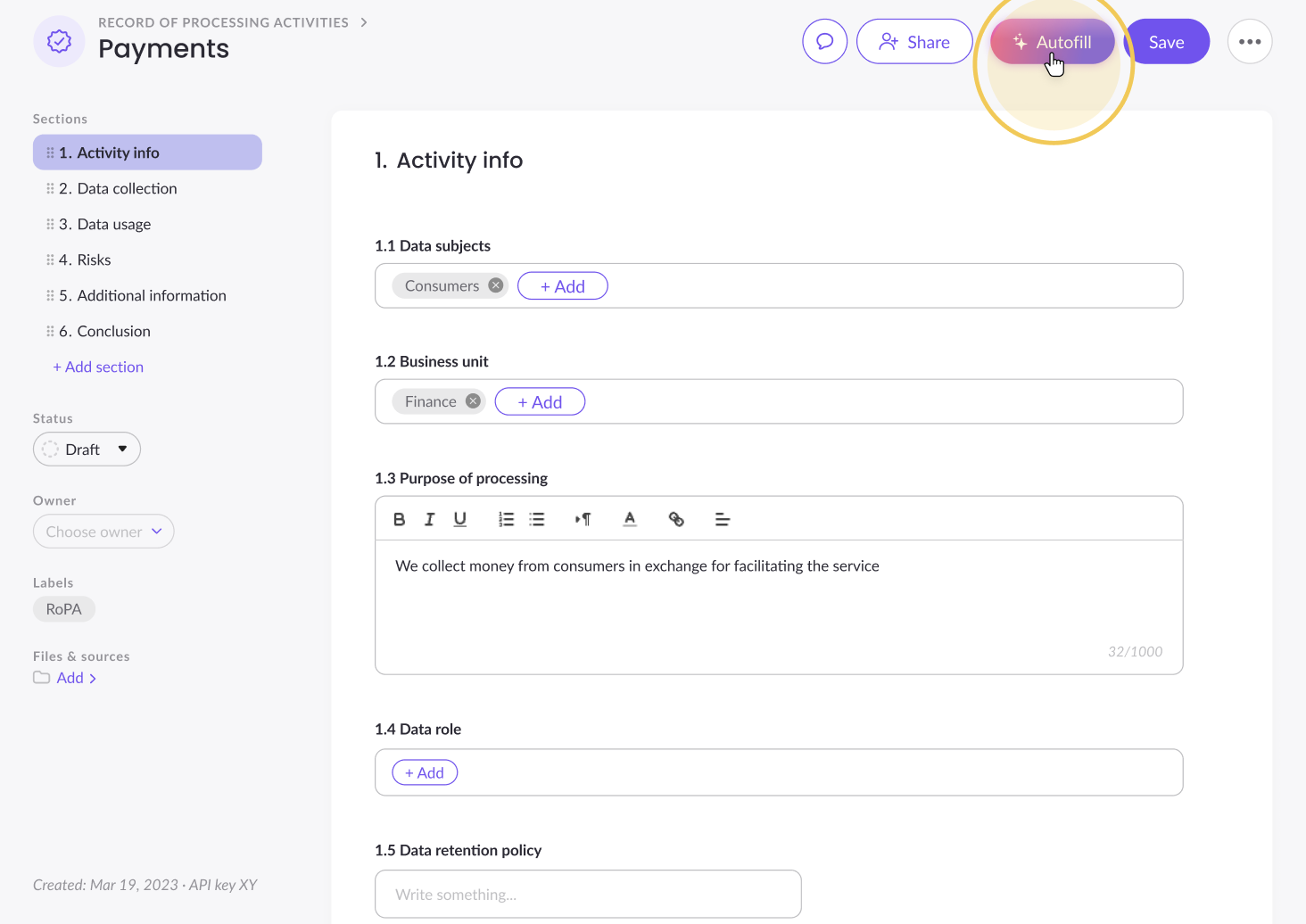
The Mira AI panel
Clicking Mira AI opens a side panel titled Autofill assessment. The panel has three sections you configure before running:
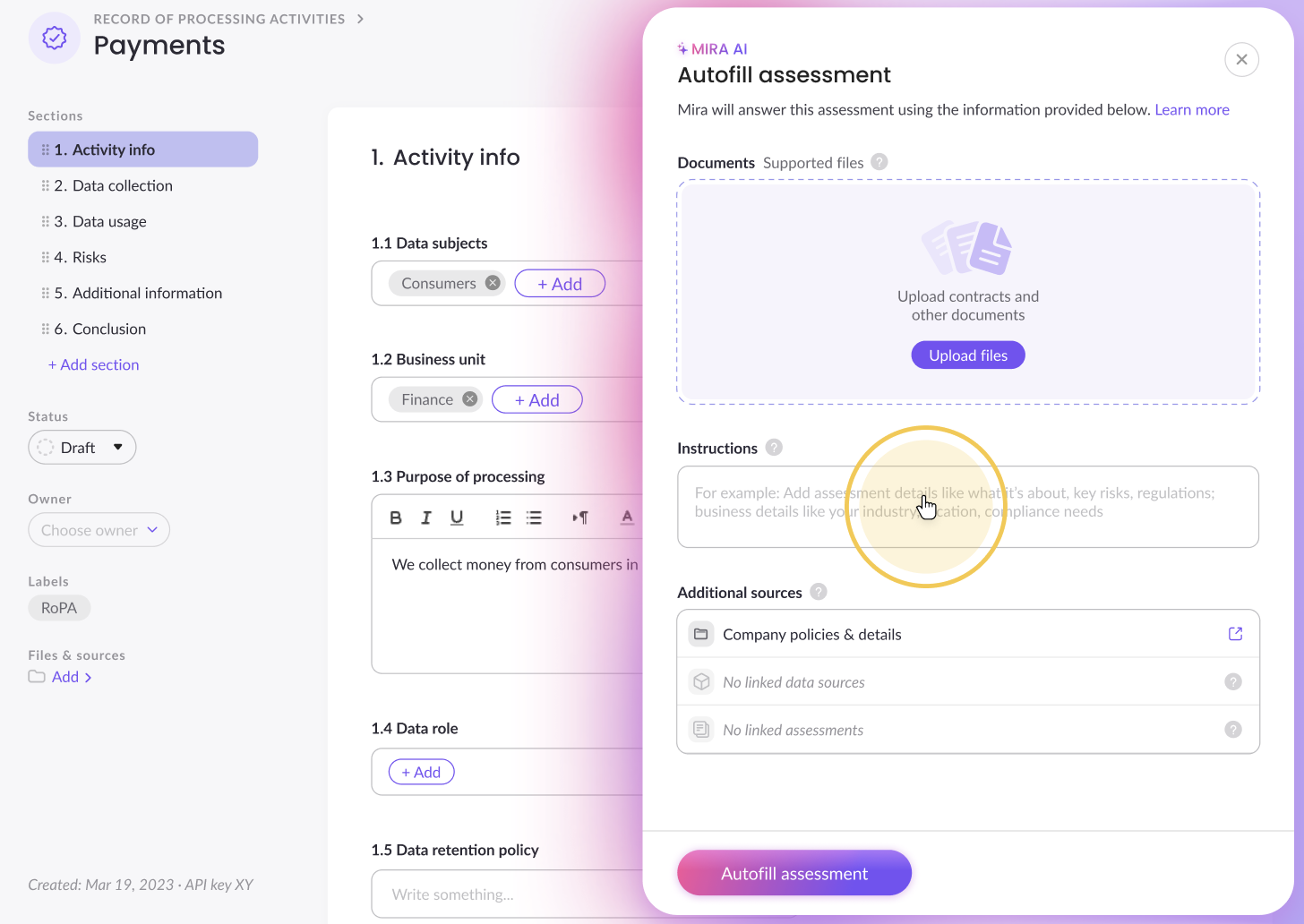
Documents
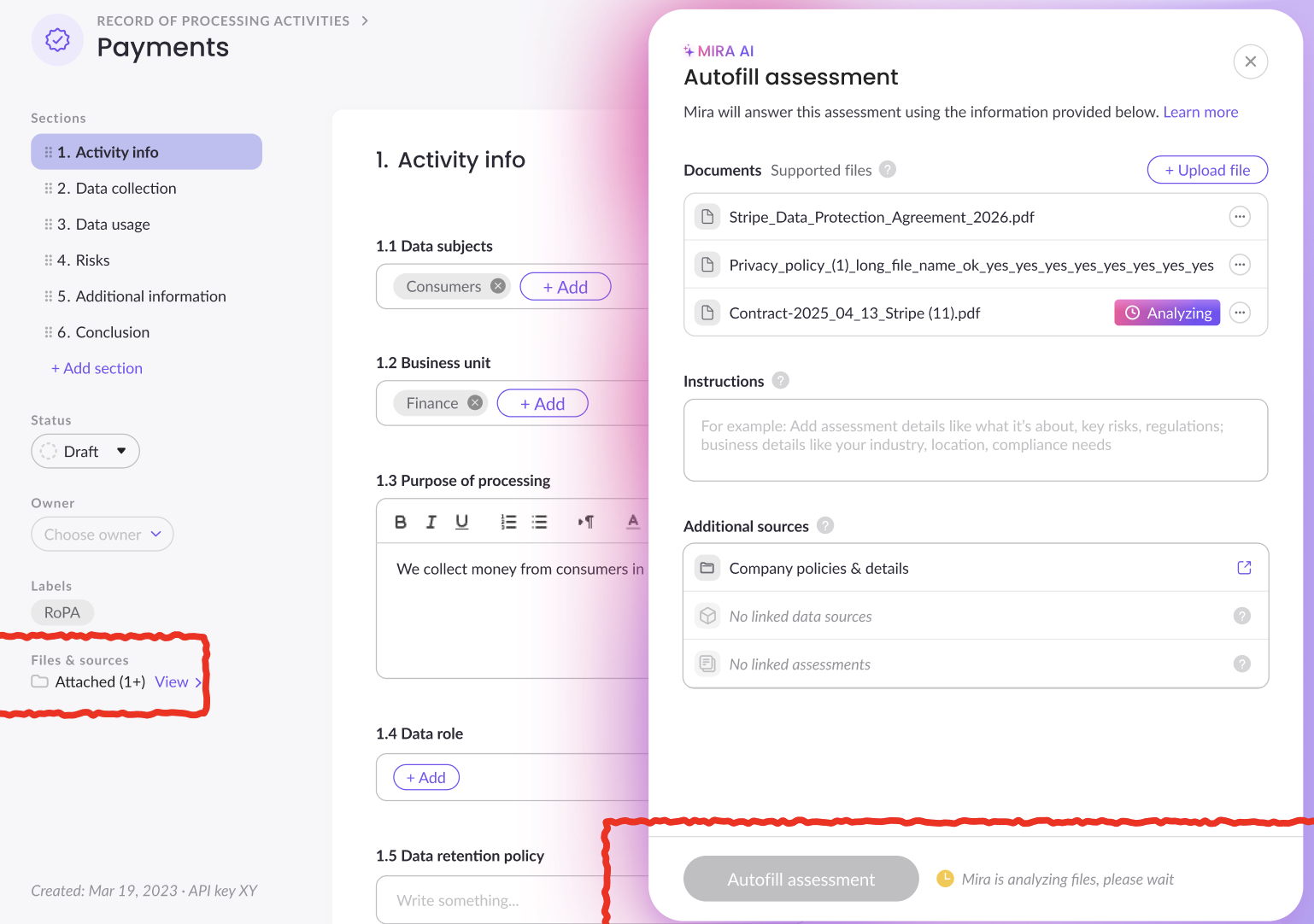
Upload contracts, DPAs, vendor policies, or any supporting files you want Mira to read. Supported file types are shown in the panel. Files are indexed asynchronously — Mira will only use a file once it finishes analyzing it. You can upload files and come back later.
Once files are attached, the Files & sources indicator in the assessment sidebar updates to show how many files are attached. Click View to re-open the panel at any time.
Instructions
Add a free-text prompt scoped to this specific assessment. Use this to give Mira context it can't infer from the form — the regulation it's answering for, the project scope, known risks, or processing purpose.
Examples:
- "Vendor = Stripe; processing = payment transactions; EU customers only; prefer SCCs."
- "This is an internal DPIA for a new HR analytics tool. No children's data. Hosted in Ireland."
Additional sources
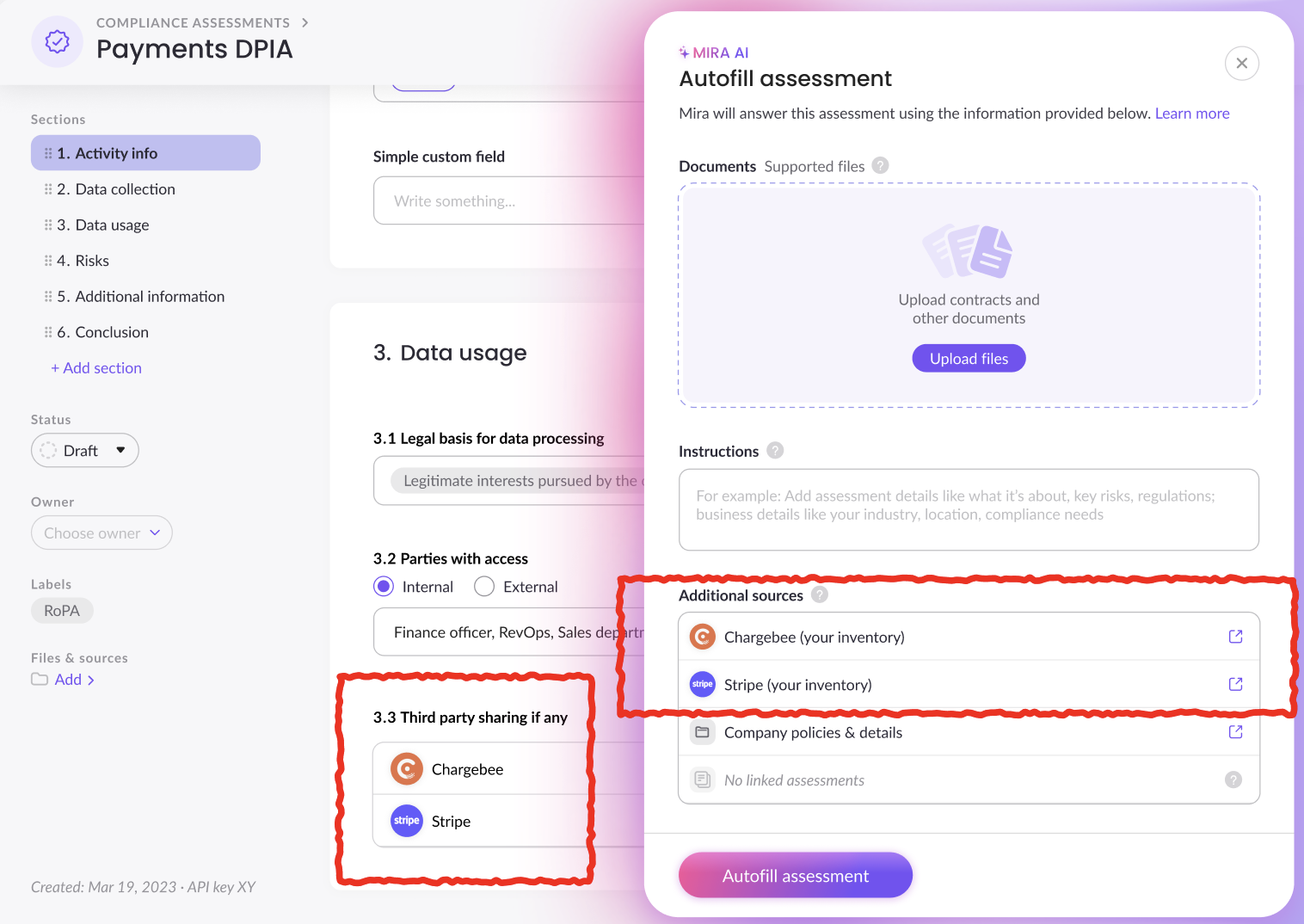
This section shows the context Mira will pull from automatically — you don't need to add anything here, but you can review what's linked:
- Company policies & details — your business profile (industry, regions, regulatory scope). Click the external link icon to review or update it.
- Linked data sources — any data source attached to this assessment. Mira uses it to understand what data is being processed.
- Linked assessments — related assessments linked to this one, if any.
- Form submissions — if the assessment has a connected intake form, submitted responses appear here as a source. Click the row to expand and review the submission fields Mira will use.
Regulation documents (automatic, template-based) — When you use one of MineOS's built-in templates (RoPA, DPIA, TIA, AI Governance, etc.), Mira automatically includes the official regulation documents for that template as context — such as GDPR Article 30, the EDPB DPIA guidelines, the EU AI Act, DORA, NIST AI RMF, or SOC 2/ISO readiness frameworks. You don't need to upload these yourself. The relevant regulation is determined by the template type, so Mira's answers are grounded in the actual regulatory requirements from the start.
Running Mira
Once your documents, instructions, and sources are ready, click Autofill assessment at the bottom of the panel.
Mira runs in the background — you can navigate away and come back. When it finishes, suggestions appear inline next to each question.
Reviewing suggestions
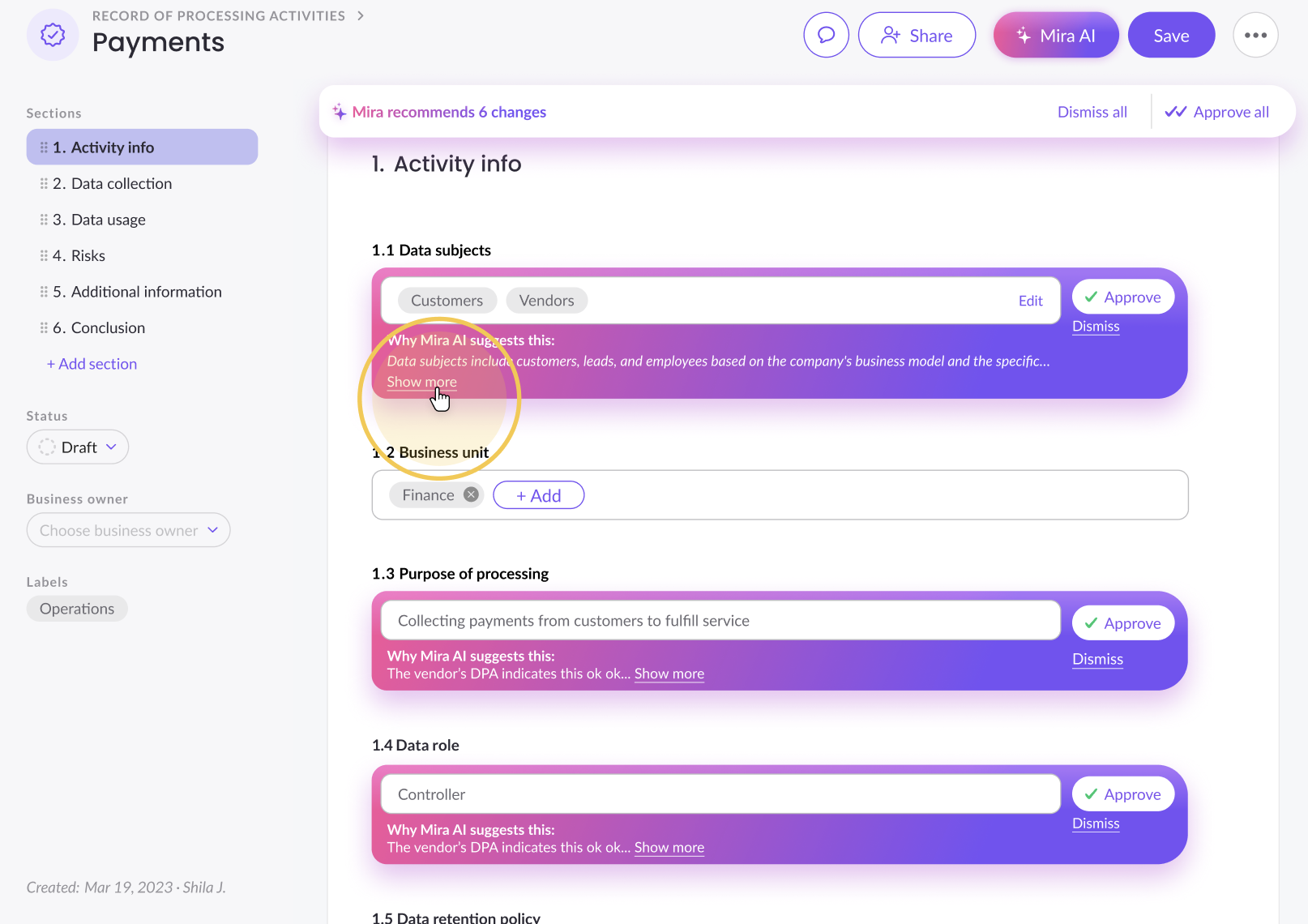
Each suggestion appears inline with a "Why Mira AI suggests this" explanation showing a preview of its reasoning. Click Show more to expand the full evidence, or Show less to collapse it.
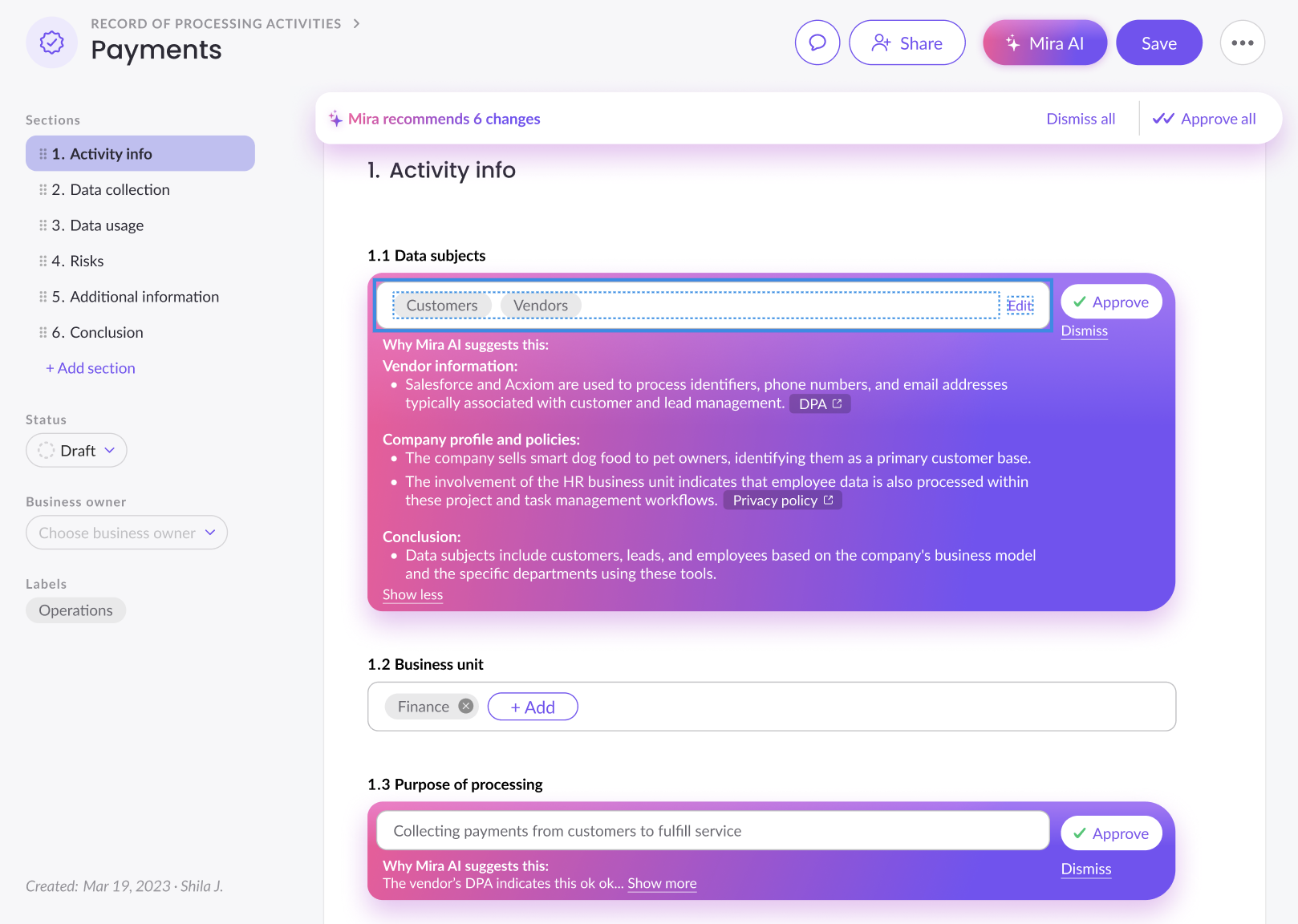
The expanded evidence breaks down Mira's reasoning by source type:
- Vendor information — findings from the uploaded DPA or vendor documentation, tagged with the source (e.g. DPA)
- Company profile and policies — what your business details and policies contributed to the answer, tagged with the source (e.g. Privacy policy)
- Regulatory framework — how the applicable regulation shaped the answer, tagged with the regulation (e.g. GDPR Art. 30, EU AI Act)
- Conclusion — Mira's final reasoning combining all sources into its recommendation
Not every source appears in every suggestion — only the sources that actually contributed to that specific answer are shown.
Per-question actions:
- Approve — applies the suggestion to the field
- Dismiss — removes the suggestion
- Edit — available for select and multi-select fields; lets you modify the suggested value before approving
Bulk actions:
Use Approve all or Dismiss all in the banner at the top of the form to apply or dismiss all visible suggestions at once.
After reviewing, click Save (standard assessment save) to persist all accepted answers.
Evidence is saved with accepted answers
Once you approve a suggestion and save, the evidence and reasoning are stored as part of that answer. Any team member or collaborator can open the field later to review why that answer was given — useful for audits, reviews, or understanding past decisions. If you restore an older version of an assessment, the corresponding evidence is restored with it.
Evidence is not included in assessment exports.
Suggestions are shared across your team
Mira suggestions are company-wide — everyone in your organization sees the same suggestions on the same assessment and works on the same draft together. This means:
- Any team member who opens the assessment sees current suggestions in real time.
- Only one Mira run can be active per assessment at a time. If a run is already in progress when someone else tries to trigger another, they'll see a notification and can wait for results.
- The person who started the run can stop it at any time using Stop run. Stopping removes the in-progress run entirely — no partial suggestions are saved.
- Accepted and rejected decisions are visible to everyone working on the assessment.
Mira for collaborators
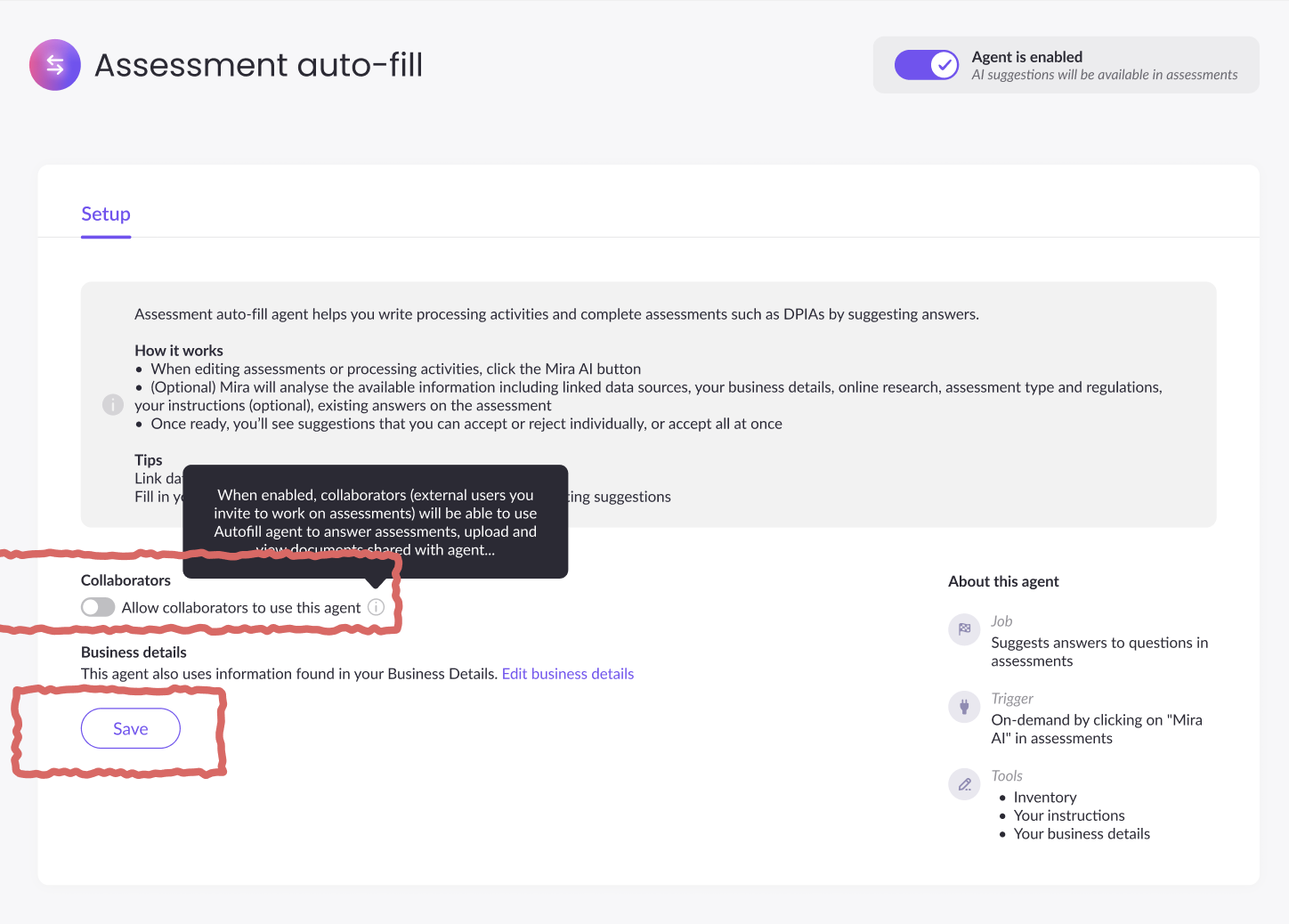
Assessments can be configured to allow external collaborators to use Mira.
Enabling it: Assessment owners can turn this on in the autofill agent page. When enabled, collaborators who open the assessment in edit mode will see the Mira AI button and can run, accept, and reject suggestions.
What collaborators can do:
- Trigger a Mira run (in edit mode only)
- Upload supporting files for Mira's context
- Accept or reject suggestions
What collaborators cannot do:
- Access your company's business details (used by Mira under the hood, not visible to collaborators)
- Change the collaborator autofill setting itself
Automatically adding context with workflows
You can configure MineOS workflows to automatically populate assessment context — so Mira always has what it needs without manual steps.
Examples:
-
Jira → Assessment — When a Jira ticket triggers a new assessment (e.g. a new software request), the ticket details are automatically added as a form submission linked to that assessment. Mira reads the submission as context when it runs, so the assessment is pre-loaded with the project information from the ticket.
-
ZipHQ → Vendor — ZipHQ can automatically attach a vendor's DPA to their record in MineOS when a contract is signed. This means Vendor Scout and related assessment autofill both have the DPA available as context without anyone uploading it manually.
Workflows are configured in Settings → Integrations. For more details on available automations, see the Workflows guide.
What Mira uses
| Source | Details |
|---|---|
| Uploaded documents | Contracts, DPAs, policies — any files attached in the Documents section |
| Instructions | Your free-text prompt scoped to this assessment |
| Company policies & details | Your business profile: industry, regions, regulatory scope, hosting locations |
| Linked data sources | Vendor or system data attached to the assessment |
| Linked assessments | Related assessments connected to this one |
| Form submissions | Intake form responses linked to this assessment (can be populated automatically via workflows) |
| Custom fields & values | Your configured field types and allowed values from Settings |
| Regulation documents | Official regulation text for the template type — included automatically when using a built-in MineOS template (e.g. GDPR Art. 30 for RoPA, EU AI Act for AI Governance assessments) |
Mira never overwrites existing answers. If it isn't confident about a field, it leaves it blank.
Tips & best practices
Upload documents first. Contracts, DPAs, or policies dramatically improve output quality — give Mira time to index them before running.
Use specific instructions. The more context you give (vendor name, regulation, processing scope), the more accurate the suggestions.
Use built-in templates for regulation alignment. MineOS's out-of-the-box templates automatically include the relevant regulation documents as context, so Mira's answers are grounded in the actual regulatory requirements without any extra setup.
Use workflows to pre-load context. Jira, ZipHQ, and other integrations can automatically attach tickets and documents to assessments so Mira has full context before anyone even opens the panel.
Keep your Company Profile updated. A complete business profile improves accuracy across all Mira agents.
Keep your custom values tidy. Well-structured closed lists in Settings help Mira select the right options for select-type fields.
Hide questions you won't use. Removing irrelevant sections from the schema reduces noise and speeds up the run.
Troubleshooting
No suggestions appeared — Check that the assessment status isn't Completed, that your role has permission to run autofill, and that the schema has fillable fields.
Suggestions look generic — Add supporting documents; write a more specific instruction prompt; make sure closed-list fields are populated in Settings.
Wrong values proposed for select fields — Review your custom field configurations and allowed values, then re-run.
Run feels slow — Large files or long templates take more time. You can navigate away and return when Mira is done.
Updated 25 days ago