
Authorized Agent Support
Allow data subjects to submit privacy requests through an authorized agent acting on their behalf.
An authorized agent is a person or entity — such as a parent, legal representative, or claims firm — authorized to submit a privacy request on behalf of a data subject. When enabled, the form collects the agent's contact details and a supporting document to verify their authority.
Authorized agent support is configured through the Data subject element in Form details.
Setting up the Data subject element
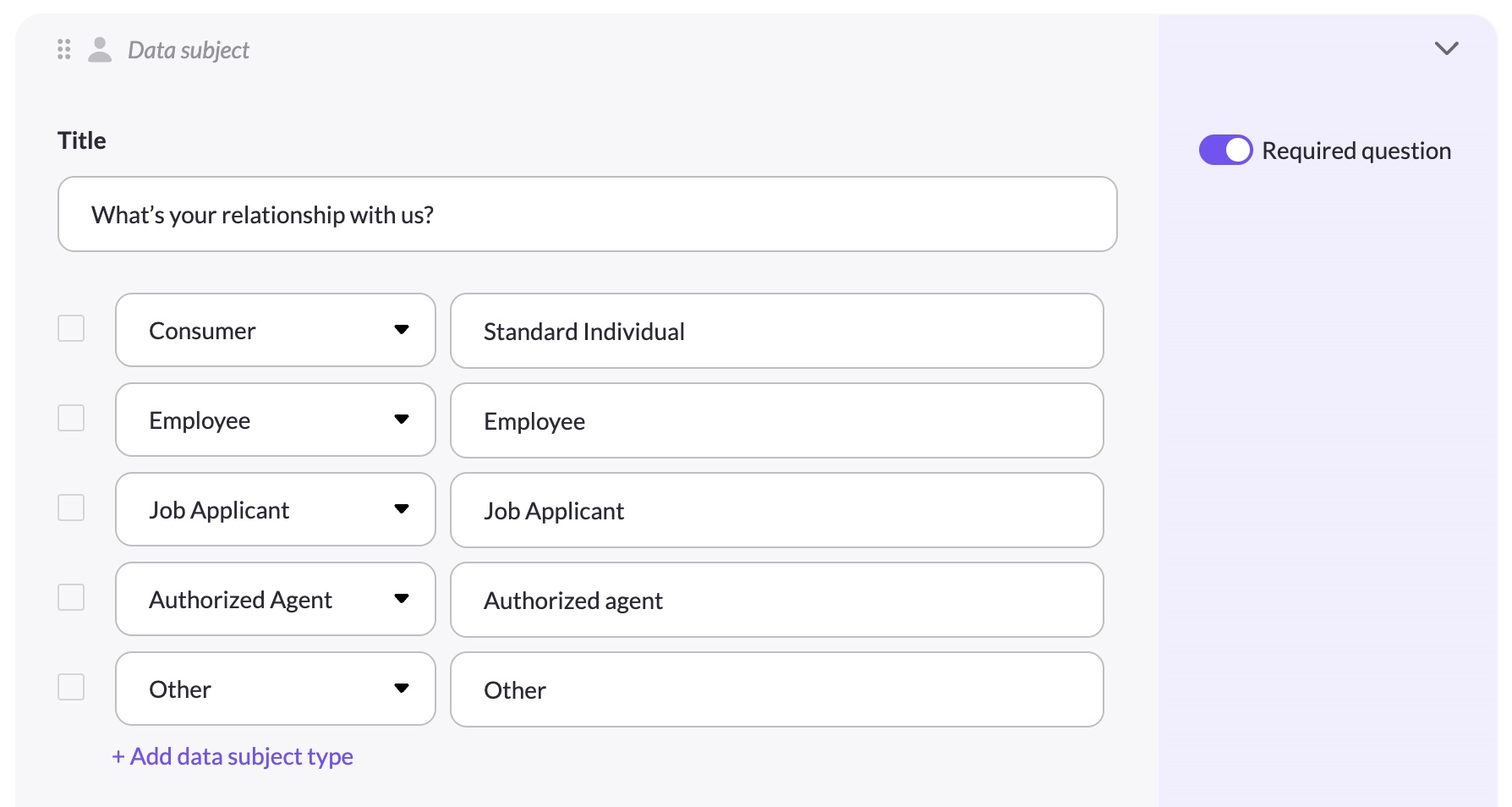
The Data subject element lets you define the types of requestors your form accepts. Each row has two fields:
- Type — a dropdown classifying the requestor:
Consumer,Employee,Job Applicant, orAuthorized Agent - Label — the display name shown to data subjects on the form (e.g. "Standard Individual", "Authorized agent: Parent / Guardian")
To add a new data subject type, click + Add data subject type. To remove one, click the × icon on its row.
Enabling authorized agent options
To enable authorized agent support, add at least one row with Type set to Authorized Agent. You can add multiple authorized agent rows with different labels — for example:
- Authorized agent: Parent / Guardian
- Authorized agent: Legal / Claims Firm
- Authorized agent: Licensing Authority
- Authorized agent: Law Enforcement
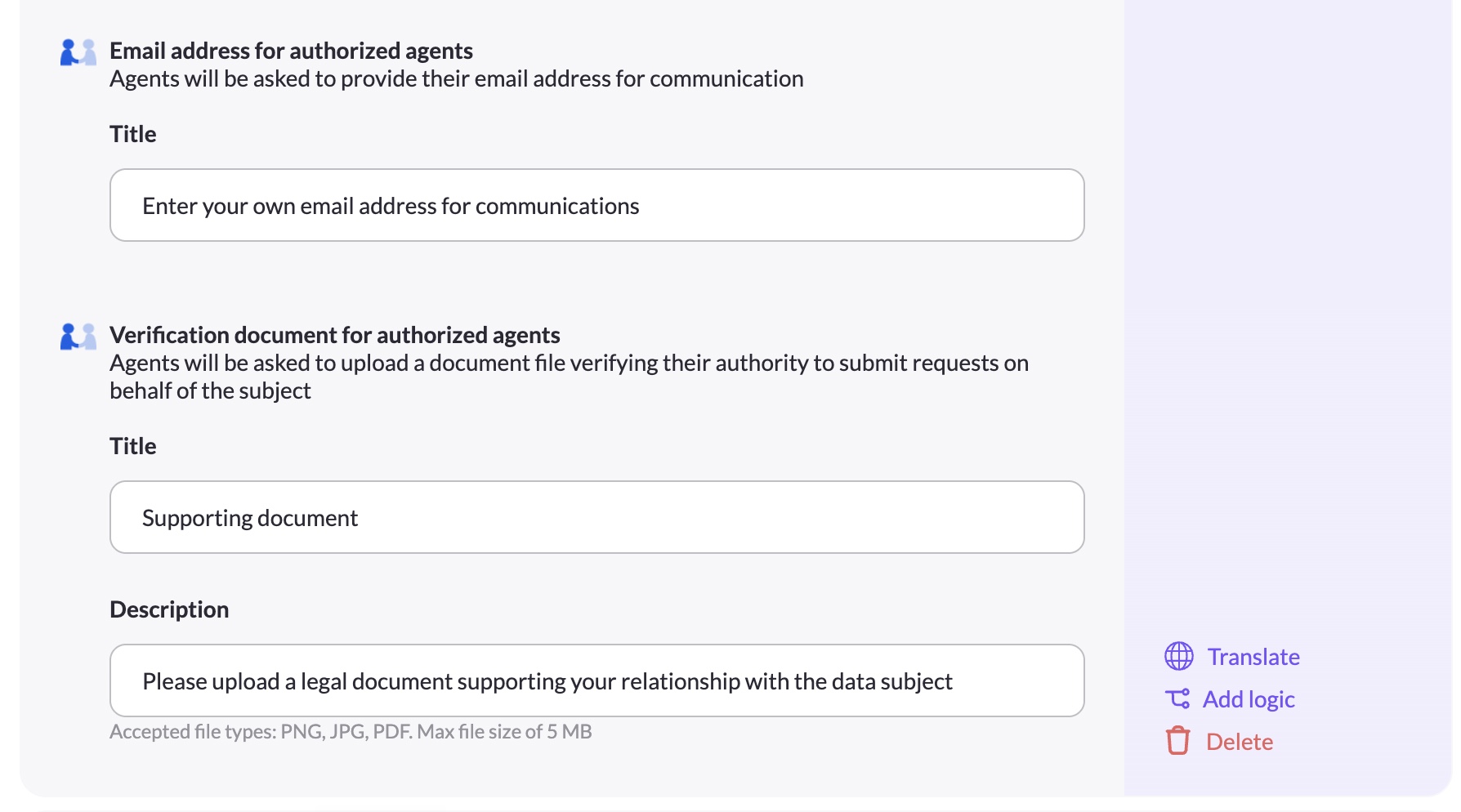
As soon as at least one Authorized Agent row exists, two additional sub-fields appear automatically at the bottom of the Data subject element:
Email address for authorized agents
A required email input shown to the agent on the live form when they select an Authorized Agent option. You configure the label text that appears above this field.
Verification document for authorized agents
A file upload field shown to the agent on the live form. You configure both the label and the description text. Accepted file types: PNG, JPG, PDF. Max file size: 5 MB.
What data subjects see on the form
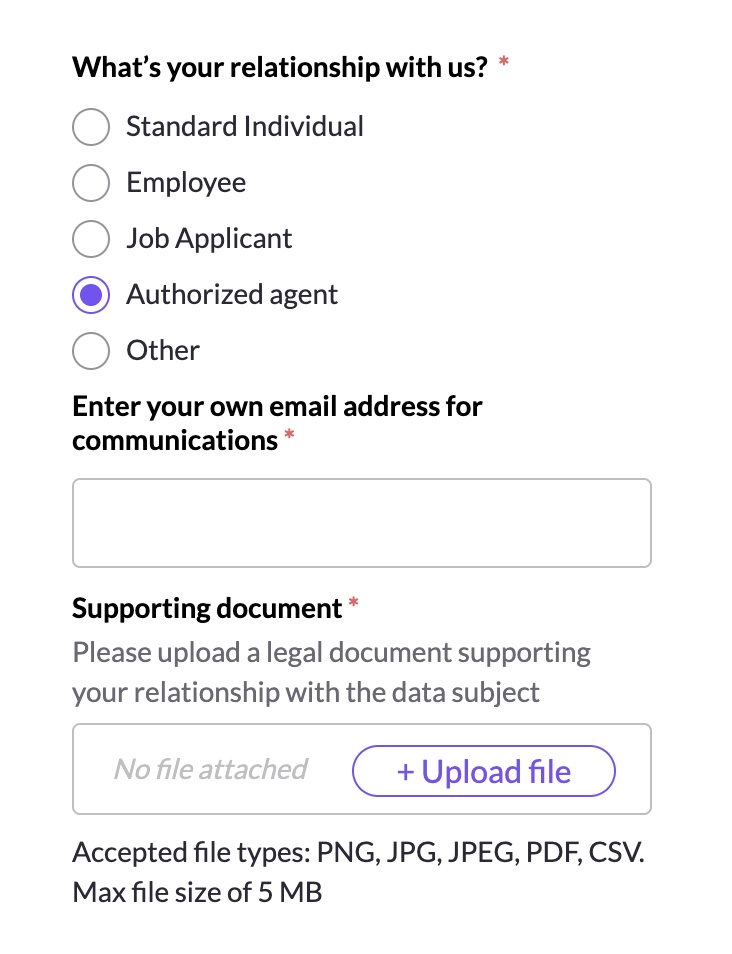
When a data subject selects an Authorized Agent option on the live form:
- An email input appears asking for the agent's own email address
- A file upload field appears asking for a supporting document verifying their authority to act on behalf of the data subject
How communication works
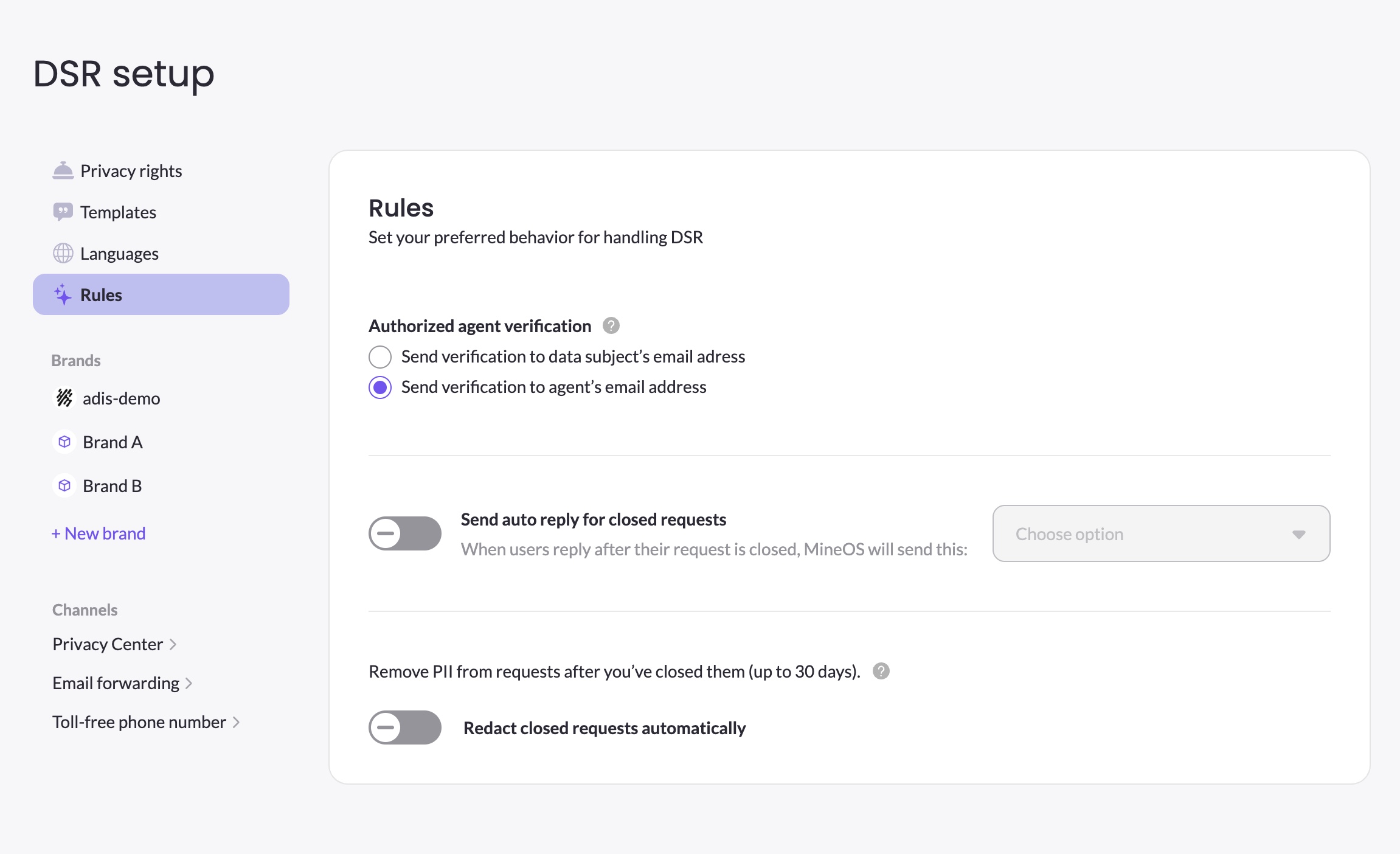
When an authorized agent submits a request, MineOS sends a verification email to either the data subject or the authorized agent — depending on how you've configured the Authorized agent verification setting in DSR Setup → Rules.
- Send verification to data subject's email address — the data subject receives the verification email and must confirm their identity and that they authorized the agent to act on their behalf
- Send verification to agent's email address — the authorized agent receives the verification email directly
Once verification is complete, the request moves to an active processing state in your Requests page.
To configure this setting, go to DSR → DSR setup → Rules.
Things to keep in mind
- The authorized agent's email address cannot be the same as the data subject's email address — this is enforced on form submission.
- The Data subject element can have logic applied to it — for example, you could show it only for specific countries or privacy rights. See Setting Up Conditional Logic.
- All labels and descriptions in the Data subject element are translatable. See Languages & Translations.
Updated 3 months ago