
Cloud discovery - AWS
Connect your AWS account to discover the databases, warehouses and storage buckets your teams run, and the regions they’re hosted in.
Cloud discovery finds the data stores your engineering teams run in your cloud accounts, and where each one is hosted. Connecting AWS discovers services such as S3, RDS, Aurora, DynamoDB, DocumentDB, Redshift, Neptune, Timestream, EBS and EFS in the regions you choose.
Before you start
You'll need permission to create IAM users and access keys in your AWS account, and a list of the AWS regions where your data stores run.
Step 1: Create an IAM user for MineOS
- Sign in to the AWS Management Console and open IAM.
- Go to Users and click Create user.
- Name the user, for example mineos-discovery, and click Next.
- Select Attach policies directly.
- Search for and select ReadOnlyAccess, then click Next and Create user.
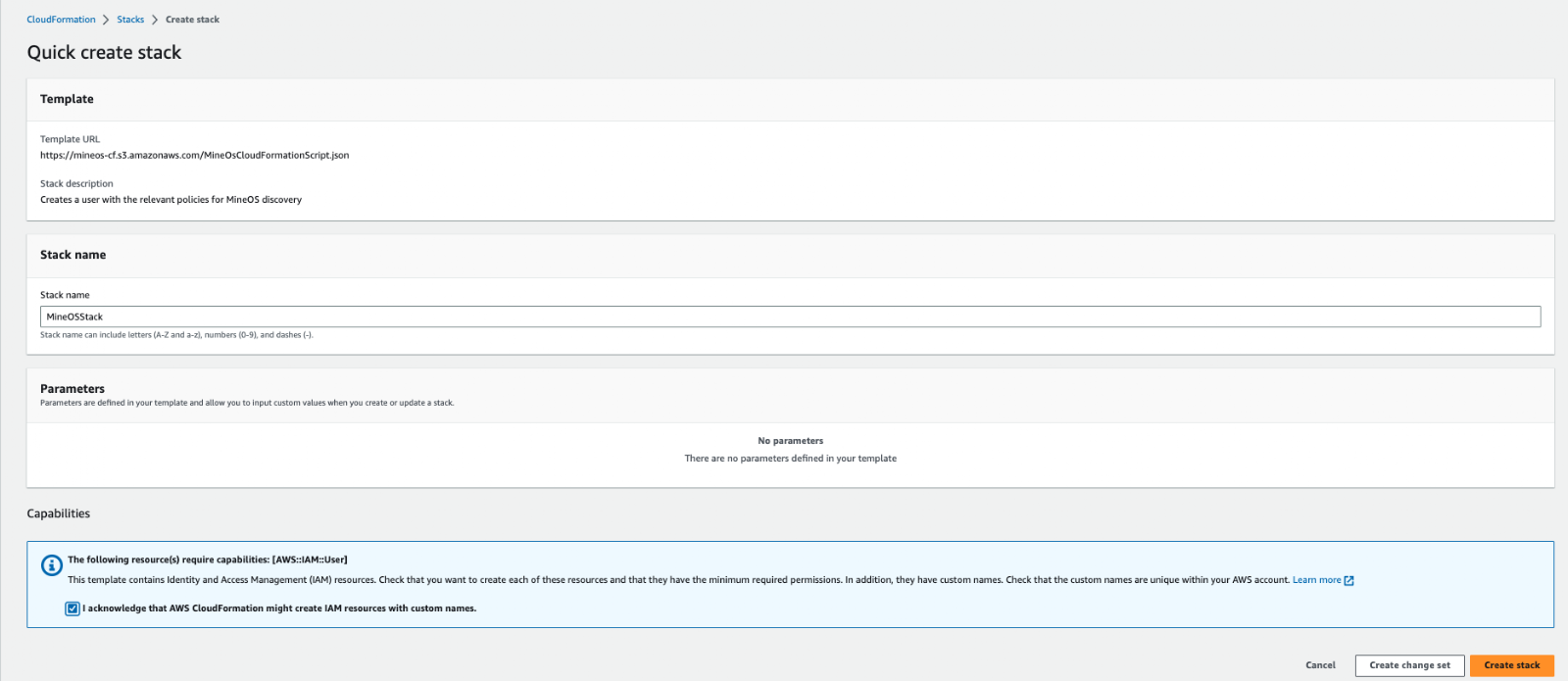
Attach ReadOnlyAccess directly to the user, not through a group. MineOS checks for the policy on the user itself, and the connection fails if it's only inherited from a group.
Step 2: Create an access key
- Open the user you created and go to the Security credentials tab.
- Under Access keys, click Create access key.
- Select Third-party service as the use case, and click Next.
- Click Create access key.
- Copy the Access key ID and Secret access key. You won't be able to view the secret again.
Step 3: Connect in MineOS
-
Sign in to MineOS.
-
In the left navigation, under Data mapping, select Radar.
-
Click Radar Setup.
-
Under Cloud, select AWS.
-
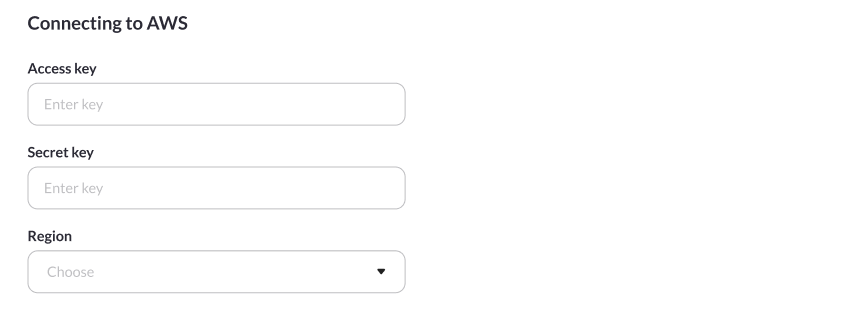
Paste the access key ID and secret access key.
-
Select the regions you want MineOS to scan.
-
Click on the Test & Save button
-
If the test & save is successful the "Start scan" button will be available to you. Click on the button to start scanning. This may take some time, the scanning results will start appearing in the Radar in your MineOS account.

MineOS tests the connection. A message confirms it was successful, and discovery starts.
Permissions
| Policy | Why MineOS needs it |
|---|---|
arn:aws:iam::aws:policy/ReadOnlyAccess | Read-only access to list your data stores in each selected region, without changing any resources or reading their contents |
Troubleshooting
| Message | What to check |
|---|---|
| The following regions are not available in your AWS account | One or more of the regions you selected isn't enabled in your account. Enable them in AWS, or deselect them in MineOS. |
| Missing ReadOnlyAccess policy | ReadOnlyAccess is attached directly to the IAM user, not only to a group the user belongs to |
| Credentials error | The access key ID and secret are copied correctly, the key is active, and the regions you selected are enabled |
What happens next
Discovered data stores appear in Radar, with the region each one is hosted in. Add the ones that hold personal data to your inventory, and connect them to classification to see what data they contain. See Reviewing findings and Classification quickstart.
To scan more regions later, return to the AWS connection in Radar and update your selection. [confirm: regions can be edited after connecting]
Related articles
- Discover your data sources with Radar: all discovery methods
- Visualize data flows: see where data is hosted for each processing activity
Updated 20 days ago