
Using the Managed Suppression List DSR Helper
The DSR Helper writes privacy choices to the Managed Suppression List as part of a data subject request workflow — so every processed request automatically creates or updates the corresponding registry entry.
Set up the integration
- Go to the Inventory screen and add DSR Helper.
- Under DSR & Integrations, select Managed Suppression List.
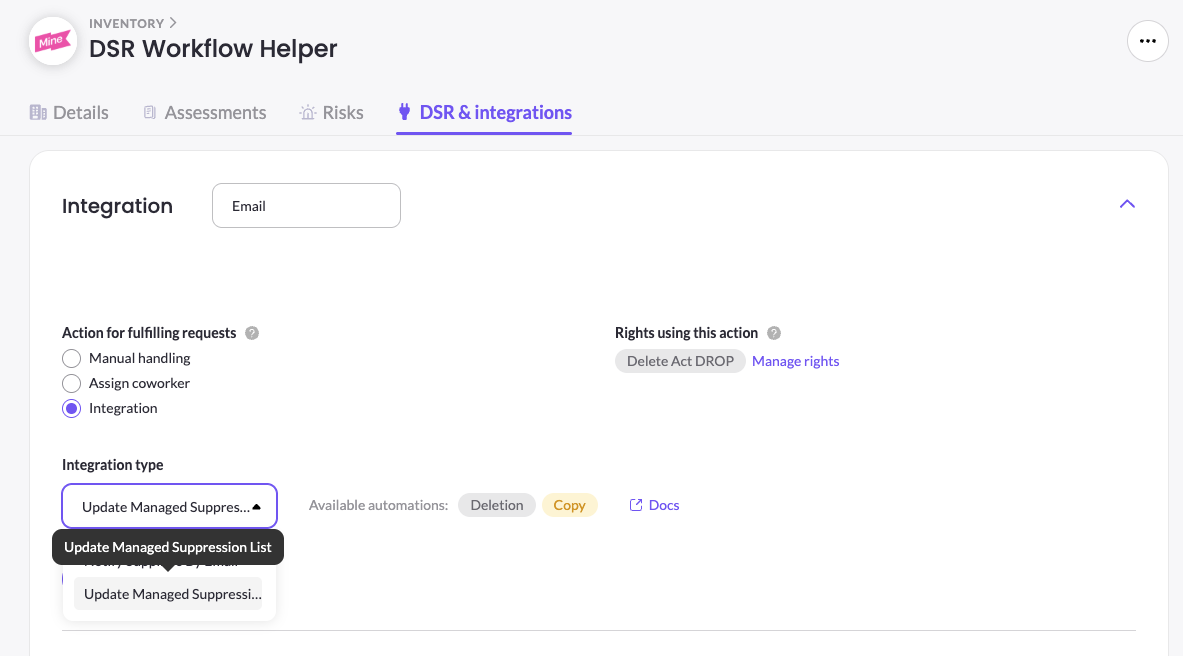
Configure it
- Click Edit Integration on the integration.
- Select the identifier type and the consent signal to update. Optionally, add an audit note — it will be recorded on every entry this helper writes, providing context for audit and review.
Add it to a workflow
- Go to DSR Setup, select the privacy right, and add the DSR Helper to the appropriate workflow.
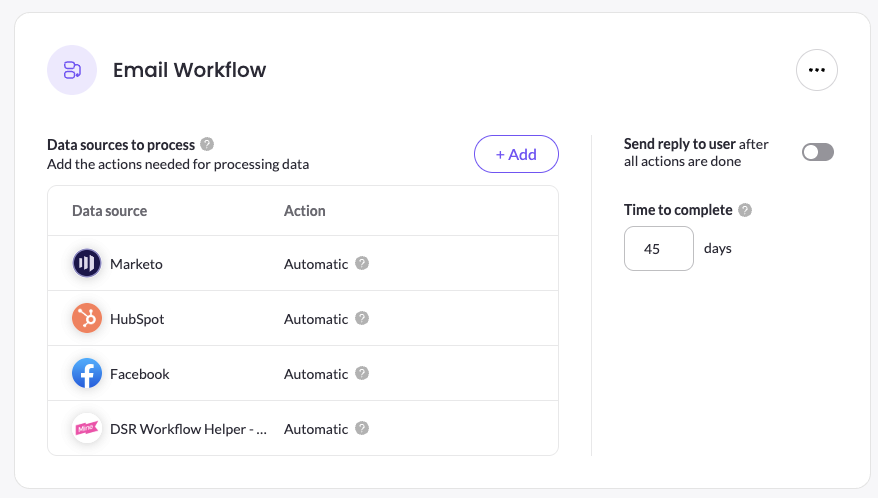
From this point on, every data subject request processed through that workflow adds or updates an entry in the Managed Suppression List — with the configured identifier type, consent signal, and audit note.
Tip: You can create multiple instances of the DSR Helper. Add several to one workflow to record multiple choices from a single request — for example, a deletion request that also applies a marketing opt-out — or reuse them across different workflows, each with its own configuration.
Updated 3 months ago
Did this page help you?