
Assign Coworker: Create a Task on Mine
Assign a teammate to a system so every request opens a DSR task in their My tasks queue, and MineOS updates the request when they submit it.
Some systems are managed by people outside your privacy team. With Create a task on Mine, you assign one of your teammates to a system. Each time a request reaches that system, MineOS adds a DSR task to the teammate's My tasks queue. A DSR task is a request for one person to delete or collect data in one system. The teammate handles it without leaving MineOS, and the request is updated as soon as they submit their result.
Create a task on Mine is one of three ways to assign a coworker to a system. The other two are sending an email and creating a task on Jira.
Supports deletion and copy requestsCreate a task on Mine works for both deletion and copy (access) requests. For copy requests, the teammate uploads the data files directly in the task.
Who can be assigned
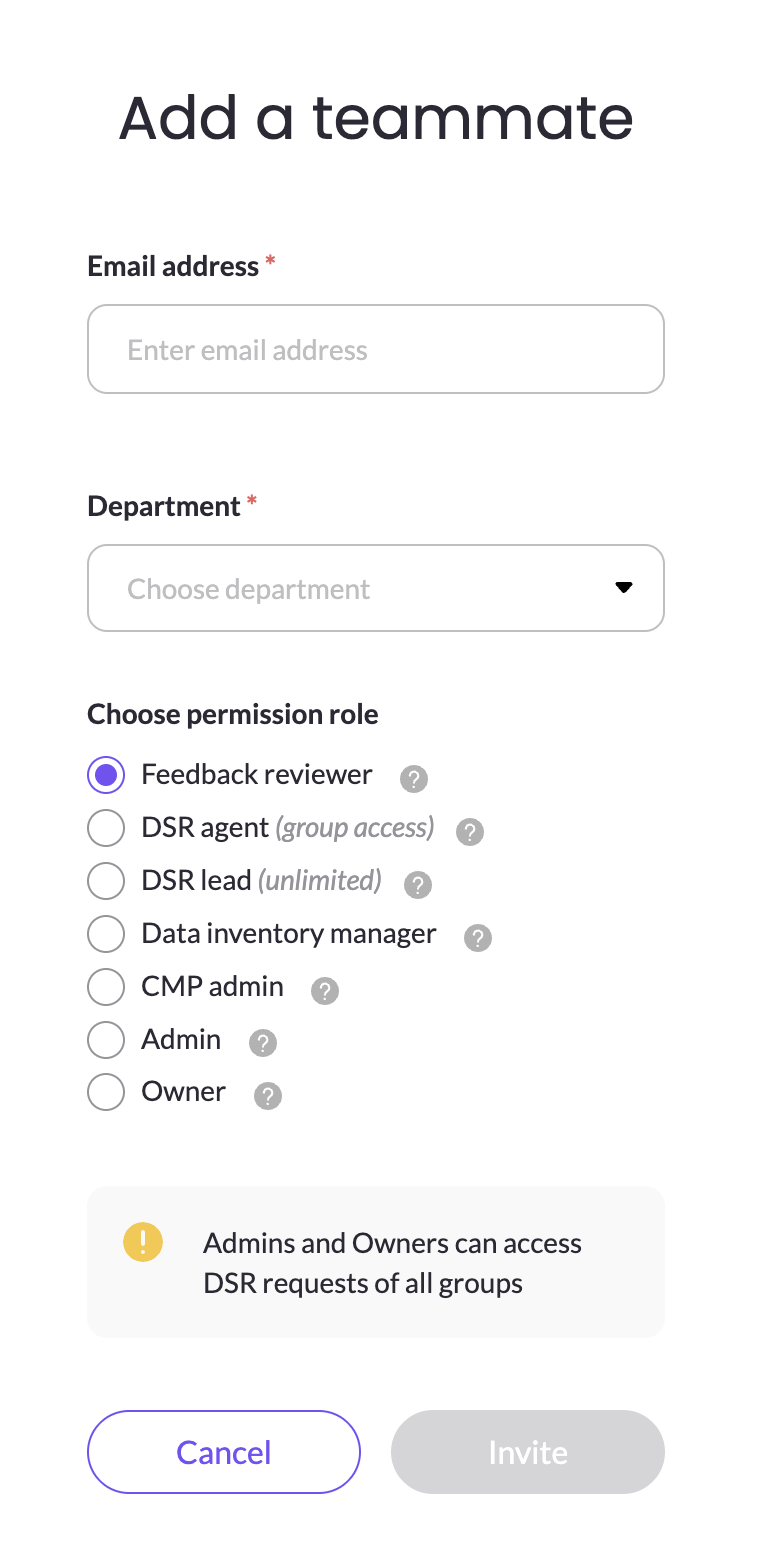
You can assign any teammate who has a MineOS account, whatever their role. If the person you need doesn't have an account yet, invite them first in the Add a teammate window. You can't assign yourself: the person setting up the system doesn't appear in the list of coworkers.
If the teammate only needs to handle tasks, select Feedback reviewer under Choose permission role when you invite or edit them. A Feedback reviewer has the most limited access in MineOS. They can see the tasks assigned to them in My tasks, plus What's new, Help, Chat and their own profile and notification settings. They can't make changes anywhere else in the platform. See Manage User Roles and Permissions for all roles.
Set up Create a task on Mine
-
Open the system's page and go to the DSR & integrations tab.
-
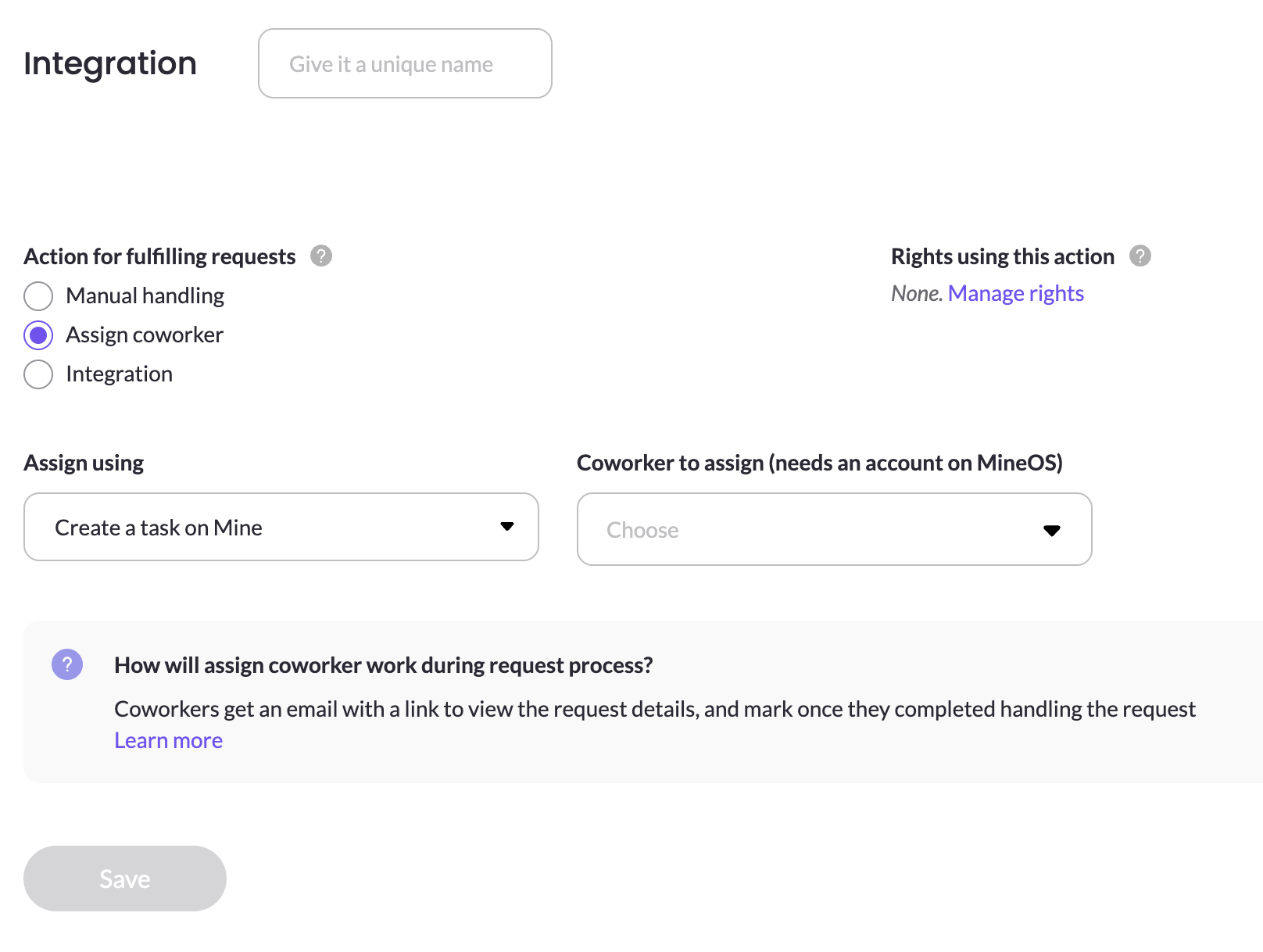
Under Action for fulfilling requests, select Assign coworker.
-
In Assign using, choose Create a task on Mine.
-
In Coworker to assign (needs an account on MineOS), click Choose, then search for the teammate by name or email and select them.
-
Save your changes.
In the privacy right's workflow, the system shows the action Assign coworker (Mine task). Hover over it to see who will be assigned.
What happens when a request comes in
When the system runs in a request, whether you start it yourself or Autopilot does, MineOS:
- Adds a DSR task to the assigned teammate's My tasks queue, under the Open view.
- Sends the teammate an email titled DSR task: "[privacy right name]" request #[request ID]. The email has a Review task button that opens the task in MineOS. It doesn't include any of the data subject's personal data, which can only be seen in MineOS. This keeps the personal data out of inboxes, in line with the data minimisation principle in GDPR Article 5(1)(c).
- Moves the system to In progress in the request and shows Waiting for followed by the teammate's email address.
Complete a DSR task
The assigned teammate handles the task from My tasks:
- Open My tasks and click the task. Its type is DSR task.
- The task panel shows the request type, the data source, the data subject's email, the due date, the details the data subject provided and the request's metadata.
- Process the request in the system. For a copy request, upload the files with the data you collected.
- Under Outcome, choose the result that applies:
| Request type | Outcome | What happens to the system in the request |
|---|---|---|
| Deletion | I completed the task | Marked Completed |
| Deletion | I couldn't complete the task | Marked Failed |
| Copy | I attached the data | Marked Completed with the uploaded files. At least one file is required. |
| Copy | No data was found | Marked Completed with no files |
| Copy | I couldn't attach the data | Marked Failed |
- Add a note if you want. A note is required when you choose I couldn't complete the task or I couldn't attach the data, so your privacy team knows what went wrong.
- Click Submit, then click Confirm. You can't change the outcome after you confirm.
The task then moves to the Completed view in My tasks.
How the request is updated
The outcome, the teammate's note, their email address and the submission time are added to the request's audit log. This gives you a record of who handled each system and when, which helps you show accountability for data subject requests, as GDPR Article 5(2) requires.
- Completed systems show Completed by followed by the teammate's email address, and count toward finishing the request like any other completed system. For a copy request, the uploaded files appear on the system once it's completed, and you can manage them like the files of a manual system.
- Failed systems show the teammate's note as the error message, so you can follow up or handle the system another way.
The teammate has 14 days to submit the task. If no outcome is submitted by then, the system is marked Failed.
Mark the system as completed from the request page
You don't have to wait for the teammate. If the system was already handled another way, or the teammate is unavailable, you can complete it yourself from the request page:
- Open the request and find the system in the In progress section.
- Click the three-dot menu next to the system and select Mark as completed.
- A confirmation window explains that marking the system as completed cancels the task assigned to your teammate. Click Mark as completed anyway.
The system moves to Completed, and the action is recorded in the request's audit log. The teammate's task is closed in My tasks, and they can no longer submit an outcome for it.
This option is available to teammates who can process the request, and works for both deletion and copy requests.
Updated about 1 hour ago