
Languages in the DSR setup
The account-wide master list of languages that powers every translation across the platform
The Languages page in DSR Setup is where you manage the languages your company provides customer service in. This is the account-wide master list: any language you want to use anywhere in the platform — your Privacy Centers, email templates, or privacy right names — must be added here first.
To find it, go to DSR > DSR setup > Languages.
Adding a language
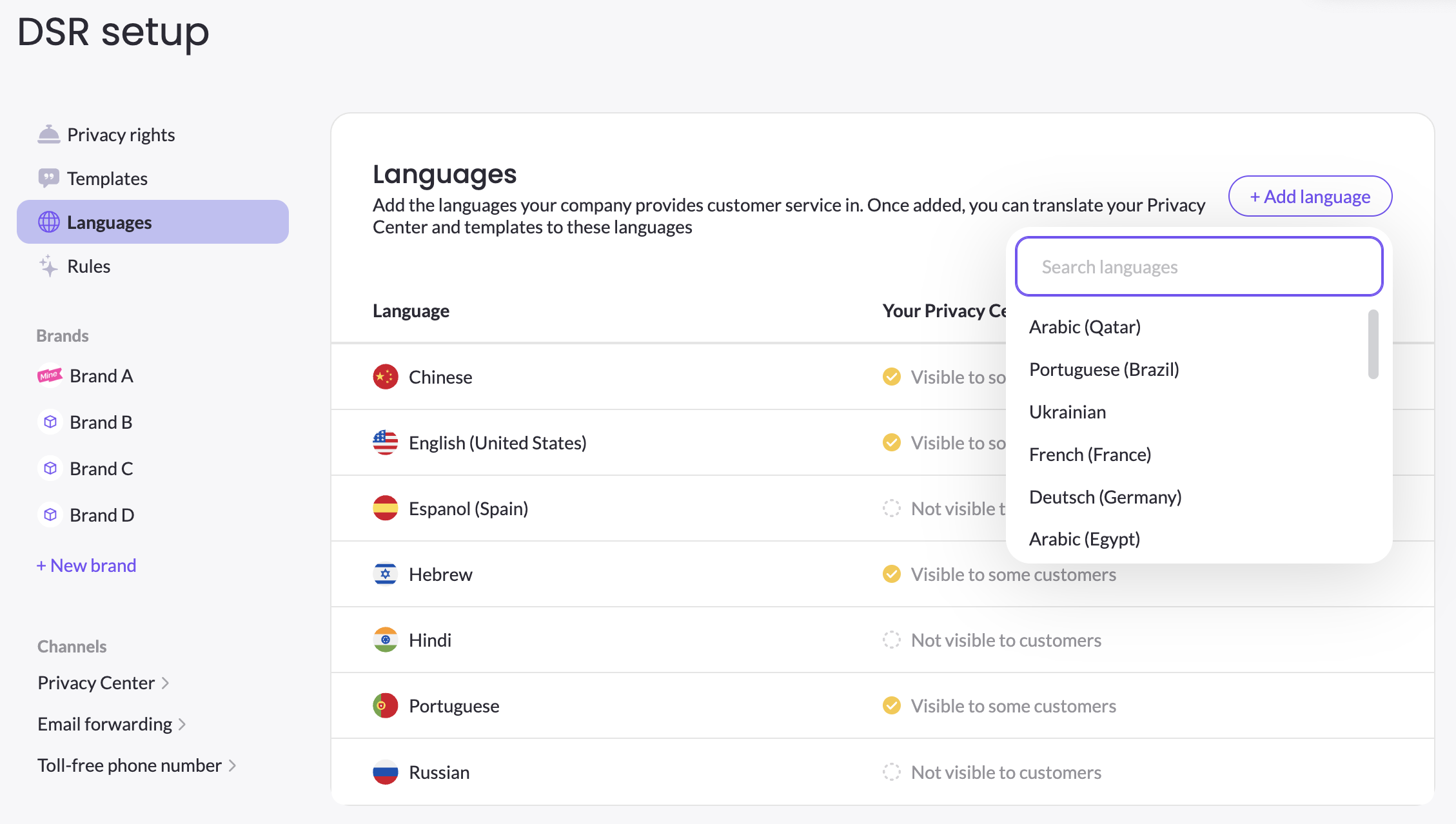
Click + Add language, search for the language you need, and select it. Once a language is on this list, it becomes available to translate into across the rest of the platform. Note that this doesn't make the language visible to customers on its own — adding it here simply unlocks it for use; you still enable and translate it in each place it's needed.
How this list connects to the rest of the platform
Adding a language here is the first step. Where it actually shows up — and what needs translating — depends on the area:
- Privacy Center — each brand's Privacy Center has its own Languages tab where you choose which of the global languages appear in the form's language dropdown. A language must exist in this master list before it can be enabled for a Privacy Center. See Languages & Translations for enabling languages and translating form content per brand.
- Email templates — the language a data subject selects when submitting a request determines the language of every email they receive afterward (verification, status updates, completion). So every language you make available to customers should have translated versions of the templates in use. Manage these under DSR > DSR setup > Templates.
- Privacy right names and descriptions — the display names and descriptions of your privacy rights (for example, "Delete my data") are translated in DSR > DSR setup > Privacy rights. These translations are global — they apply across all brands and Privacy Centers.
Because a data subject's chosen language follows them through the entire request, the goal is consistency: a language you offer in a Privacy Center should also have its rights and email templates translated, so the whole experience stays in that language end to end.
Understanding the visibility status
Each language shows a status under Your Privacy Center in this language, reflecting how it's currently used across your published Privacy Centers:
- Visible to customers — enabled in all of your Privacy Centers.
- Visible to some customers — enabled in at least one Privacy Center, but not all of them.
- Not visible to customers — not enabled in any Privacy Center.
This status is based on published Privacy Centers only. If you've enabled a language in a draft but haven't published yet, it still counts as not visible here until you publish.
Updated 3 months ago