
Flagging risks in assessments
Flag risks while completing an assessment, review risks suggested by Mira AI with their evidence, and label risks so the right teams can act on them.
Identifying risks is the goal of most assessments. In MineOS, you flag risks directly inside the assessment you're completing, either by choosing from your risk catalog or by reviewing risks suggested by Mira AI from your answers and inventory. Every risk you flag is added to your risk registry automatically and linked to the systems it affects.
What a flagged risk includes
| Detail | What it means |
|---|---|
| Risk | The risk type, chosen from your risk catalog |
| Description | What the risk means, as defined in your risk catalog |
| Labels | Categories such as security, privacy, legal or AI, so each team can find its risks |
| Sources | The questions in the assessment that led to the risk |
| Inherent risk level | Its severity before mitigations |
| Mitigations | The controls in place or planned |
| Residual risk level | What remains after mitigations |
Before you start: add a risk question
Risks are flagged through a Risk question in the assessment. If the assessment's template doesn't include one, you won't be able to add risks to it.
To add a risk question to a template:
- Open the template in the template editor. See Building Templates.
- In the section where you want to capture risks, add a new question.
- Set the question type to Risk.
- Save the template.
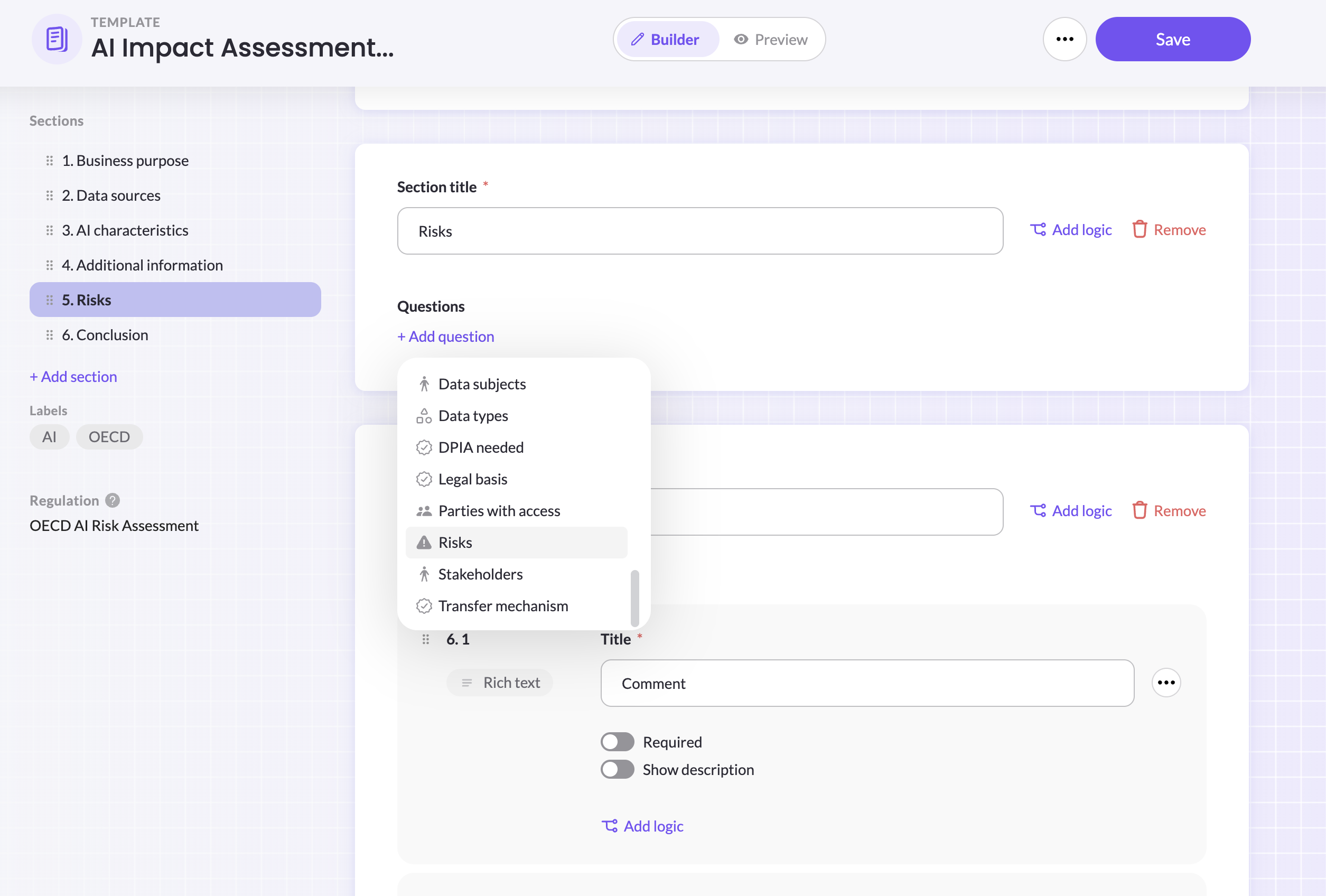
Assessments created from the template from then on will include the risk question. Changes to a template don't apply to assessments already created from it. To flag risks in an existing assessment, add a Risk question directly in that assessment instead.
Flag a risk
- Open the assessment.
- Go to the Risk question.
- Select a risk from your risk catalog.
- Set the inherent risk level.
- Add any mitigations already in place, and set the residual risk level.
- Click Save.
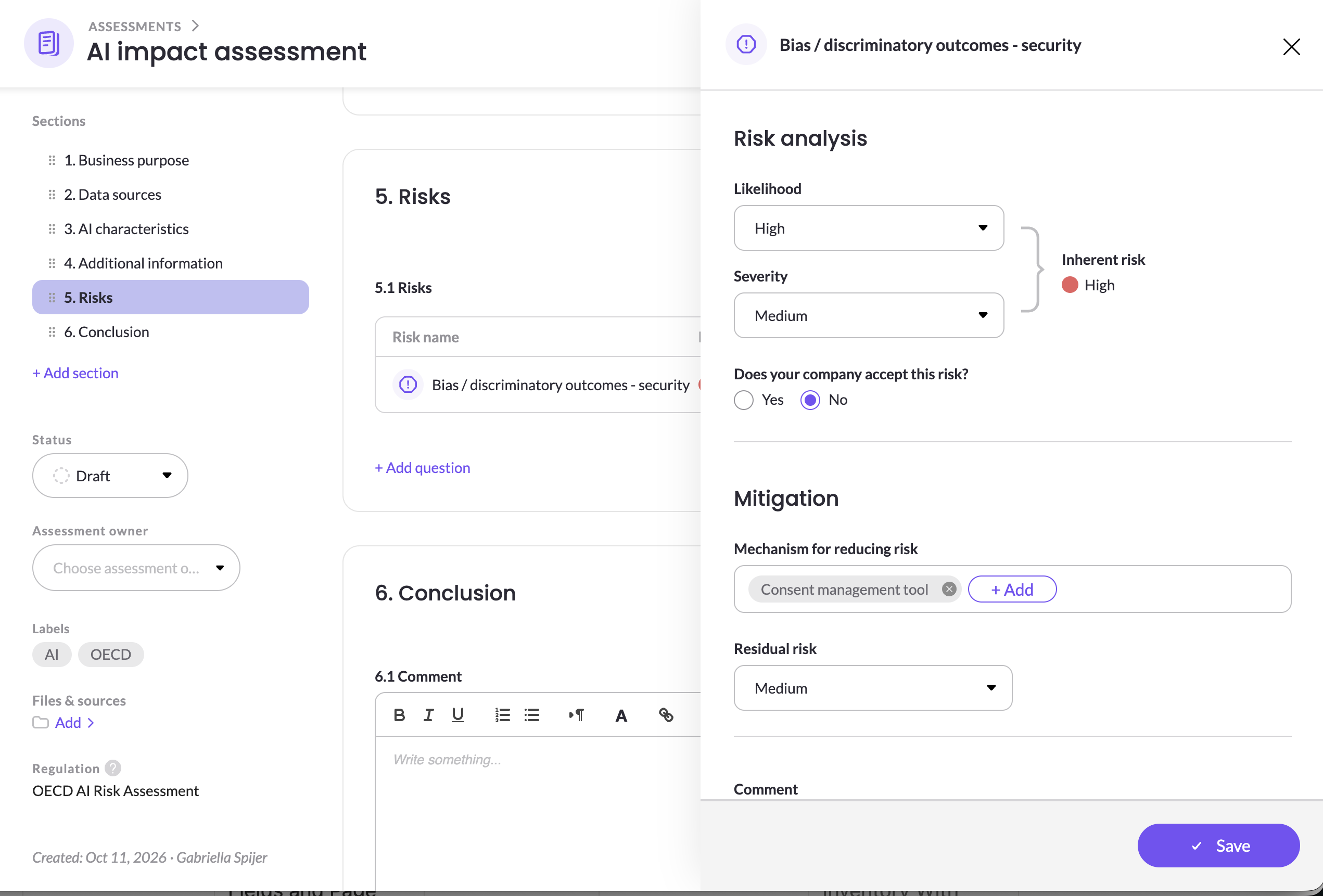
The risk now appears in your risk registry, and on the Risks tab of each data source linked to the assessment.
Flag a risk from a question
When an answer reveals a risk, you can flag it right from that question. The question is saved as the risk's source, so anyone reviewing the risk can see exactly where it came from.
- On the question, select Flag risk.
- Under Risk, choose a risk. Risks already in this assessment are listed in their own group, so you can link the question to an existing risk instead of adding a duplicate.
- Click Update.
You can flag several questions to the same risk. Each one is added as a source.
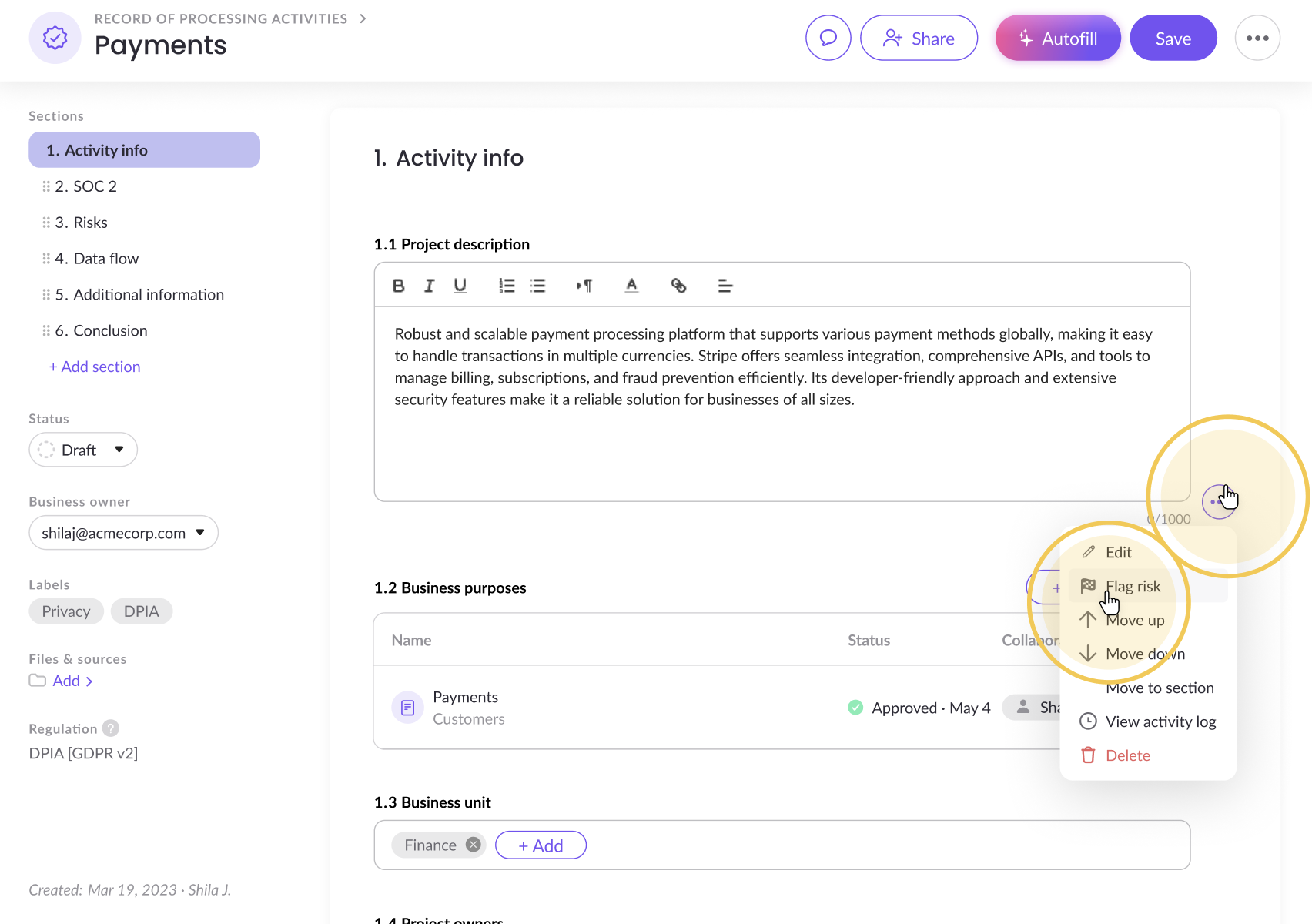
Flag risk is available only when the assessment includes a Risk question.
View and manage sources
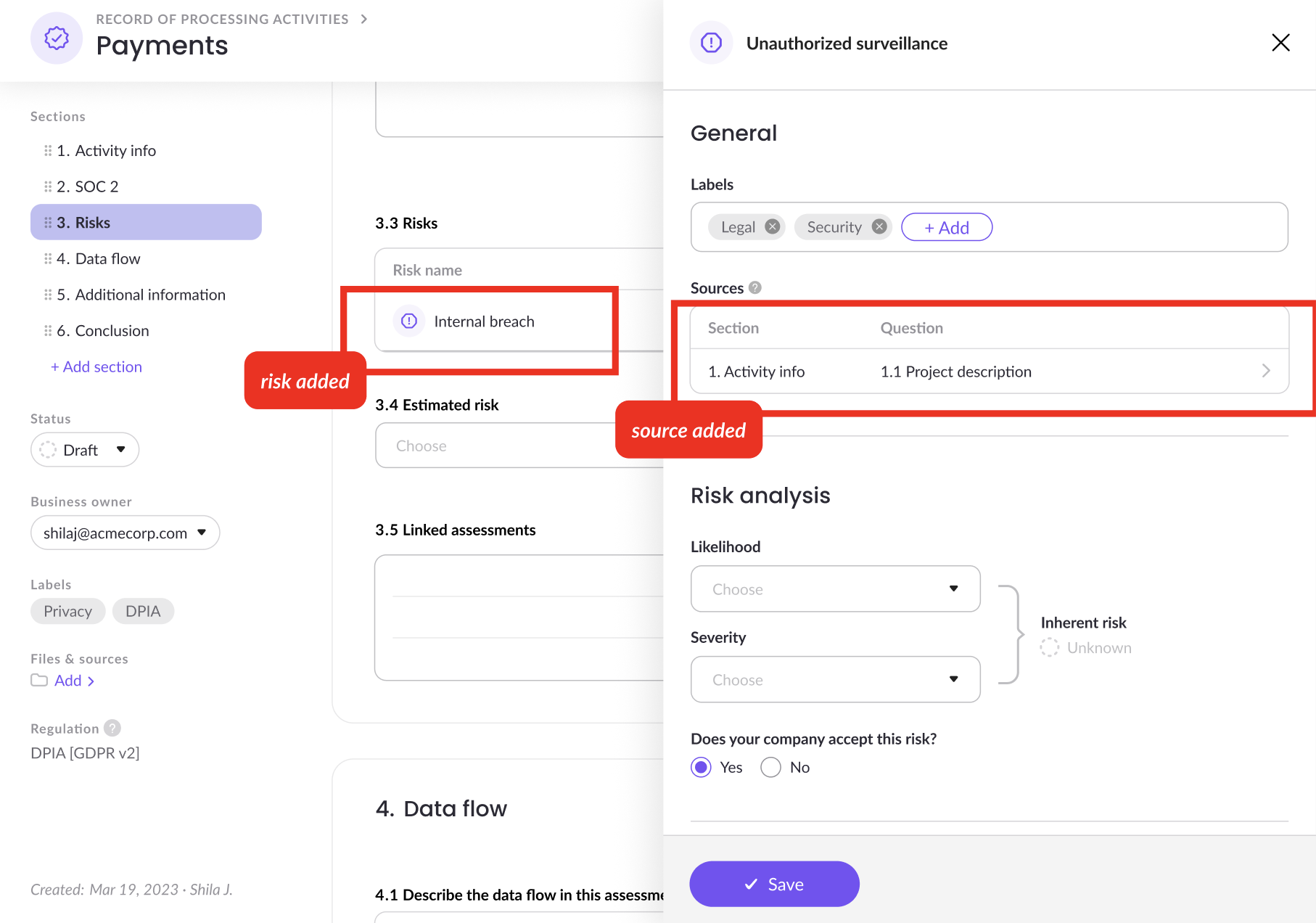
Each risk lists its sources: the sections and questions that led to it.
- Go to a source: click a source to jump to that question in the assessment.
- Remove a source: remove any source that no longer applies. The risk itself stays in place.
If a source question is deleted from the assessment, it's removed from the risk's sources automatically.
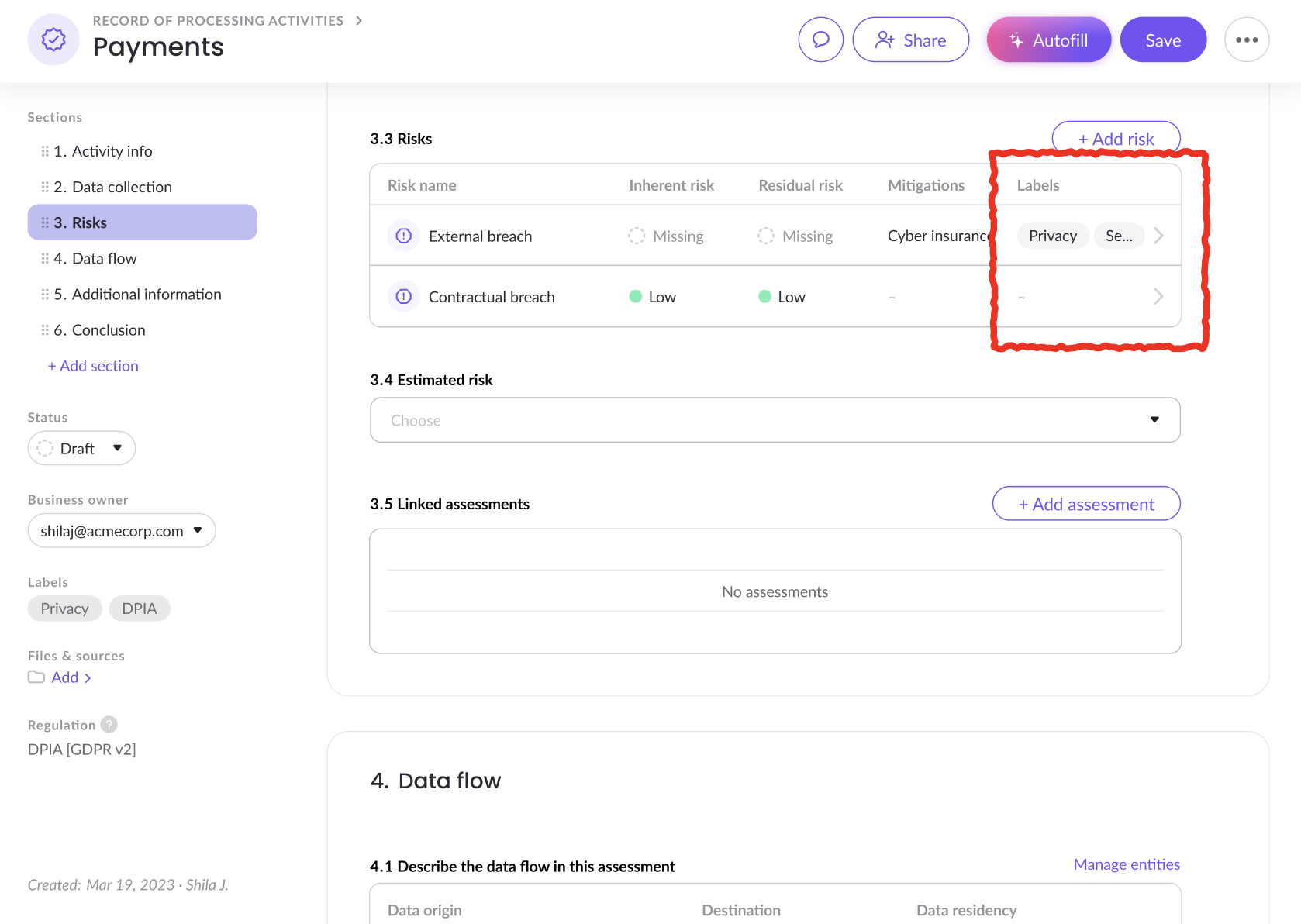
Labels on risks
Labels help each team find the risks that matter to them, for example security, privacy or legal. Risks use the same labels as your assessments.
When you add a risk to an assessment, it gets the default labels set for that risk in your risk catalog. You can then add or remove labels on that risk without changing the catalog or other assessments.
Review suggested risks
Mira AI suggests risks based on your answers, the connected inventory and the risk descriptions and labels in your risk catalog. For example, you may see suggested risks when an assessment involves sensitive data, international data transfers, or a vendor with a weak security posture.
Each suggested risk comes with its labels and the questions it's based on as sources. Mira only suggests risks that aren't already in the assessment, and never changes risks you've already added.
Review each suggestion, then add it or dismiss it. Suggestions are a starting point. Make sure each risk you add reflects your organization's actual exposure. See Draft Assessments with Mira AI.
Choosing the right risk level
| Level | When to use it |
|---|---|
| Inherent risk | Rate the risk as if no controls were in place. Consider how sensitive the data is, how much of it there is, and the impact if something went wrong. |
| Residual risk | Rate what remains once your mitigations are in place, such as encryption, access restrictions or contractual safeguards. |
If you don't have mitigations yet, you can add them later from the assessment or the risk registry, and update the residual risk then.
Tips
- Add the Risk question to your templates once, so every new assessment is ready for risks.
- Flag risks from the question that raised them, so reviewers can trace each risk back to the answer behind it.
- Link the right data sources first. Flagged risks appear on the data sources linked to the assessment, and suggestions draw on them. See Linking assessments to other entities.
- Set default labels and descriptions in your risk catalog, so risks are labeled consistently and Mira's suggestions fit your framework. See Risk registry and catalog.
- Record existing mitigations when you flag a risk, so the residual risk is accurate from the start.
Related articles
- Risk registry and catalog: manage flagged risks, labels and mitigations
- Building Templates: add a Risk question to your templates
- Managing risk: understand the risk lifecycle in MineOS
Updated 10 days ago