
Managing User Groups in DSR
Organize teammates into groups to control who can access which data subject requests.
User groups let you organize your teammates to control who can access which data subject requests. Instead of giving everyone access to every request, you can scope access by group.
Groups
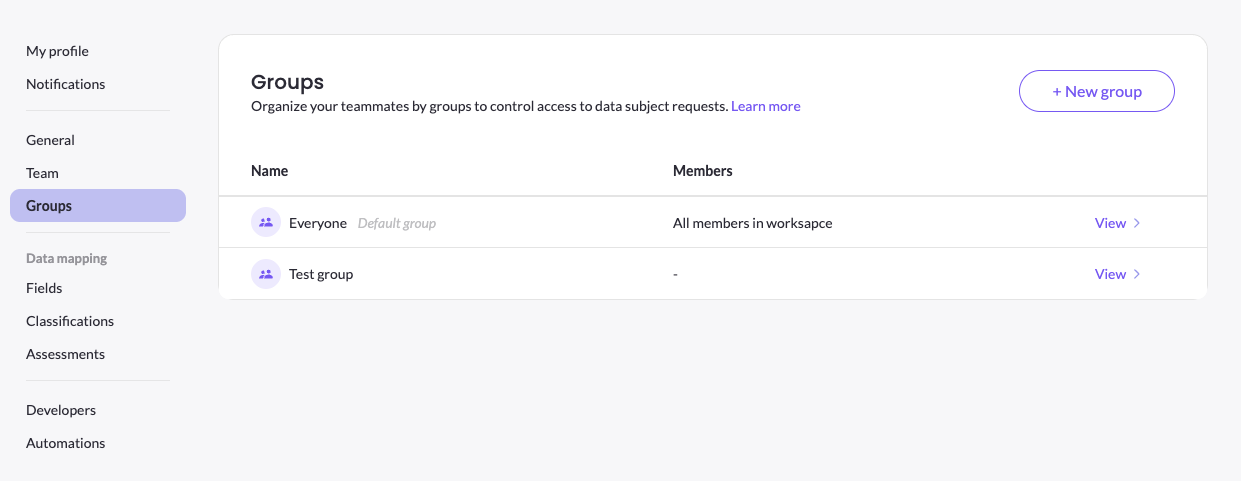
Groups are managed in Settings → Groups. Every workspace has a default Everyone group that includes all members. You can create additional groups to represent teams or areas of responsibility.
Create a group
Click + New group, give it a name, and add the teammates who should belong to it. Use View on any group to see or change its members.
How groups are used in DSR
Groups control access to data subject requests, and a request can be assigned to a group so that the right team handles it. Scoping access this way keeps each team focused on the requests relevant to them and limits who can see sensitive request data.
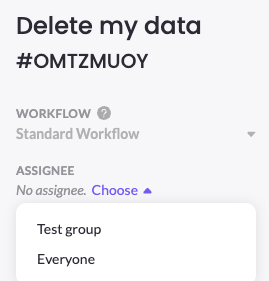
You can either assign a request to a group automatically by building a custom integration with condition that know under which conditions to assign each group, or, manually though the UI in each request by choosing the Assignee. The dropdown includes all the groups you have configured in the Groups page. In order to have a custom integration to assign groups, please contact you CSM.
Updated 3 months ago