
Save, Preview & Publish
Manage the lifecycle of your Privacy Center — save changes as a draft, preview before publishing, and control when updates go live.
The three states
Your Privacy Center can be in one of three states, shown in the status indicator in the top bar:
| State | What it means |
|---|---|
| 🟠 Never published | The Privacy Center exists as a draft but has never been made public. Data subjects cannot access it yet. |
| 🟠 Unpublished draft | You have saved changes that haven't been published yet. The live form reflects the last published version. |
| 🟢 All changes published | The live form is fully up to date with your saved change |
The status indicator is visible on all tabs except the URL tab.
Saving a draft
Click Save draft to save your current changes. Changes are saved per tab — each tab (Form details, Privacy rights, Languages, Styling, Custom code) saves its own section independently. Saving does not affect the live form.
You can save as many times as you like. Each save updates the draft without overwriting the published version.
Previewing your Privacy Center
The View button in the top bar behaves differently depending on your current state:
When all changes are published — clicking View opens the live form directly in a new browser tab. There is no draft to preview since your draft and published versions are identical.
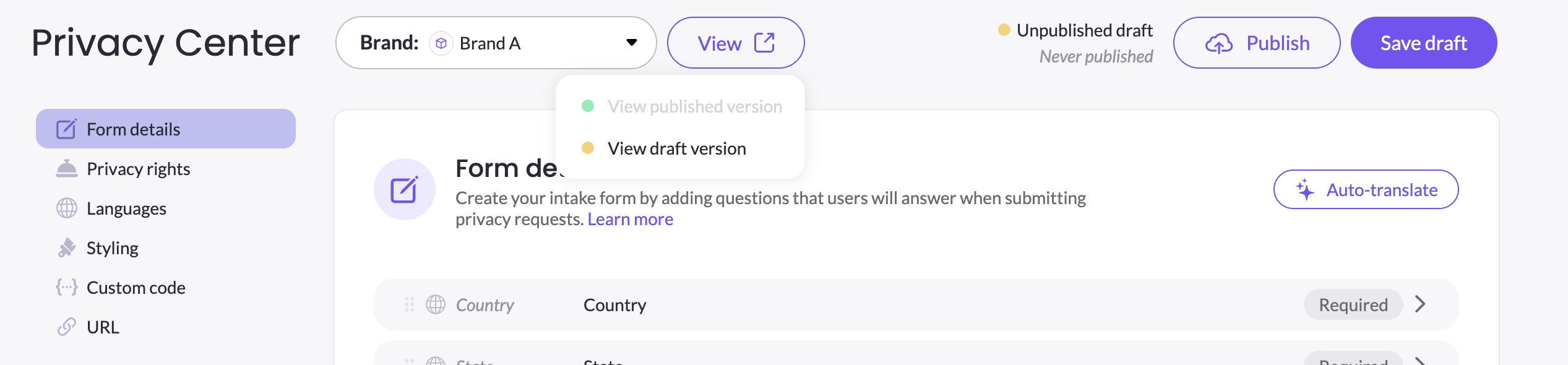
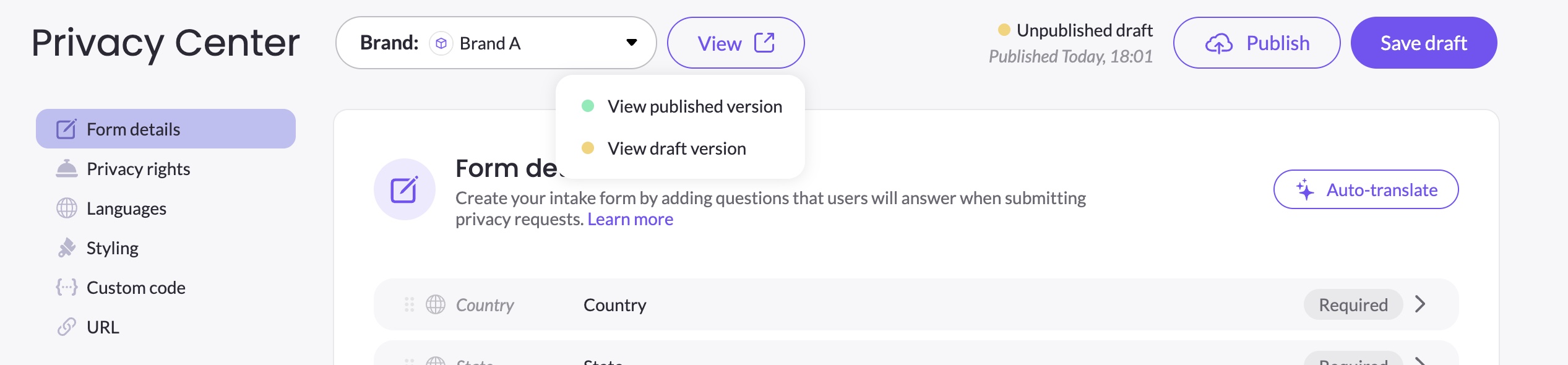
When you have an unpublished draft or have never published — clicking View opens a dropdown with two options:
- View draft version — opens your saved draft in a new browser tab. A yellow banner at the top reminds you that you're viewing a draft and not the live form.
- View published version — opens the live form as data subjects see it. This option is only available after the first publish.
Publishing
When you're ready to make your changes live, click Publish.
If you have unsaved changes on the current tab, a dialog will appear asking you to save your draft first before publishing. Click Save draft and then Publish again to proceed.
Before publishing, MineOS checks whether all enabled languages have complete translations. If any translations are missing, a warning dialog lists the affected languages and gives you two options:
- Back to edit — return to the builder to complete the missing translations
- Publish anyway — publish with the incomplete translations; untranslated elements will fall back to English (US)
After confirming, a publish confirmation dialog appears. Once you confirm, the changes go live and a confirmation snackbar appears. The status indicator updates to All changes published.
Things to keep in mind
- Saving a draft never affects the live form — only Publish does.
- If you publish and then make further changes, those changes create a new draft alongside the still-live published version.
- The View published version option is only available after the first publish.
Updated 4 months ago