
Navigating the MineOS Portal
A walkthrough of the MineOS portal sidebar — what each section contains, where key features live, and what changed in the new navigation design.
Navigating the MineOS Portal
The MineOS portal is organized around three core areas of work — data mapping, governance, and privacy operations — each accessible from the left sidebar. A few global tools sit outside these sections at the bottom of the nav. This article walks through what each section contains and where to find the features you need.
If you're an existing MineOS user: The sidebar has been redesigned as part of a product-wide update — including a refreshed color scheme that reflects Mine's updated branding. The previous structure (Compliance, Vendor management, AI governance, Risk analysis, DSR) has been consolidated into a cleaner layout. Everything is still here — it's just better organized. See What moved where at the bottom of this article.
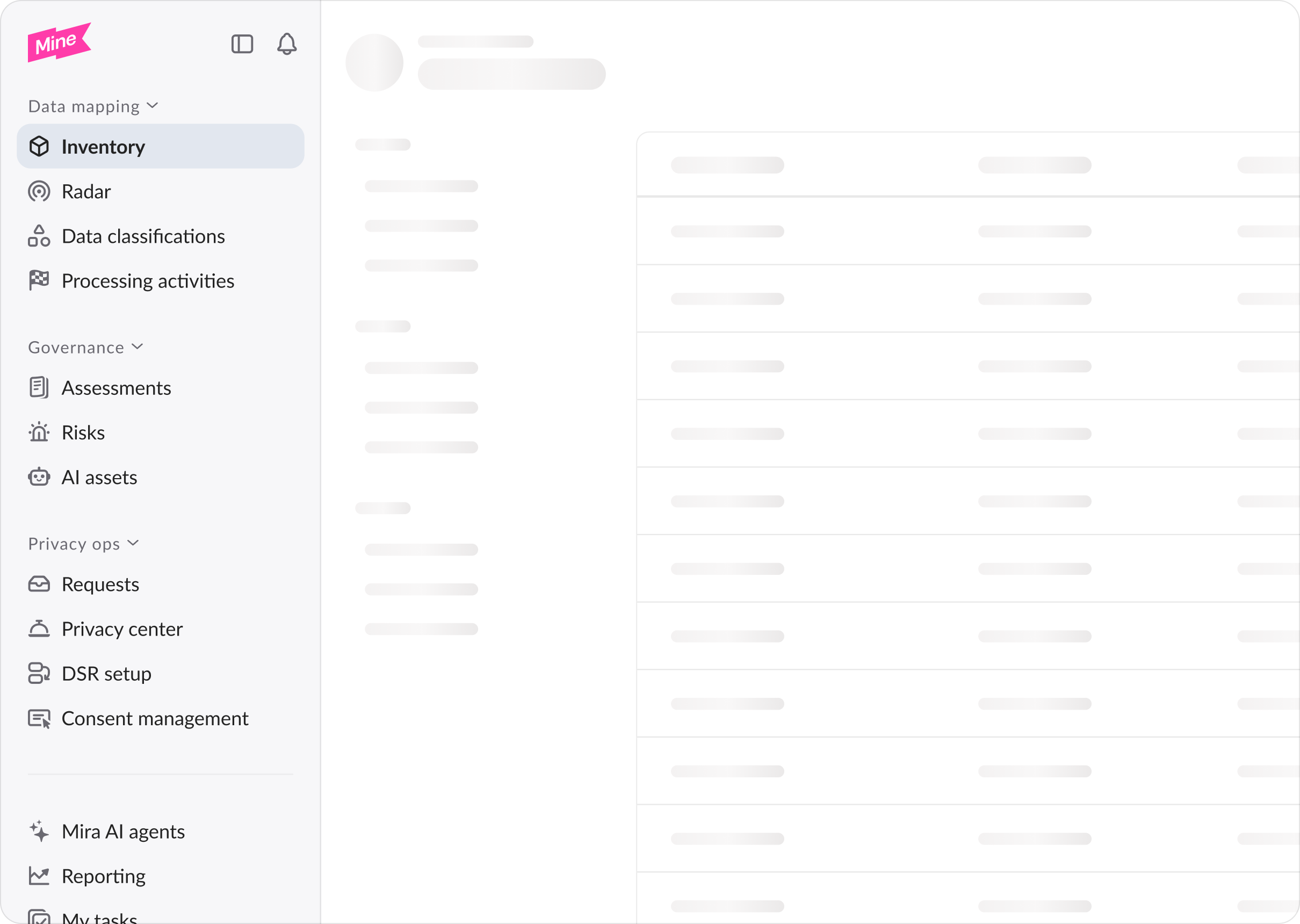
Data mapping
The Data mapping section covers your system inventory and data discovery tools.
- Inventory — your central register of all the software, systems, and data sources your organization uses. Each system record holds metadata about what data it processes, who owns it, and its risk posture.
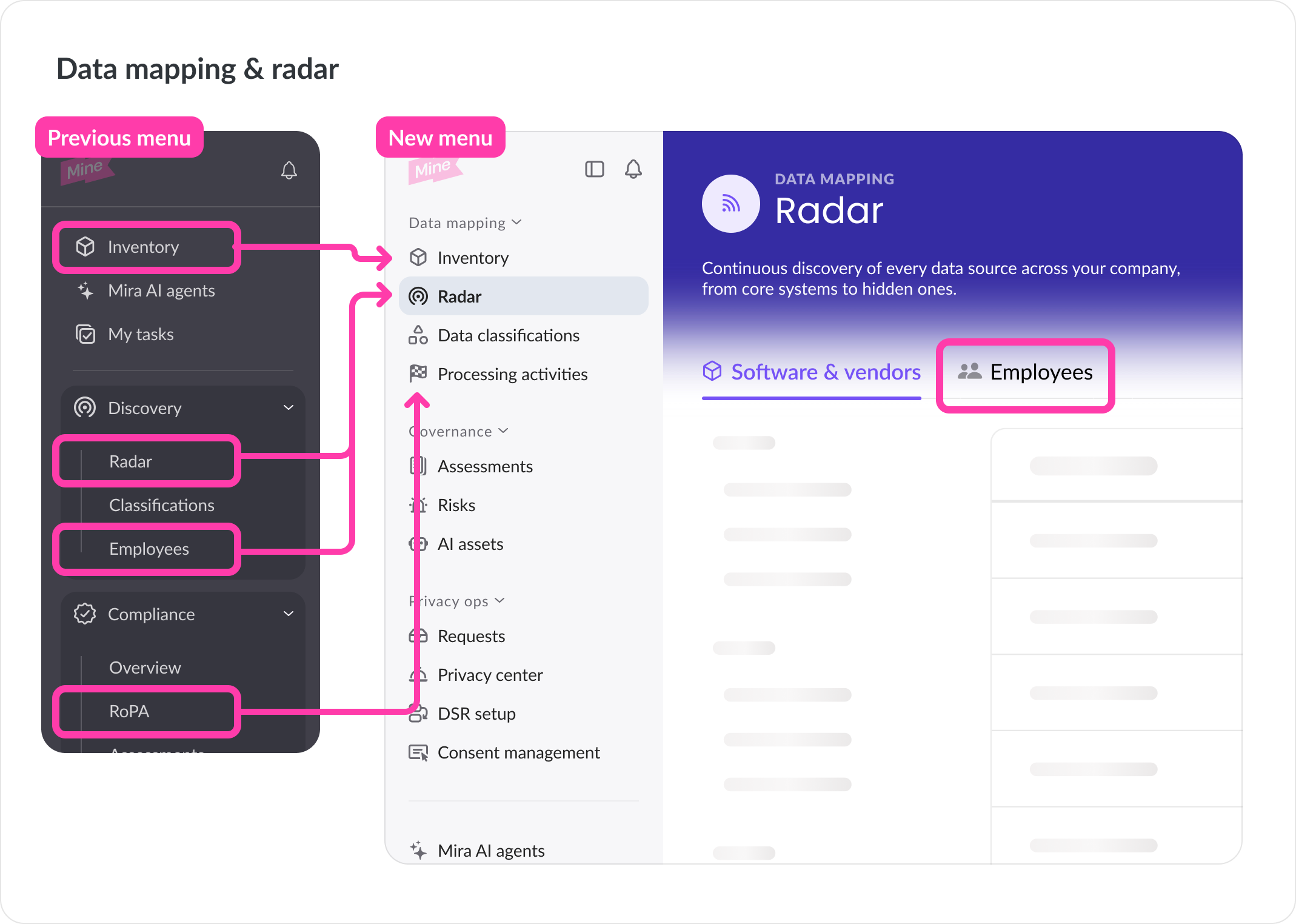
- Radar — MineOS's discovery engine. Radar automatically surfaces systems connected to your organization via email, SSO, cloud, and other signals. The Employees tab within Radar shows which employees are connected to which systems.
- Data classifications — data classification rules and findings. MineOS scans your connected systems to detect what types of personal data they hold and flags anything that doesn't match your classification policies.
- Processing activities — your Record of Processing Activities (RoPA) or business purposes. Processing activities are a structured record of your organization's data processing operations, making sure each data object is justified with a purpose.
Governance
The Governance section is where your compliance workflows live — assessments, risk management, and AI oversight.
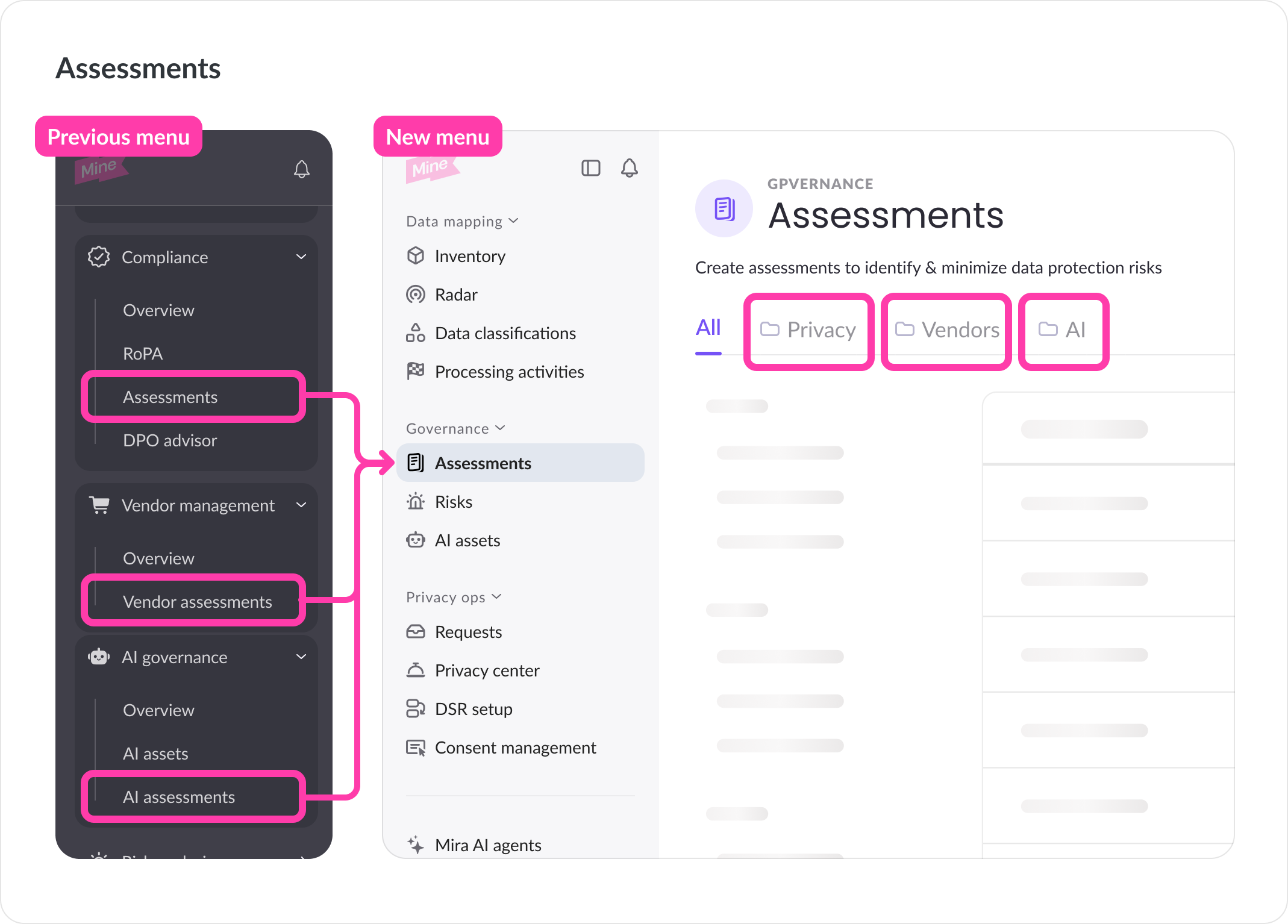
- Assessments — a single, unified view of all your assessments across every use case: privacy (DPIAs, TIAs, LIAs, PIAs), vendor risk, AI governance, and any custom use cases your team has set up. Assessments are organized using labels, and you can switch between saved views (Privacy, Vendors, AI) or browse everything at once. See Working with Assessments.
- Risks — your risk registry and business impact analysis. The Risk registry tab lists identified risks linked to assessments. The Business impact tab shows a cross-system view of data exposure and organizational risk.
- AI assets (posture) — governance tooling for AI systems and agents your organization uses. AI posture shows discovered AI agents, their governance signals, and any identified vulnerabilities.
Privacy ops
The Privacy ops section covers data subject request management and consent.
- Requests — your inbox for incoming DSRs. Manage open requests, track SLA deadlines, review request history, and run Autopilot to automate fulfillment workflows.
- Privacy Center — configure the public-facing form where individuals submit data requests to your organization.
- DSR setup — configure privacy rights, eligibility rules, workflows, and communication templates.
- Consent management — manage cookie consent banners and consent records for your websites.
Global tools
Three items sit outside the three main sections, at the bottom of the sidebar:
- Mira AI agents — configure and manage the AI agents that power automation across MineOS, including Vendor Scout, Assessment Autofill, Transfer agent, and eDiscovery agent.
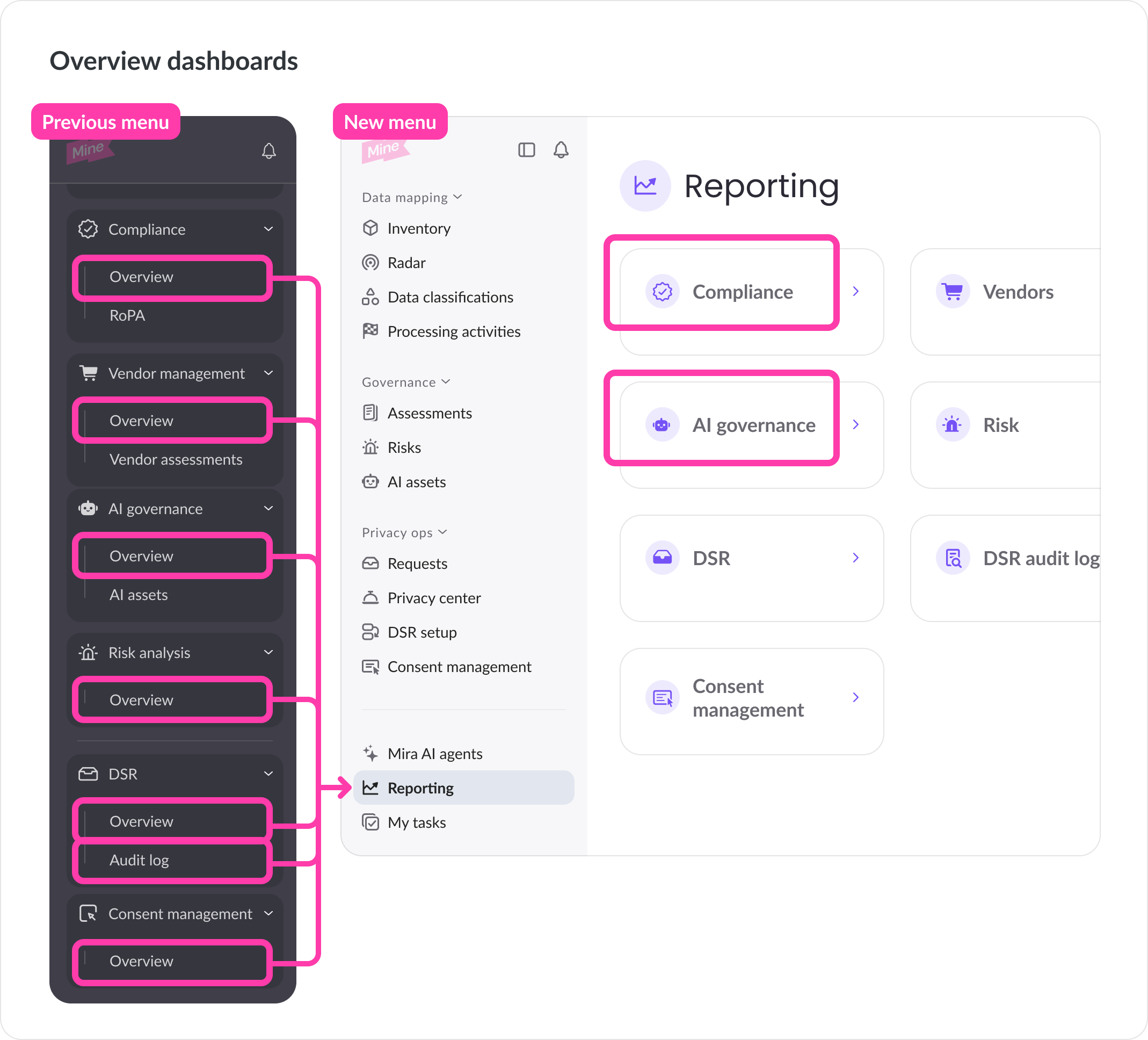
- Reporting — a single page with dashboard cards for every use case your plan includes: Compliance, AI governance, Risk, Vendors, DSR, DSR audit log, and Consent. Each card opens a dedicated analytics dashboard. See Reporting and Dashboards.
- My tasks — a personal view of tasks assigned to you across modules.
Settings
Settings are accessible from your account menu at the bottom-left of the sidebar. Settings covers organization-level configuration including team management, groups, data classification fields, Policies, and developer integrations.
What moved where
For users familiar with the previous navigation, here's a quick reference for where things have moved.
| Previously | Now |
|---|---|
| Compliance > Assessments | Governance > Assessments |
| Vendor management > Vendor assessments | Governance > Assessments (Vendors saved view) |
| AI governance > AI assessments | Governance > Assessments (AI saved view) |
| Compliance > RoPA | Data mapping > Processing activities |
| Risk analysis > Risk Registry | Governance > Risks > Risk registry tab |
| Risk analysis > Business Impact | Governance > Risks > Business impact tab |
| Module overview dashboards | Reporting (unified page) |
| Discovery > Employees | Data mapping > Radar > Employees tab |
| Governance > Policies | Settings > Policies |
| AI governance > AI assets | Governance > AI posture |
Updated 2 months ago