
Setting Up DSR Handling Type
Choose how each data source fulfills a request — automatically, manually, or by assigning a coworker.
When you build a right's workflow, each data source needs an action that tells MineOS how requests for it are fulfilled. This action — the handling type — is set under each data source in the Action for fulfilling requests section.
Where the handling type applies
The handling type is chosen per system's instance, so different data sources within the same right's workflow can be handled in different ways — one source confirmed manually, another assigned to a coworker, another handled by an integration. For a single system you can create multiple instances, where each instance has a different handling type.
The three handling types
#1 - Automatic integration
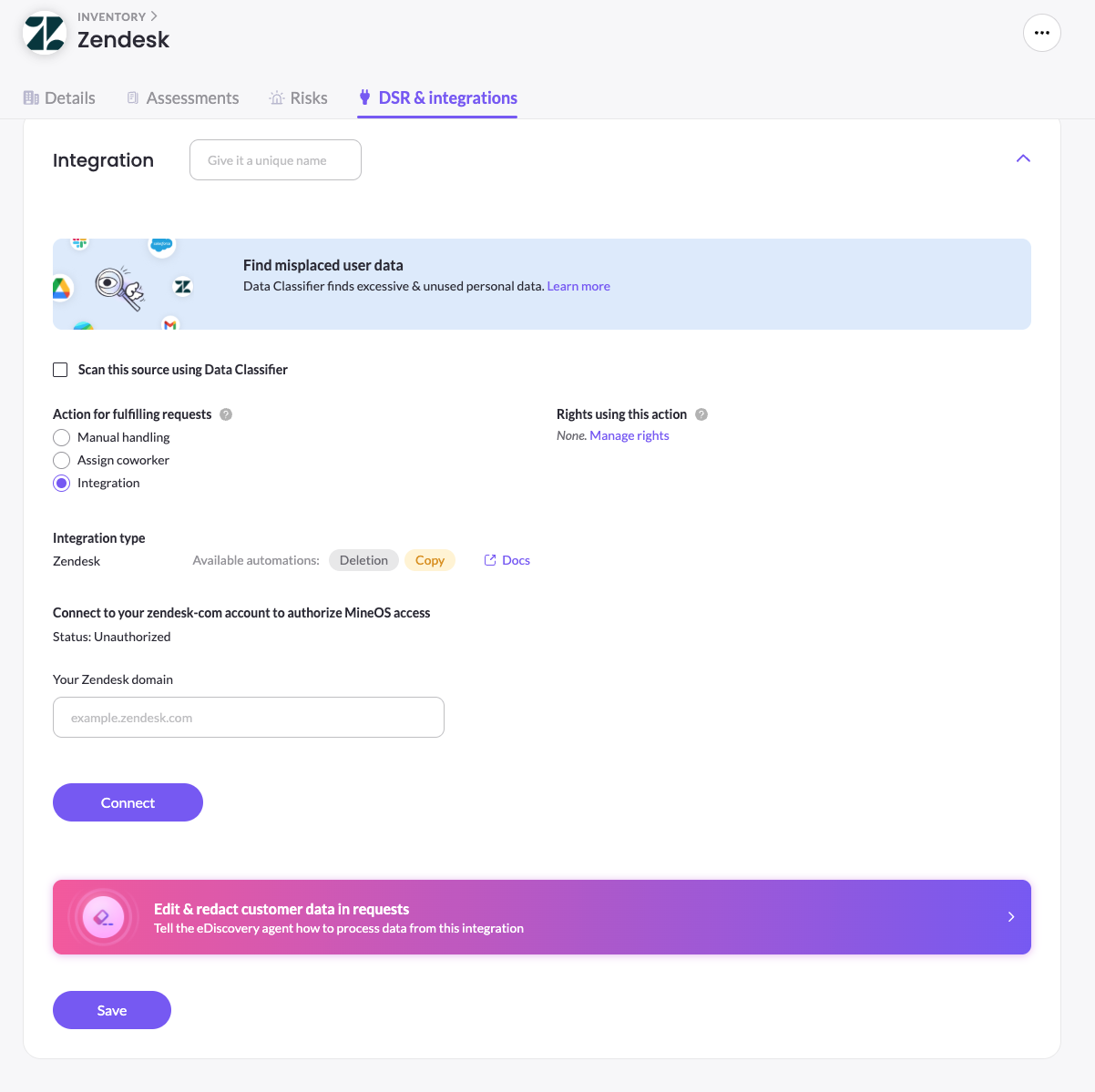
Automatic handling connects MineOS directly to the system via an integration, so requests are fulfilled without any manual steps. When a deletion or copy request comes in, MineOS executes the required action in the system on your behalf — no one needs to log in, no task needs to be forwarded. This is the most efficient option for systems that hold large volumes of personal data or see frequent requests.
Integrations are available for a growing list of systems and may use OAuth, API keys, email, or queries depending on the system. If an integration isn't available yet for a system you need, please contact your CSM for additional information.
#2 - Manual handling
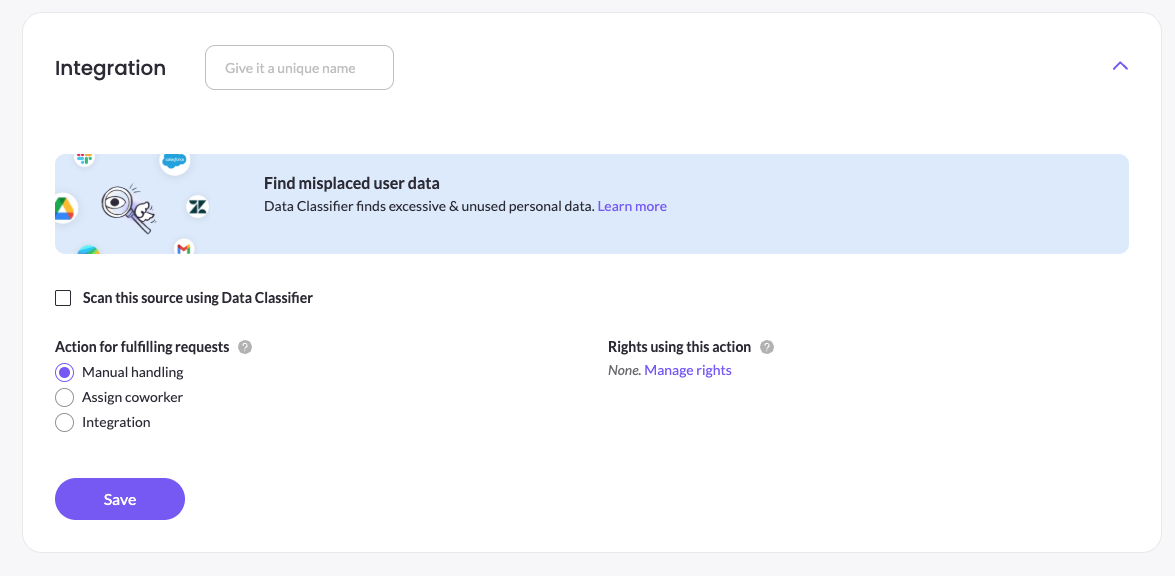
The data subject request involves this system, but MineOS leaves the actual fulfillment — locating and deleting the data, or collecting and sending a copy — entirely up to you. How this plays out depends on the type of request:
- Deletion requests: The system moves to the "Needs manual confirmation" section, waiting for you to act. Once you've deleted the data in the system yourself, you confirm it directly in MineOS ("Mark as completed") to move the system to the Completed section of the ticket.
- Copy requests: The system moves to the "Compile copy report" section of the ticket. You need to manually upload the relevant files to be included in the copy report (current limitation is max upload of 1,000 files, max file size is 30MB), and conduct any redaction needed by clicking on "Redact". One you click on "Compile report" MineOS proceeds to compile the copy report with the manual uploaded files of the manual integration.
#3 - Assign coworker handling
If a particular system falls under a colleague's responsibility — a CRM owned by Sales, for example — MineOS can hand the task to them instead of you forwarding it yourself. Select Assign coworker under Action for fulfilling requests, then choose how to assign in Assign using:
- Send email — MineOS emails your co-worker about the task, and they complete the action in the system themselves. MineOS marks the system as completed as soon as the email is sent; it does not wait for your co-worker to confirm.
- Create a task on Mine — MineOS adds a DSR task to a teammate's My tasks queue in MineOS and emails them a link. The system stays In progress in the request, showing Waiting for and the teammate's email, until they submit an outcome. Their outcome then marks the system Completed or Failed. This option works for both deletion and copy requests: for copy requests, the teammate uploads the data in the task. The teammate needs a MineOS account. For setup and the full flow, see Assign Coworker: Create a Task on Mine.
- Create a task on Jira — MineOS opens a task in your Jira project for every deletion request. The system stays In progress in the request, with a link to the Jira task, and MineOS completes it automatically when your co-worker moves the task to Done. This is useful for teams that manage their work in Jira and want requests to flow into their existing queue. For setup and the full list of settings, see Assign Coworker: Create a Task on Jira.
| Assign using | Deletion requests | Copy requests | When the system is completed |
|---|---|---|---|
| Send email | ✓ | – | As soon as the email is sent |
| Create a task on Mine | ✓ | ✓ | When the teammate submits the task |
| Create a task on Jira | ✓ | – | When the Jira task is moved to Done |
Send email and Create a task on Jira support deletion requests only. Create a task on Mine supports deletion and copy requests.
Assign coworker is not group assignment
"Assign coworker" hands the work for one system to a specific coworker, by email, a MineOS task, or a Jira task. It is not the same as assigning a request to a team group — for team-based requests assignment, see Managing User Groups in DSR.
Updated 4 days ago