
Google Tag Manager — Implementation Guide
Step-by-step guide to deploying MineOS CMP with Google Tag Manager, including full Google Consent Mode v2 support.
This guide walks you through deploying MineOS CMP alongside Google Tag Manager (GTM) so that:
- Your visitors see the MineOS consent banner before any non-essential tags fire.
- Google's tags (Analytics 4, Ads, Floodlight, Conversion Linker) automatically respect the visitor's consent via Google Consent Mode v2.
- Non-Google tags in GTM (Meta Pixel, LinkedIn Insight, Hotjar, etc.) only fire after the visitor has consented to the appropriate category.
Two integration paths, used togetherMineOS CMP gives you both at once:
- Google Consent Mode v2 (automatic). MineOS sets the GCM signals (
analytics_storage,ad_storage, etc.) automatically when consent changes. You do nothing in GTM — Google's own tags read these signals natively.- Custom dataLayer events (for non-Google tags). MineOS exposes a JavaScript SDK that fires whenever consent changes. You forward those changes into the dataLayer and use them as GTM triggers for non-Google tags.
Most sites need both. This guide covers each in turn.
Before you start
You will need:
- A published MineOS website with at least one banner and one rule configured. If you haven't done that yet, see Creating and Configuring Banners and Configuring Banner Rules first.
- Your Domain Group ID — found in Consent Management → Websites → Implementation in the MineOS portal.
- Verify any cookies by GTM are categorized as Essential in MineOS CMP.
- Admin access to your Google Tag Manager container.
Step 1 — Install MineOS CMP on your site
Open your GTM account and select Tags -> New. Under Tag Configuration search for MineOS. Under Triggering select "Consent initialization".
Cant find MineOS CMP in the gallery?It might take some time until MineOS CMP is available in the GTM Tag Gallery. Until then, you can download the tag directly from our repository: https://github.com/saymine/mine-cmp-gtm-template which also includes instructions to importing the tag.
Fill in your website id. You can obtain it from the MineOS CMP Implementation page. In addition, you can select default consent states per region, and control other GTM settings such as Ads Data Redaction and URL Passthrough.
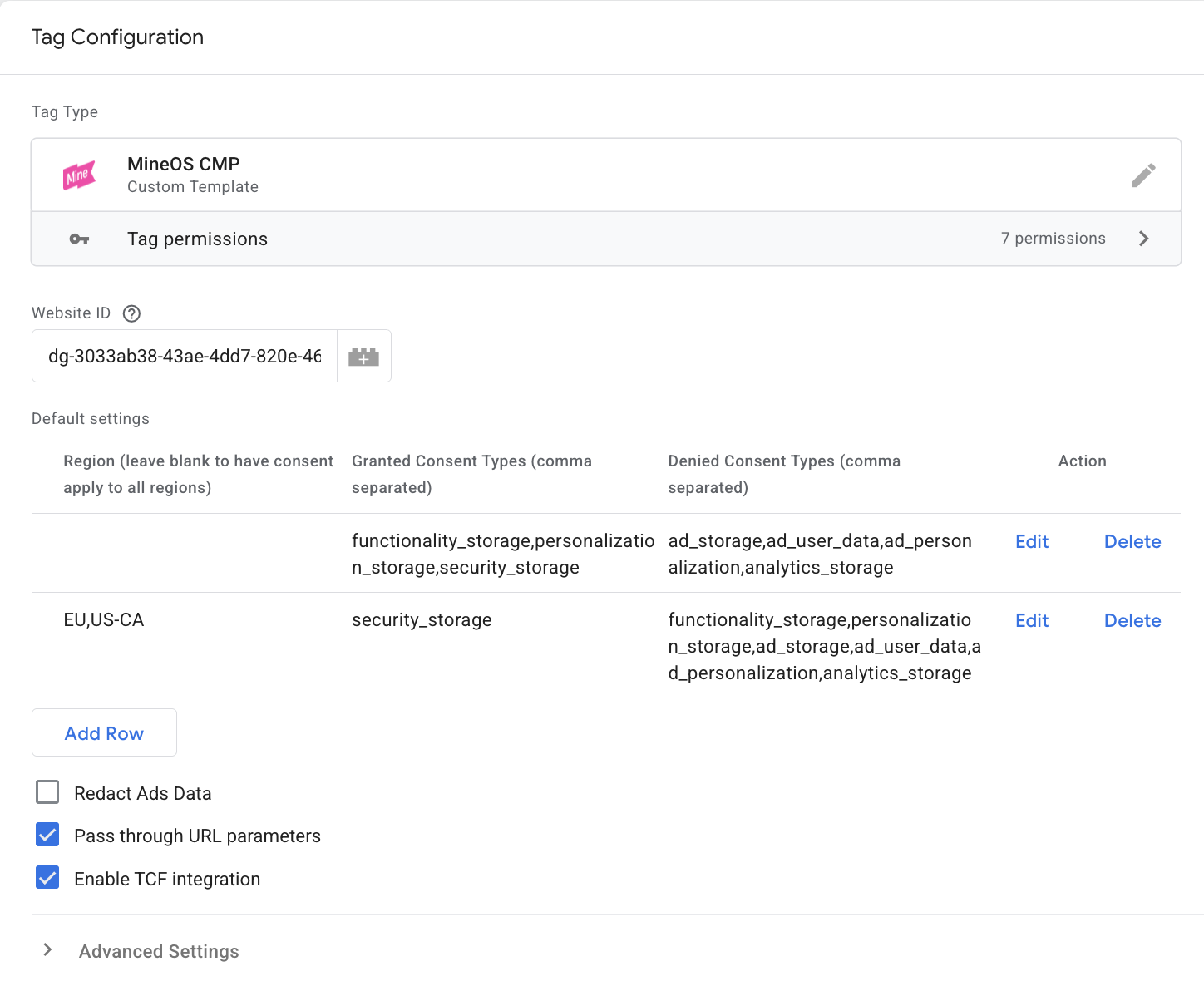
You don't need a "Consent Initialization" template tagSome CMPs require you to manually add a Consent Mode or Consent Initialization tag in GTM. MineOS handles this for you — adding a duplicate consent-init tag in GTM is unnecessary and can cause race conditions.
After deploying this snippet, visit your site. You should see the MineOS banner appear on first load. If you don't, see the Troubleshooting section.
Step 2 — Confirm Google Consent Mode v2 is active
Once MineOS is installed, Google Consent Mode v2 is already working — there's nothing to configure in GTM for this. Here's what's happening behind the scenes:
- On page load, before GTM fires, MineOS sets the initial GCM state to denied for all storage types (assuming an opt-in banner).
- When the visitor accepts cookies, MineOS calls
gtag('consent', 'update', {...})to flip the relevant GCM signals to granted. - Google's tags (GA4, Google Ads, Floodlight, Conversion Linker) automatically pick up the change and start setting cookies and sending full events.
MineOS → Google Consent Mode mapping
MineOS automatically maps its cookie categories to GCM signals:
| MineOS Category | GCM Signals Set to "granted" on consent |
|---|---|
| Analytics | analytics_storage |
| Marketing | ad_storage, ad_user_data, ad_personalization |
| Functional / Preferences | functionality_storage, personalization_storage |
| Essential / Necessary | security_storage (always granted) |
Verifying GCM is active
- Open your site with GTM preview tool.
- Check for any Consent Update events.
- Use the MineOS banner to update consent and make sure you see corresponding Consent Update events in the preview tool.
- Alternatively, you could look for
consentevents in thewindow.dataLayerobject.
Step 3 — Configure GTM consent settings for Google tags
For each Google tag in your GTM container (GA4 Configuration, Google Ads Conversion, Floodlight, etc.), confirm consent settings are set to the defaults:
- In GTM, open the tag.
- Go to Advanced Settings → Consent Settings.
- Leave Built-in Consent Checks as No additional consent required. Google's tags use the GCM signals MineOS already manages.
You do not need to add Additional Consent Checks for Google tags — Consent Mode v2 handles the gating for you. Adding extra checks can prevent Google's "cookieless ping" mode from working, which reduces measurement coverage.
Step 4 — Gate non-Google tags with a dataLayer trigger
For tags that aren't GCM-aware (Meta Pixel, LinkedIn Insight, Hotjar, TikTok Pixel, custom HTML tags, etc.), you need to gate them on a custom trigger.
The cleanest pattern is:
- Create a GTM Custom Event trigger that fires on
mineos_consent_update. - Add a condition to that trigger so it only fires when the right category is consented.
Step 4a — Create a GTM trigger for each category
For each cookie category you need to gate tags on (typically Analytics and Marketing), create a custom-event trigger:
- In GTM, go to Triggers → New → Custom Event.
- Event name:
mineos_consent_update - This trigger fires on: Some Custom Events
- Add a condition. For Marketing tags:
mineos_consent.marketing equals true - Name the trigger something like
Consent Granted — Marketingand save it. - Repeat for Analytics:
mineos_consent.analytics equals true
To make the conditions work, you also need to register the dataLayer variables.
Step 4b — Register dataLayer variables in GTM
- In GTM, go to Variables → User-Defined Variables → New → Data Layer Variable.
- Data Layer Variable Name:
mineos_consent.marketing - Data Layer Version: Version 2
- Save as
DL — Marketing Consent. - Repeat for
mineos_consent.analytics,mineos_consent.preferences, andmineos_consent.necessaryas needed.
Step 4c — Attach the trigger to your non-Google tags
For each non-Google tag (e.g. Meta Pixel):
- Open the tag in GTM.
- In the Triggering section, replace the current trigger (typically All Pages) with the matching consent trigger (e.g.
Consent Granted — Marketing). - Save.
The tag will now only fire after the visitor has granted consent for that category, and will support retroactively, meaning if initial consent was denied but later the user granted consent, the tags will trigger.
Step 5 — Add a "Cookie Settings" link to your footer
Visitors need a way to reopen the banner and change their preferences. This is also a regulatory requirement in many jurisdictions.
Add a link or button to your site footer:
<a href="#" onclick="MineCMP.show('second'); return false;">Cookie Settings</a>This calls MineCMP.show('second'), which reopens the banner directly to the preferences view (second layer). The visitor's previous choices are pre-selected, and they can update them and save.
Step 6 — Test the integration
Before publishing to production, verify the integration end-to-end on staging.
Test 1 — Banner appears on first visit
- Open your site in an incognito window.
- The MineOS banner should appear immediately.
- Open DevTools → Application → Cookies. You should see only Essential cookies — no Google Analytics, no Meta Pixel, no other trackers.
Test 2 — Accepting consent fires tags
- With DevTools open, click Accept All in the banner.
- In the Cookies panel, you should now see
_ga,_ga_*, and any other category-appropriate cookies appear. - In the Network tab, filter for
google-analytics.comandgoogletagmanager.com— you should see full GA4 event hits (not the "cookieless ping"gcs=G100form).
Test 3 — Rejecting consent keeps tags off
- Clear your site data and reload.
- Click Reject All in the banner.
- Confirm no non-essential cookies are set.
- For Google tags, you should still see network requests to
google-analytics.com, but withgcs=G100(cookieless pings). This is correct GCM behavior — no cookies, but Google can still model conversions. - Non-Google tags (Meta Pixel, etc.) should not fire at all.
Test 4 — Changing preferences updates tags
- With the banner closed, click your Cookie Settings footer link.
- Toggle Marketing off and click Save Preferences.
- In DevTools → Console, confirm a new entry was pushed to
window.dataLayerwithmineos_consent.marketing: false. - Reload the page — Meta Pixel and other Marketing tags should not fire.
Test 5 — GTM Preview Mode
Use GTM Preview mode for the most thorough check:
- In GTM, click Preview and enter your staging URL.
- Step through the page load → banner interaction → page reload.
- In each step, check the Tags Fired and Tags Not Fired sections to confirm tags are firing only when their consent category is granted.
Troubleshooting
| Symptom | What to check |
|---|---|
| Banner doesn't appear | Confirm configuration.js and cmp.js are both loading (Network tab). Check that the Domain Group ID in the URL is correct. Confirm a Rule matches your test region — see Configuring Banner Rules. |
| Banner appears but tags still fire before consent | Confirm the MineOS scripts are placed before GTM in the HTML, and that neither uses async or defer. |
mineos_consent_update events never appear in the dataLayer | Confirm the snippet from Step 4a is on the page. In the Console, run MineCMP.isReady() — if false, MineOS hasn't initialized; check the Network tab for errors loading configuration.js. |
| GA4 fires before consent (with cookies) | Check that you haven't manually added a gtag('consent', 'default', { ad_storage: 'granted' ... }) call elsewhere on the page. MineOS sets the GCM defaults — any other consent-init code will override it. |
| Non-Google tags don't fire even after consent | In GTM Preview, check the trigger's condition. Make sure the dataLayer variable name in GTM matches exactly (mineos_consent.marketing with the dot is case-sensitive). |
| Tags fire twice | The dataLayer push and your custom trigger may both be firing. Use GTM Preview to see which trigger is causing the duplicate, and remove the redundant one. |
| GCM signals never flip to "granted" | Open DevTools → Console and run MineCMP.getConsent(). If it returns the right consent shape, GCM should be updating. If it returns null, the visitor hasn't made a choice yet. |
Reference — MineOS SDK methods used in this guide
| Method | Purpose |
|---|---|
MineCMP.onReady(callback) | Waits until the CMP has finished initializing |
MineCMP.getConsent() | Returns the current consent state (object with category booleans) or null |
MineCMP.onConsentChange(callback) | Subscribes to future consent changes; callback receives the new state |
MineCMP.show('second') | Opens the banner directly to the preferences (second) layer |
MineCMP.show('first') | Opens the banner to the first layer |
MineCMP.acceptAll() | Programmatically accept all categories (useful in custom UI flows) |
MineCMP.withdrawAll() | Programmatically withdraw all non-essential consent |
For the full SDK reference, see Using the MineOS JavaScript SDK.
Summary
A correctly deployed MineOS + GTM setup looks like this:
- MineOS scripts load first in
<head>, synchronously, before GTM. - Google tags in GTM rely on Consent Mode v2 — MineOS sets it automatically.
- Non-Google tags in GTM are gated on a
mineos_consent_updatecustom event trigger plus a category condition. - A "Cookie Settings" link in your footer lets visitors update their choice at any time.
That's it — your site is now compliant with GDPR, CCPA, and Google's EU consent requirements, with full measurement coverage via Consent Mode v2.
Updated 2 months ago