
Email discovery - Microsoft 365 email
Connect your Microsoft 365 email to discover the systems your employees use, including unmanaged tools and dormant accounts.
Email discovery finds the systems your employees use by reading the metadata of emails they receive from companies, such as sign-up confirmations and service notifications. It never reads email content or attachments. Connecting Microsoft 365 gives you the widest discovery coverage, including unmanaged tools, shadow IT and dormant accounts left by former employees.
Before you start
You'll need Microsoft 365 admin permissions to approve the connection. If you're not an admin, you can send an approval request to your IT team during setup.
Connect in MineOS
- Sign in to MineOS.
- In the left navigation, under Data mapping, select Radar.
- Click Radar Setup.
- Under Email, select Microsoft. [confirm label: Email or Email Technology]
- Click Admin Sign in with Microsoft to start the authorization flow.
- Review the requested permissions and complete the flow.
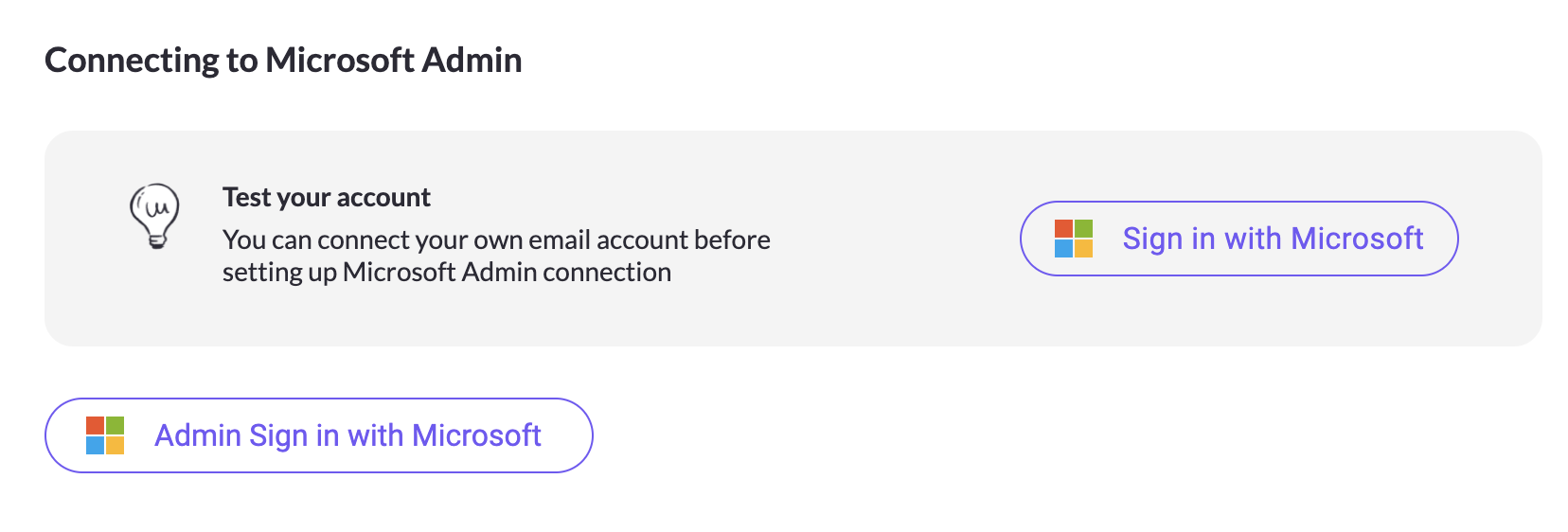
A message confirms the connection was successful, and discovery starts.
If you're not a Microsoft 365 admin
When you sign in, Microsoft shows a screen where you can request approval. Submit the request, and it's sent to your IT team automatically. Once they approve it, return to Radar and click Admin Sign in with Microsoft again to complete the connection.
Permissions
All permissions are read-only.
What happens next
Discovered systems appear in Radar as they're found, with the employees who use each one and how often. Discovery continues automatically, so new systems appear as employees start using them. See Reviewing findings.
Related articles
- Discover your data sources with Radar: all discovery methods and the security FAQ
- Connect Microsoft Entra ID SSO: add SSO discovery for managed systems
- Employees discovery: see who uses each system
Updated 20 days ago