
Slack Notifications for DSR
Get Slack alerts for new privacy requests, and for errors that need your attention
MineOS can post to Slack in two independent ways: a notification for every new privacy request, and a separate alert when something goes wrong and needs your attention. You can set up either one on its own, or both.
Getting notified about new requests
Choose one of two ways to connect Slack for new-request notifications:
- OAuth (recommended for public channels) — connect your Slack workspace directly and pick a public channel.
- Webhook URL (supports private channels too) — generate a Slack webhook URL and paste it into MineOS.
OAuth flow
-
Go to Settings > Automations > Marketplace.
-
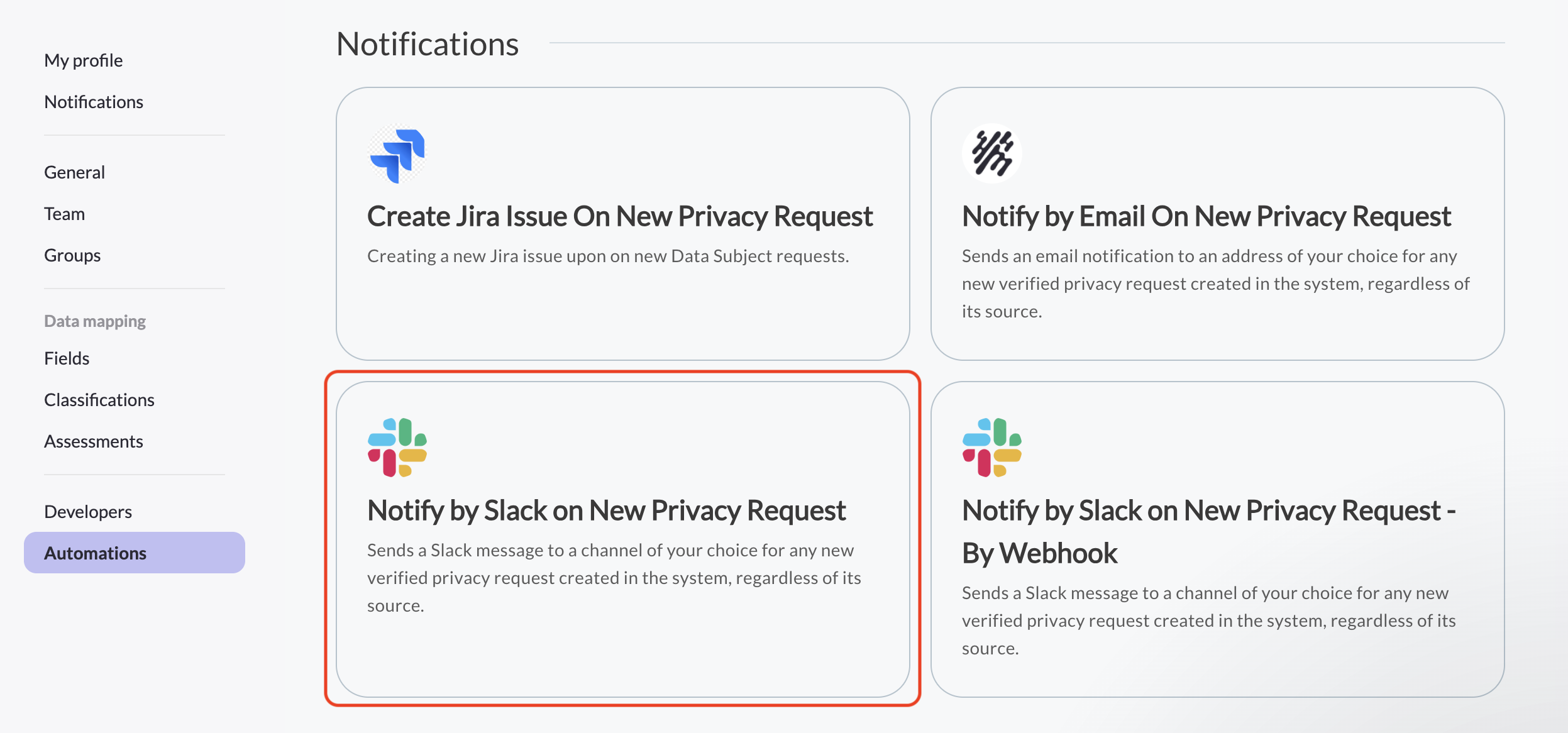
Find Notify by Slack on New Privacy Request and click Configure.
-
Click Connect and follow the on-screen instructions to authorize MineOS in your Slack workspace.
-
Choose the public channel where you want to receive notifications.
-
A confirmation appears once the automation is active.
Webhook flow
-
Generate a Slack webhook URL for your desired channel from your Slack workspace settings.
-
Go to Settings > Automations > Marketplace.
-
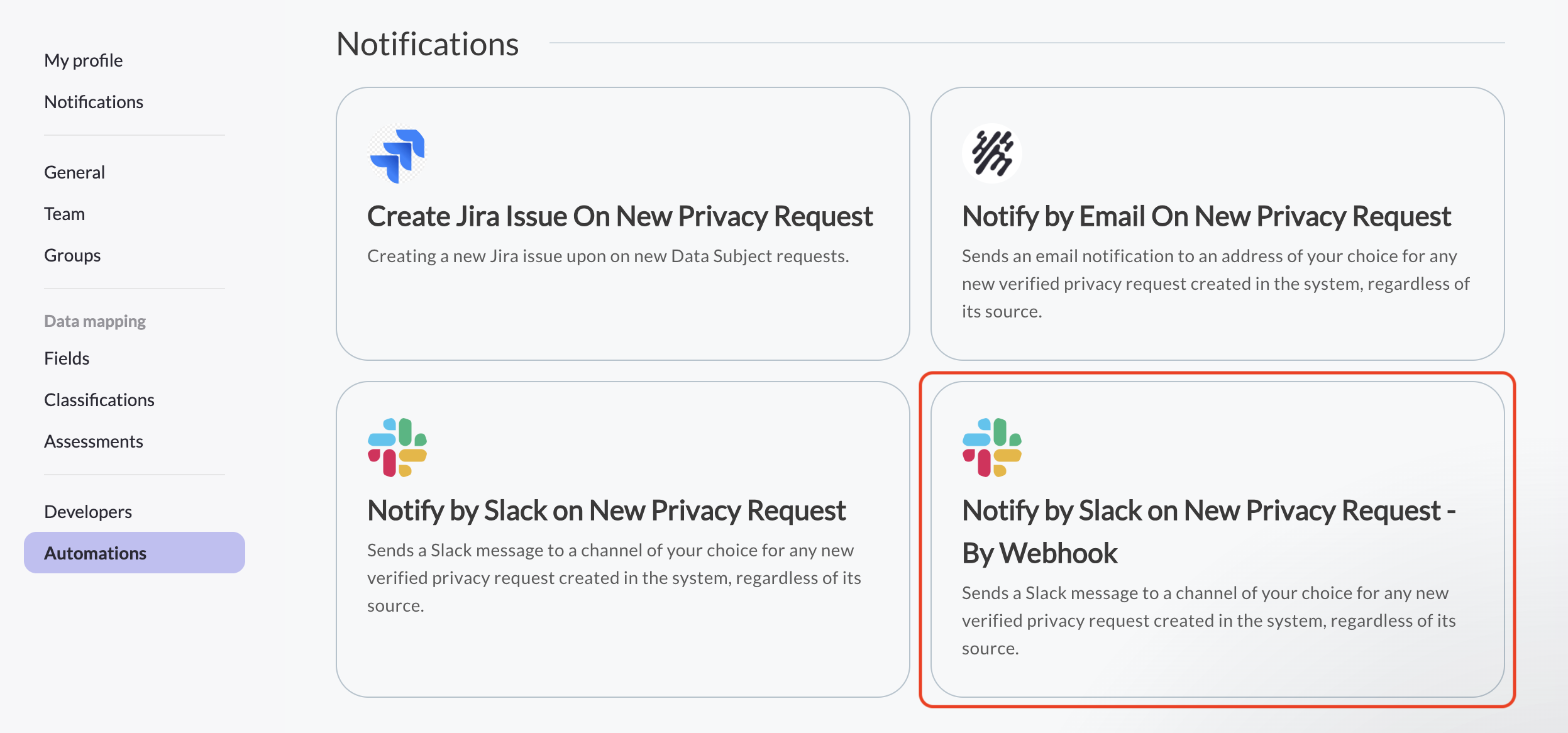
Find Notify by Slack on New Privacy Request - By Webhook and click Configure.
-
Paste in the webhook URL. Give it a meaningful name — this identifies the subscription MineOS uses to send new-request events to your channel.
-
Click Finish.
Once either flow is active, you'll receive a Slack message for every new, verified privacy request created in the system, regardless of which channel it came in through.
Getting alerted about errors
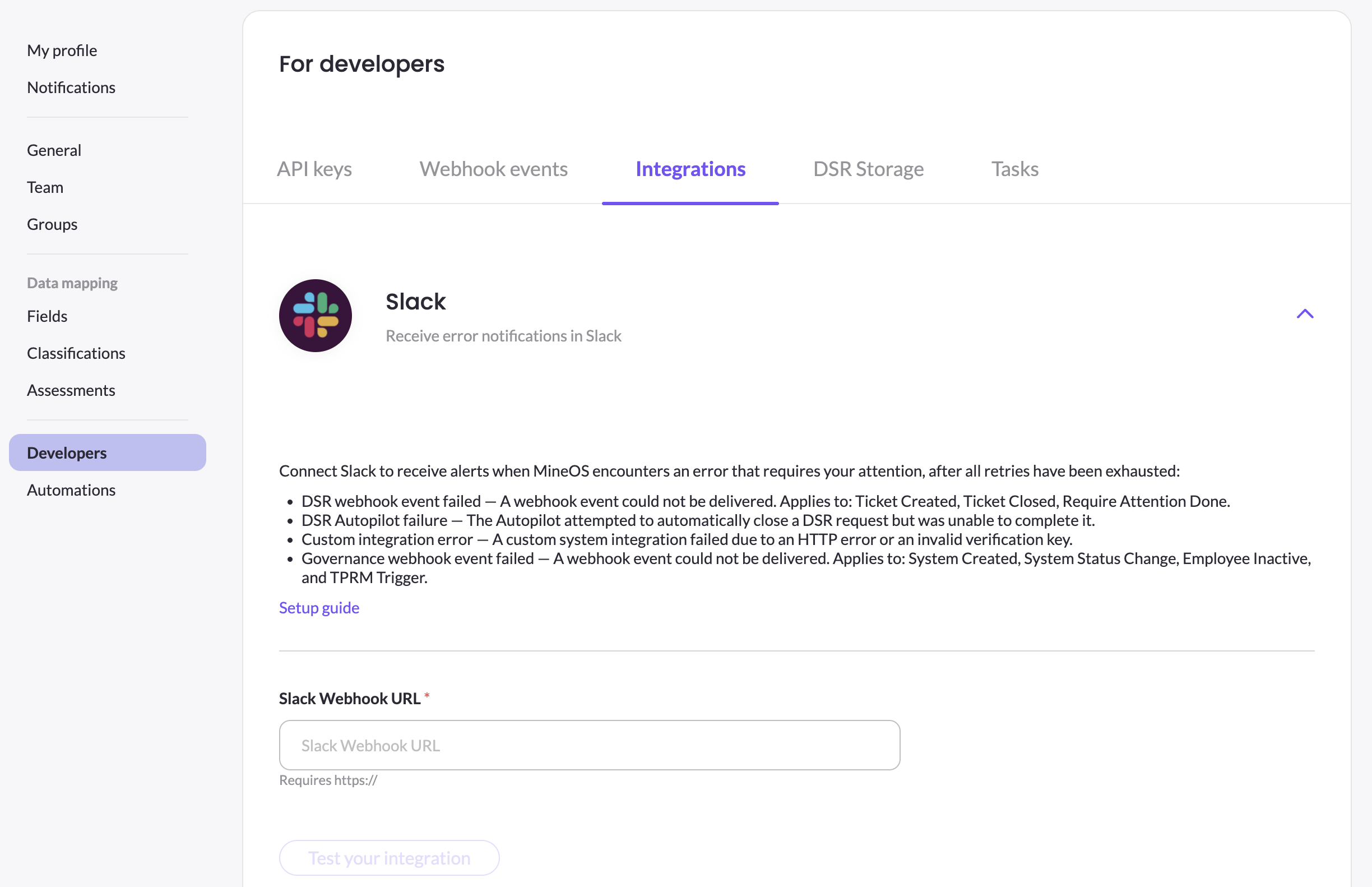
Separately from new-request notifications, you can connect Slack to receive alerts when MineOS hits an error it couldn't resolve after exhausting its retries. This covers:
- Webhook event failures — for Ticket Created, Ticket Closed, and Require Attention Done events.
- Autopilot failures — when Autopilot couldn't complete processing a request automatically.
- Custom integration errors — when a custom system integration fails due to an HTTP error or an invalid verification key.
- Governance webhook failures — for System Created, System Status Change, Employee Inactive, and TPRM Trigger events.
These error alerts are delivered only through this Slack integration — they are not part of the subscribable webhook events. In particular, Autopilot failure is an operational alert letting your team know a request needs manual attention, so there is no webhook event to subscribe to for it.
To set it up:
- Generate a Slack webhook URL (see steps above), ideally posting to a dedicated channel such as
mineos-errors. - Go to Settings > Developers > Integrations.
- Under the Slack integration, paste the webhook URL.
- Click Test your integration to confirm MineOS can reach the channel.
- Toggle Enable notifications on and click Save.
Which one do I need?
The two are independent — connecting one doesn't connect the other. If you want your team to see every incoming request in Slack, set up new-request notifications. If you want to be paged only when something breaks and needs manual attention, set up error notifications. Most teams that rely heavily on automated processing, like Autopilot, benefit from having both in place.
Updated 3 months ago