
Mira AI: eDiscovery agent for SaaS & DB — Redacting Sensitive Data
Let AI redact and reformat the structured (JSON) data in a copy report before it reaches the data subject
When you fulfill a Get a copy / Access request, the data you collect from integrations is often raw JSON full of technical fields and sensitive values you don't want to hand to the data subject as-is. The eDiscovery agent for SaaS & DB is an AI agent that automatically edits and redacts that structured data before it goes into the copy report — redacting sensitive fields, converting values into human-readable formats, and dropping unnecessary information.
It works on records (JSON) collected from your integrations. For sensitive data inside files (PDFs, documents), use the eDiscovery agent for Documents instead.
What the agent does
Following your instructions, the agent can:
- Redact sensitive fields — for example, anonymize credit card numbers.
- Convert formats — turn timestamps into readable dates, booleans into "yes"/"no".
- Humanize labels — turn camelCase or snake_case keys into Title Case and flatten nested objects.
- Remove unnecessary data — internal system IDs, metadata, and empty fields.
Availability
The eDiscovery agent for SaaS & DB is available on the Enterprise plan, and is configured from the Mira AI agents page.
Set up the agent
-
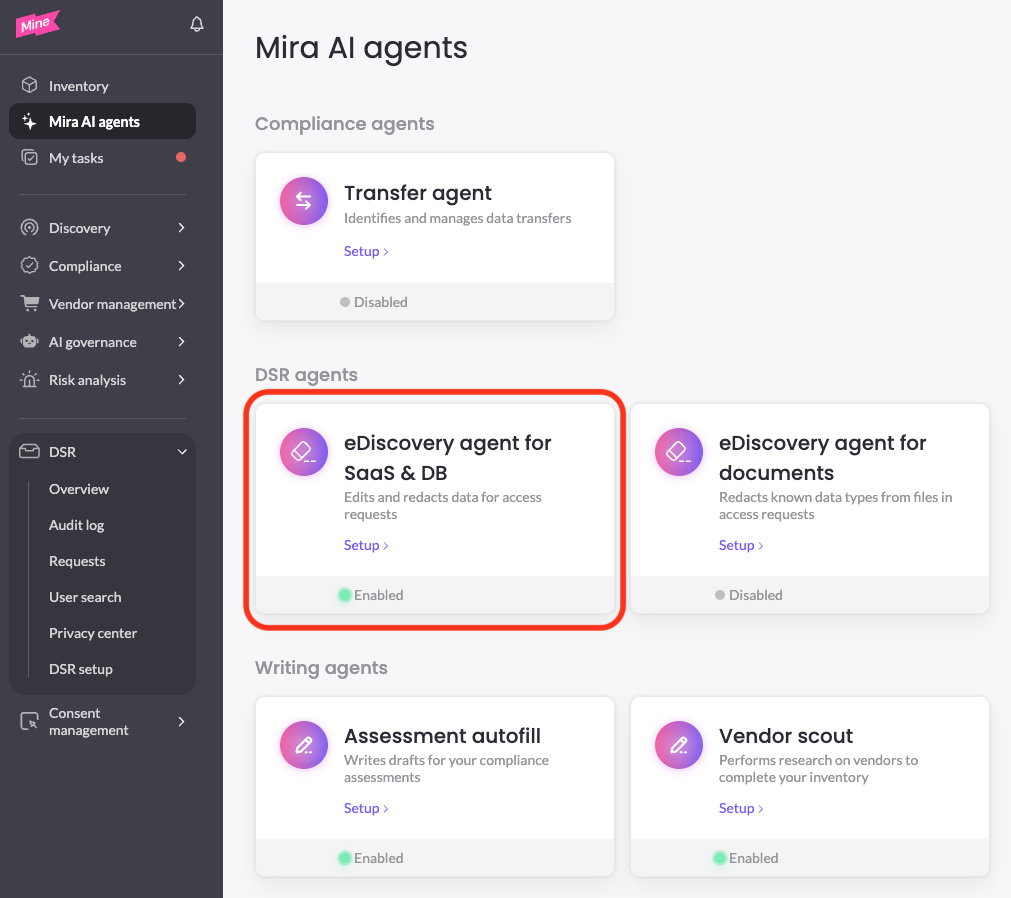
Go to Mira AI agents and open the eDiscovery agent for SaaS & DB tile
-
Add your General instructions — rules applied t
o the JSON data from all relevant integrations in the right's workflow
-
(Optional) Click + Add integration to add integration-specific instructions that take precedence over the general instructions, if conflicts
-
Click Save
-
Turn on the Enabled toggle in the top right
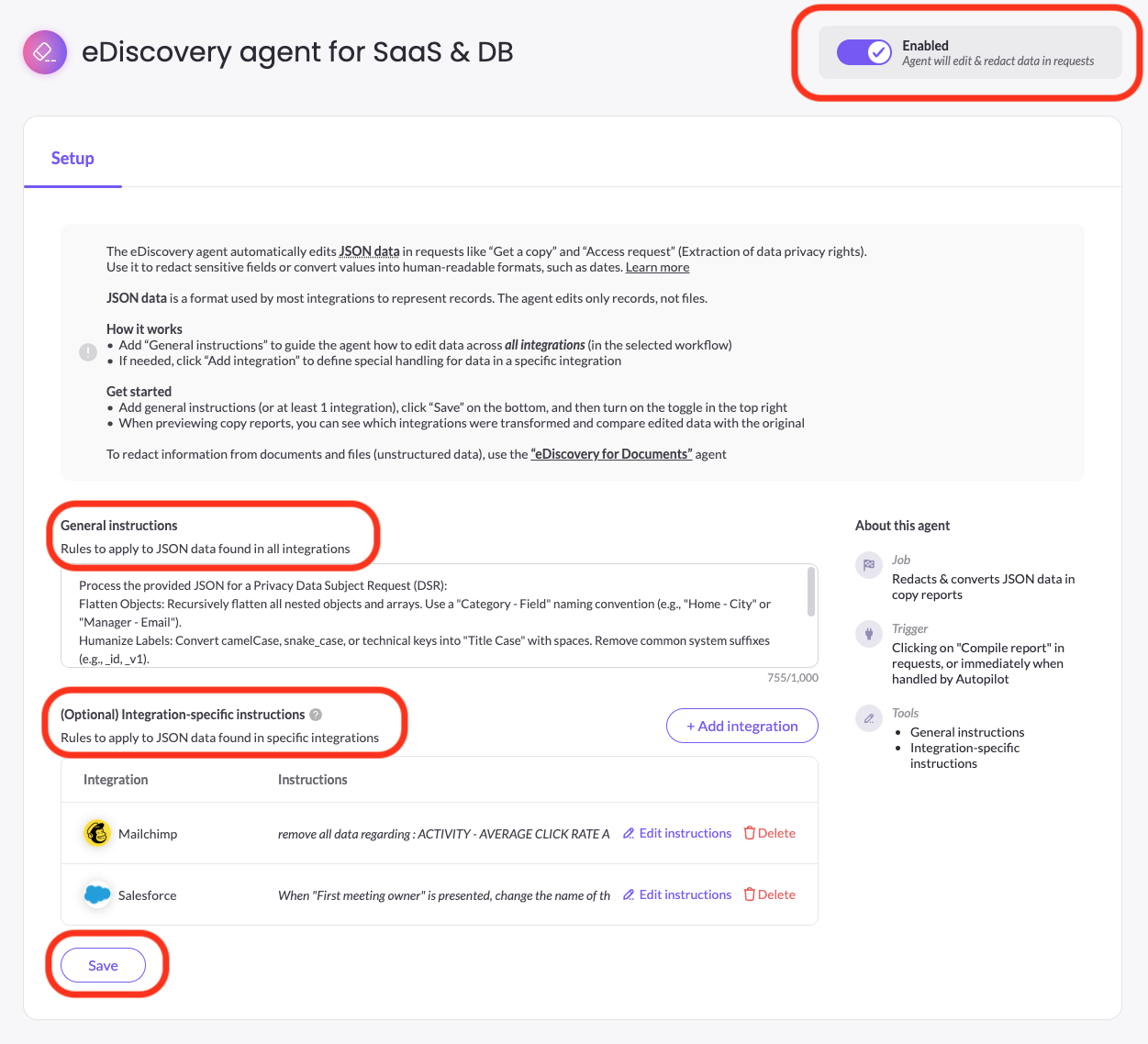
You must provide at least one set of instructions (general or integration-specific). Integration-specific instructions take precedence over the general ones. Each instruction field is limited to 1,000 characters.
Example instructions
You can write natural-language rules, such as:
- "Remove all phone numbers and email addresses"
- "Redact IP addresses"
- "Convert all dates to DD/MM/YYYY"
- "Remove internal system IDs"
- Rename technical fields (e.g., IsDeleted, __c suffixes) to clear, spaced names (e.g., "Is Deleted", "Contact Status").
- Omit internal IDs (e.g., Id, AccountId, OwnerId), URLs, and fields consistently null or purely for internal system tracking.
- Convert boolean true/false values to "yes"/"no"
- Combine physical address components (e.g., Street, City, Country, zip code) into a single "Address" string
- Ensure all values are directly extracted and formatted from the provided JSON.
- DSR-prioritized order: Sort fields by importance for a data subject. Prioritize core identity (name, email, phone), contact details, key relationship status, and recent activity.
When it runs
The agent is triggered when you click Compile report in a Get a copy / Access request after data collection, or when the request is handled by Autopilot and the Compile report step is reached. It processes only JSON records from automatic integrations — manual uploads and files are handled separately (redact files with the eDiscovery agent for Documents and the Redaction tool.
Review the results
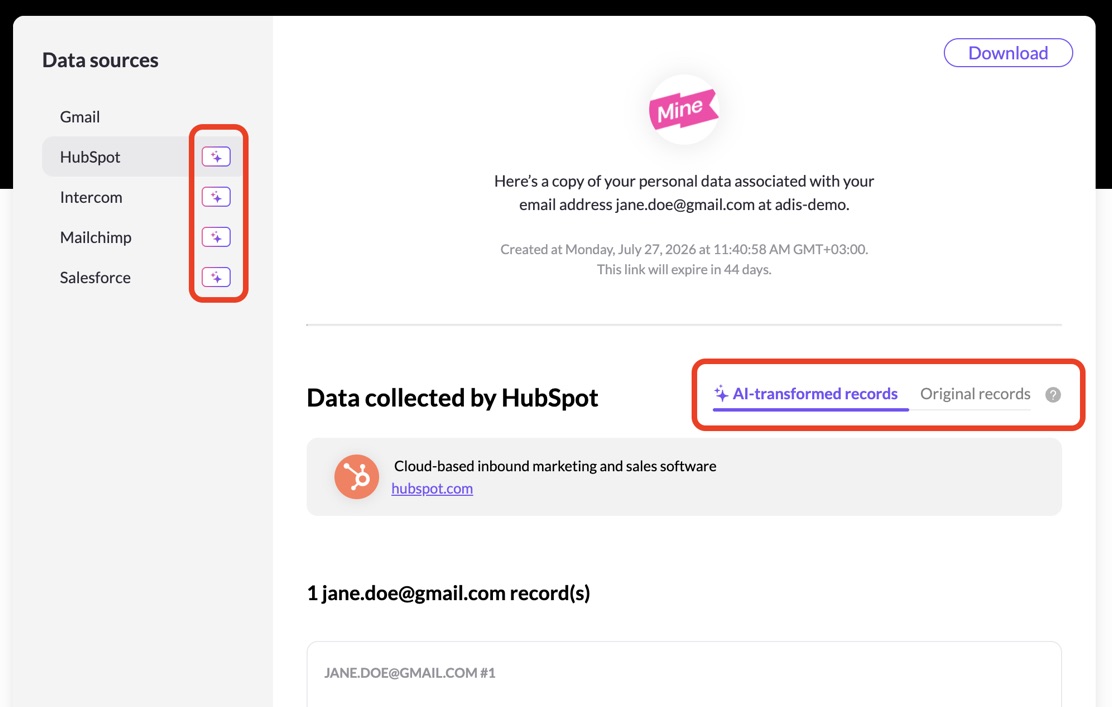
When previewing the compiled copy report, you can see both the original records and the AI-edited records per integration, and switch between them to compare. The data subject receives only the AI-edited data — the original records are never included in what's sent. Near each system on the left you have an icon indicating if the agent ran on it.
Change the edits
To adjust how data is edited, update your instructions in the agent's Setup, click Save, and re-compile the report on the request. Currently, individual records can't be edited by hand after processing.
If the agent errors
If the agent hits an error on an integration, MineOS falls back to that integration's original, unedited data and continues compiling the report, noting which integrations failed. You can preview the records, or edit the report and compile again to re-run the agent.
Good to know
Disabling the agent doesn't remove AI-edited records from a report you already compiled, and re-compiling won't automatically clear them — contact your CSM to remove them. For the most accurate results, use integration-specific instructions where you can, and always preview a report before sending it.
Updated 3 months ago