
Configuring Rules
Control which consent banner is shown to which visitors based on their region and the page they're viewing.
Rules control which consent banner is shown to which visitors, based on the visitor's region and the page they're viewing. Different regions have different privacy regulations, so most websites need more than one banner — for example, a GDPR opt-in banner for visitors from the EU and an opt-out banner for visitors from the United States.
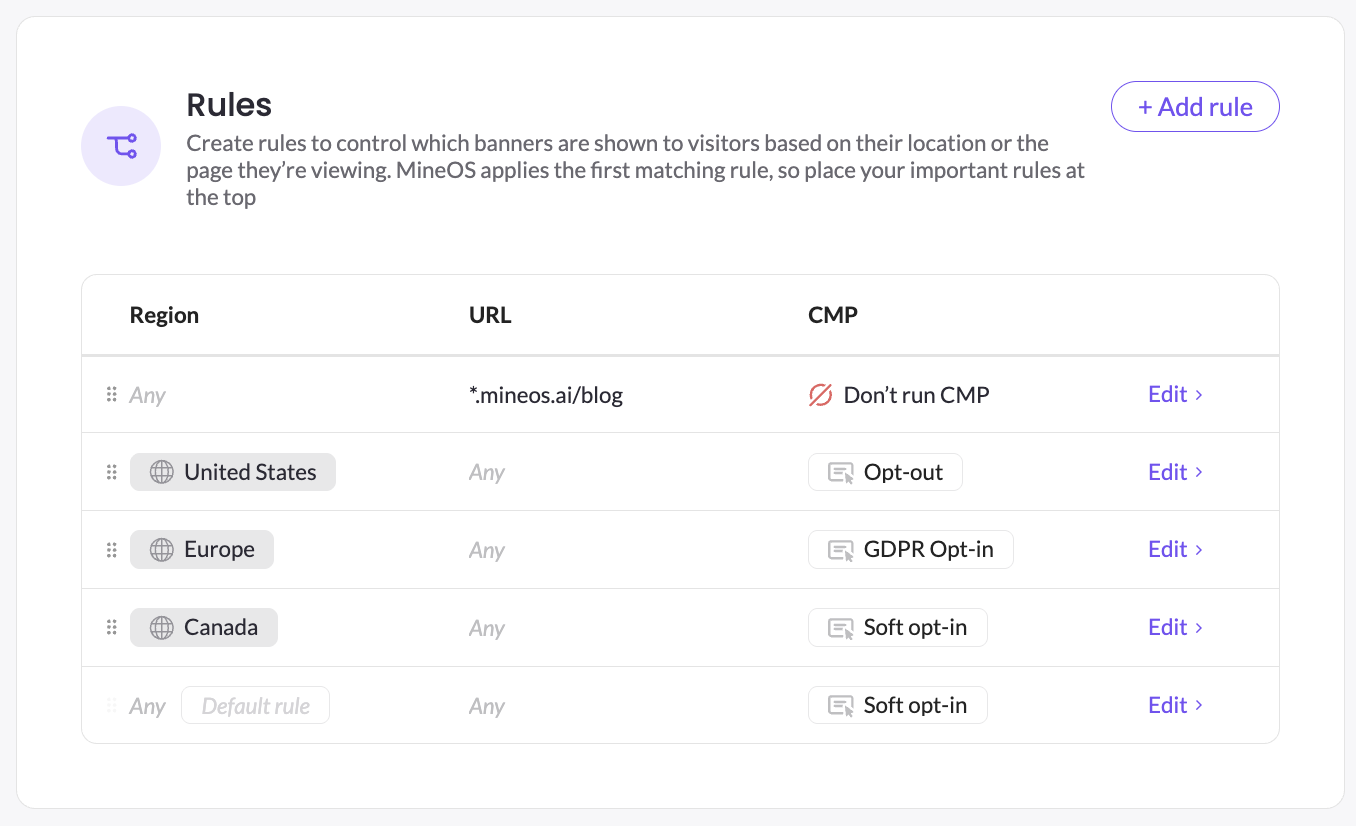
The Rules page (under Consent Management → Websites → Rules) is where you define this logic.
Before you startMake sure you have already created the banners you want to use under the Banners tab. Rules reference existing banners by name — you can't create a banner from inside a rule.
How rule matching works
When a visitor loads a page on your website, MineOS evaluates your rules from top to bottom and applies the first one that matches. Once a rule matches, evaluation stops — no other rules are checked.
This means the order of your rules matters. Place your most specific rules at the top and broader rules below them. The Default rule at the bottom is the fallback that runs when no other rule matches.
Order mattersRules are evaluated top to bottom and the first match wins. Drag rules up or down using the handle on the left of each row to set the priority you want.
Anatomy of a rule
Every rule has three parts:
| Field | What it does |
|---|---|
| Region | The geographic region the visitor is browsing from. A rule can apply to one region, multiple regions, or any region. |
| URL | Optionally restricts the rule to a specific page or URL pattern. Leave as Any to apply the rule to every page on your domains. |
| CMP | What MineOS should do when this rule matches - show a specific banner, or skip the CMP entirely. |
Creating a rule
- Go to Consent Management → Websites, open the website you want to configure, and select Rules from the left navigation.
- Click + Add rule in the top right.
- In the If section, define the matching conditions:
- Region is any of: select one or more regions (e.g. Thailand, Israel, United States, Europe, Canada). You can add multiple regions to a single rule.
- URL is exactly: (optional) restrict the rule to a specific URL. Leave blank to apply to all pages.
- In the Then section, choose what should happen:
- Run CMP — MineOS will block cookies and show the banner you select. Pick the banner from the Banner dropdown.
- Don't run CMP — MineOS won't block cookies, and no banner will be shown on pages that match this rule.
- Click Update to save the rule.
- Drag the rule into the correct position in the list (remember: first match wins).
- When you're ready for the change to go live, click Publish in the top right of the Rules page.
Changes are not live until you publishEditing rules in the portal doesn't change what your visitors see. Click Publish to push the updated configuration to your live website.
Choosing the right CMP behavior
When a rule matches, you can pick one of two outcomes:
Run CMP
MineOS will manage consent on pages that match this rule. You then pick which banner to show. The exact list of banners shown in the dropdown is whatever you've defined under the Banners tab. Settings such as consent mode (optin/opt out), whether to show or hide the banner
Don't run CMP
No banner is shown and MineOS does not block any cookies on pages that match this rule. Use this when:
- The page or region is out of scope for your consent program
- You want to exclude a specific area of your site (e.g. a logged-in app, an internal admin page)
- A region has no applicable privacy regulation and you don't want to run the CMP platform there.
The Default rule
The last row in the Rules table is the Default rule. It always sits at the bottom and cannot be moved. The Default rule applies to any region and any URL that isn't matched by a rule above it.
You can edit the Default rule to choose between Run CMP (with a banner of your choice) and Don't run CMP — but you cannot delete it. Setting the Default rule to Don't run CMP means visitors in unconfigured regions will see no banner and have no cookies blocked.
Recommended setupIf your privacy program covers most of the world, set the Default rule to Run CMP with your strictest banner (typically a GDPR opt-in). If your program only covers specific regions, set the Default rule to Don't run CMP and add targeted rules for the regions you want to cover.
Using the setup wizard
When starting from scratch, an easy way to automatically setup rules and banners is to click 'Setup with AI' from the banners page. This will create different types of banners and assign geographic rules to each, covering world-wide regulations.
Configuring URL conditions
The URL field on a rule lets you scope a rule to a specific page or set of pages. Leave it as Any to apply the rule to your entire domain.
This is useful when:
- You want a different banner on a specific landing page (e.g. a campaign page that requires explicit marketing consent)
- You want to exclude one section of your site from MineOS (e.g. a logged-in app under
/app/*) - You're running a regional campaign on a single URL
Enter the URL pattern you want to match in the URL is exactly field. Combine this with a region condition for finer targeting (e.g. "US visitors viewing /promo").
Tips and best practices
- Most specific first. Place rules with the narrowest conditions (specific URL + specific region) at the top, and broader rules below.
- Don't forget the Default rule. It's the safety net for any region or URL you haven't explicitly configured. Decide consciously whether it should show a banner or not.
- Group similar regions. A single rule can target multiple regions — there's no need to create one rule per country if they all need the same banner.
- Publish to deploy. Rule changes only go live after you click Publish. The page shows the timestamp of the last publish at the top.
Troubleshooting
| Symptom | What to check |
|---|---|
| The wrong banner is showing for a visitor | Check the order of your rules — a broader rule earlier in the list may be matching first. Drag the more specific rule above it. |
| Changes I made aren't visible on my site | Rules go live only after you click Publish. Confirm the "Last publish" timestamp at the top of the Rules page is recent. |
| No banner is showing for a region I expected | Check that a rule covers that region. If only the Default rule applies and it's set to Don't run CMP, no banner will appear. |
| A specific URL needs a different banner | Add a new rule above the general one, set the URL condition to the specific path, and assign the banner you want for that page. |
| I want to disable MineOS on part of my site | Add a rule for the affected URL pattern (or region) and set it to Don't run CMP. Place it above any rule that would otherwise match. |
Updated 5 months ago