
Send data sources to coworkers for review
Ask a system owner or teammate to confirm a data source’s details, data types and processing activities, so your inventory reflects how systems are really used.
Privacy teams rarely know every detail of every system. The people who use a tool every day, such as its business owner or the team that runs it, know what data it holds and what it's used for. Review requests let you send a data source to the right person to confirm or correct its details, so your inventory stays accurate without chasing answers over email.
What you can send for review
| What | When to use it |
|---|---|
| A data source's details | You've filled in a system's usage details and want its owner to confirm them |
| Its data types | You're not sure what personal data a system holds |
| Its processing activities | You're not sure what a system is used for |
Request a review of a data source
- Go to Data mapping › Inventory and open the data source.
- On the Details tab, fill in what you know, and assign a business owner.
- Click Ask for review.
- Choose who should review it: the data source's owner, or another teammate.
- Send the request.
The reviewer receives an email asking them to review how your organization uses the system.
Ask for feedback on data types or processing activities
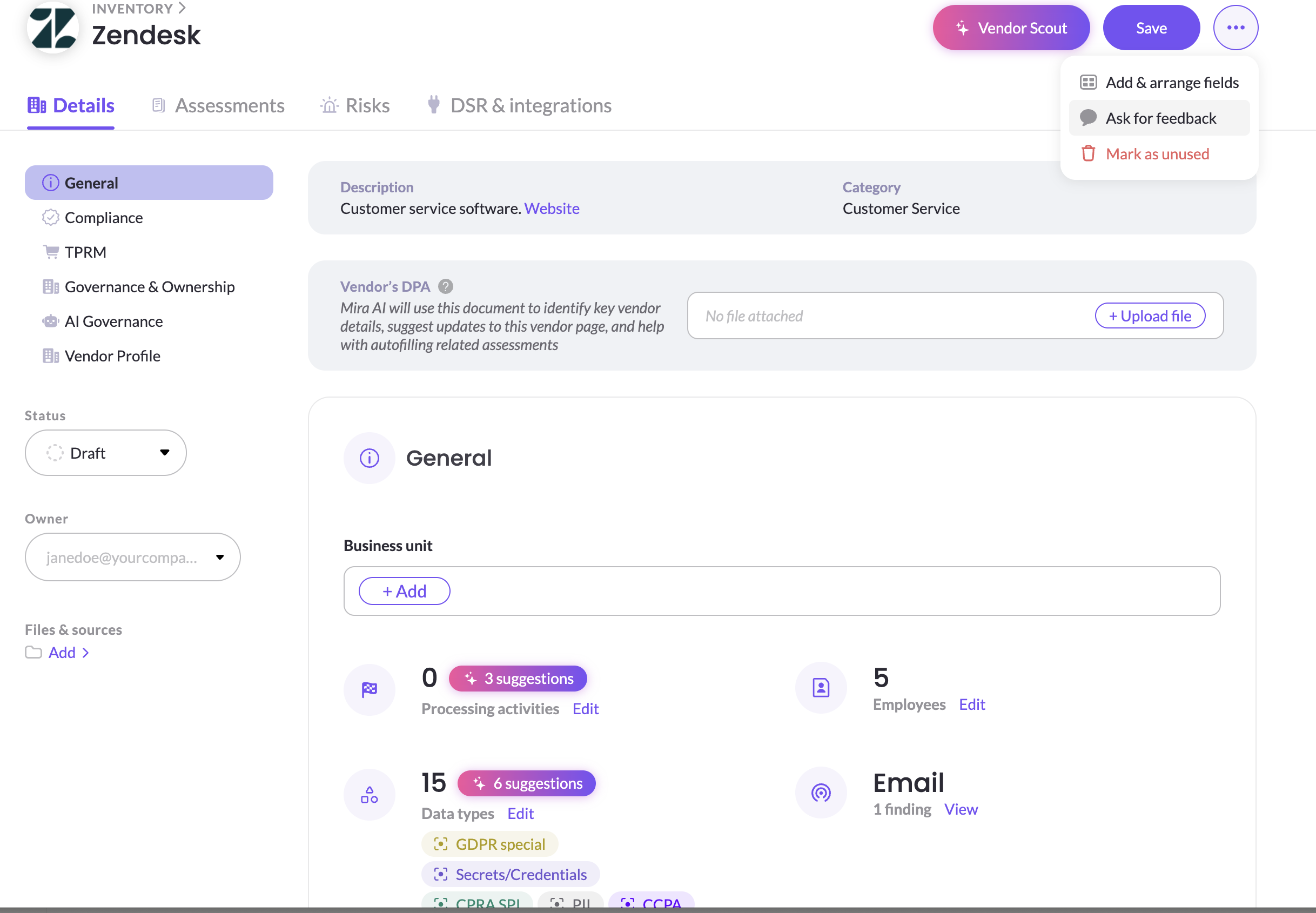
- Open the data source.
- Open the ••• menu and select Ask for feedback.
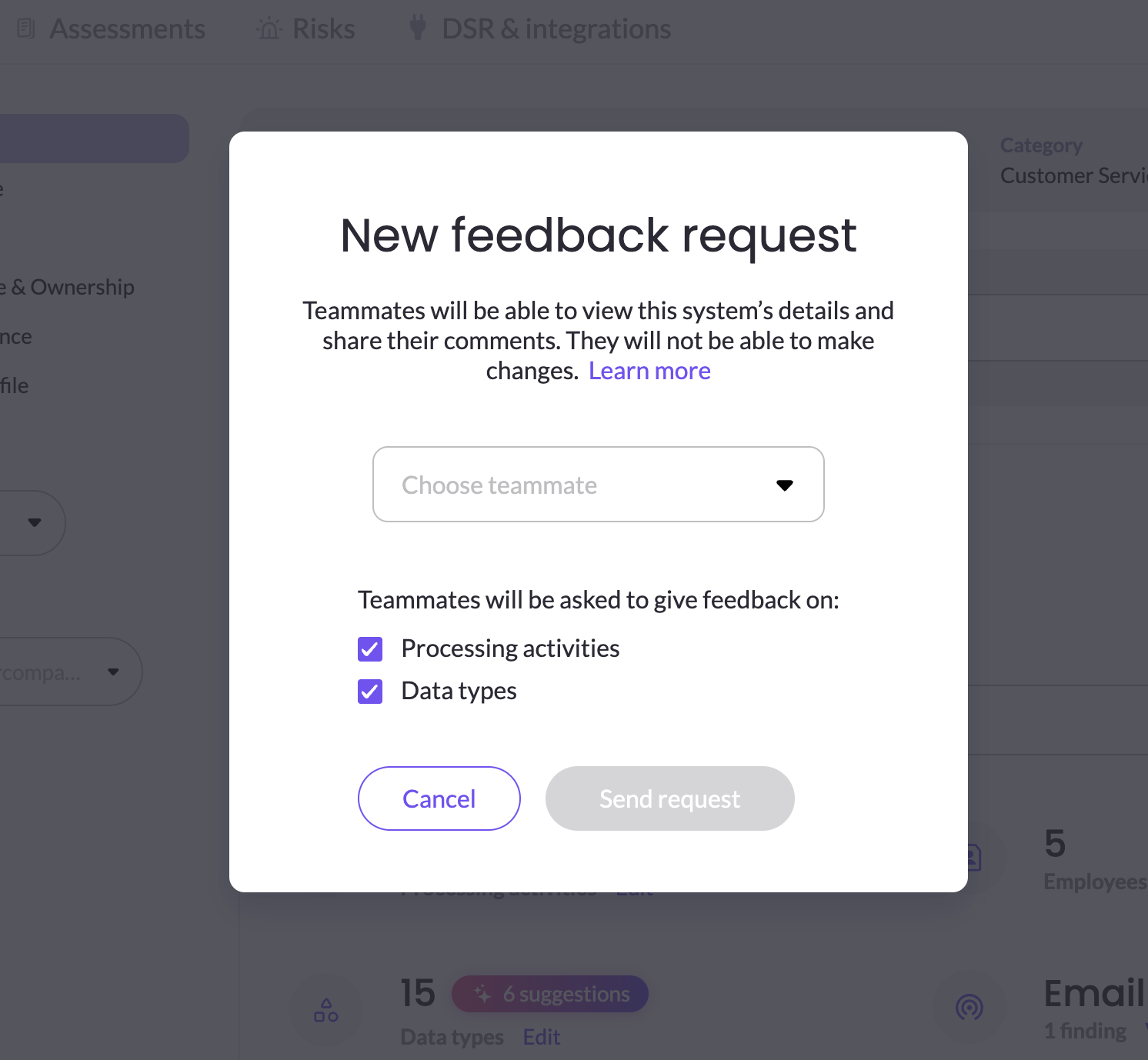
- Choose the teammate you want to ask.
- Select Data types, Processing activities, or both.
- Click Send request.
What the reviewer does
- The reviewer opens the request from the email, or from My tasks in the left navigation.
- They click Start review to see the data source's details.
- For a data source review, they either approve the details or request changes.
- For data types or processing activities, they can see your entries and any AI suggestions, and add comments before submitting their response.
After the review
You receive an email when the reviewer responds.
- If they approved it, update the data source's status, for example to Approved.
- If they requested changes, update the details and send it for review again.
- If they gave feedback on data types or processing activities, accept or adjust the data source's entries based on their comments.
Tips
- Assign owners early. Every data source should have a business owner, so you always know who to ask.
- Fill in what you can first. Reviewers respond faster when they're confirming details rather than starting from scratch. Run Vendor scout first to pre-fill vendor details. See Research Vendors with Mira AI (Vendor Scout).
- Batch your requests by owner, so each teammate can review all their systems in one sitting from My tasks.
Related articles
- Navigate Your Inventory: data source pages, statuses and owners
- Map business purposes with processing activities: document what each system is used for
Updated 20 days ago
Did this page help you?