
Languages & Translations in the Privacy Center
Control which languages are available on your Privacy Center form and translate every element for each enabled language.
How languages work across the platform
Before we jump in to details of languages and translation in the Privacy Center, it's important to understand that languages touch several areas of the platform, each with its own scope:
Languages in DSR Setup — the global list of languages available across your account. This is the master list. Any language you want to use anywhere in the platform must first be added here, in DSR → DSR setup → Languages. For a full explanation of the master list and how it connects to every translatable area, see Languages. Each language shows a visibility status reflecting how it's used across your Privacy Centers:
- Visible to customers — the language is enabled in all your Privacy Centers
- Visible to some customers — the language is enabled in at least one Privacy Center, but not all of them
- Not visible to customers — the language is not enabled in any Privacy Center
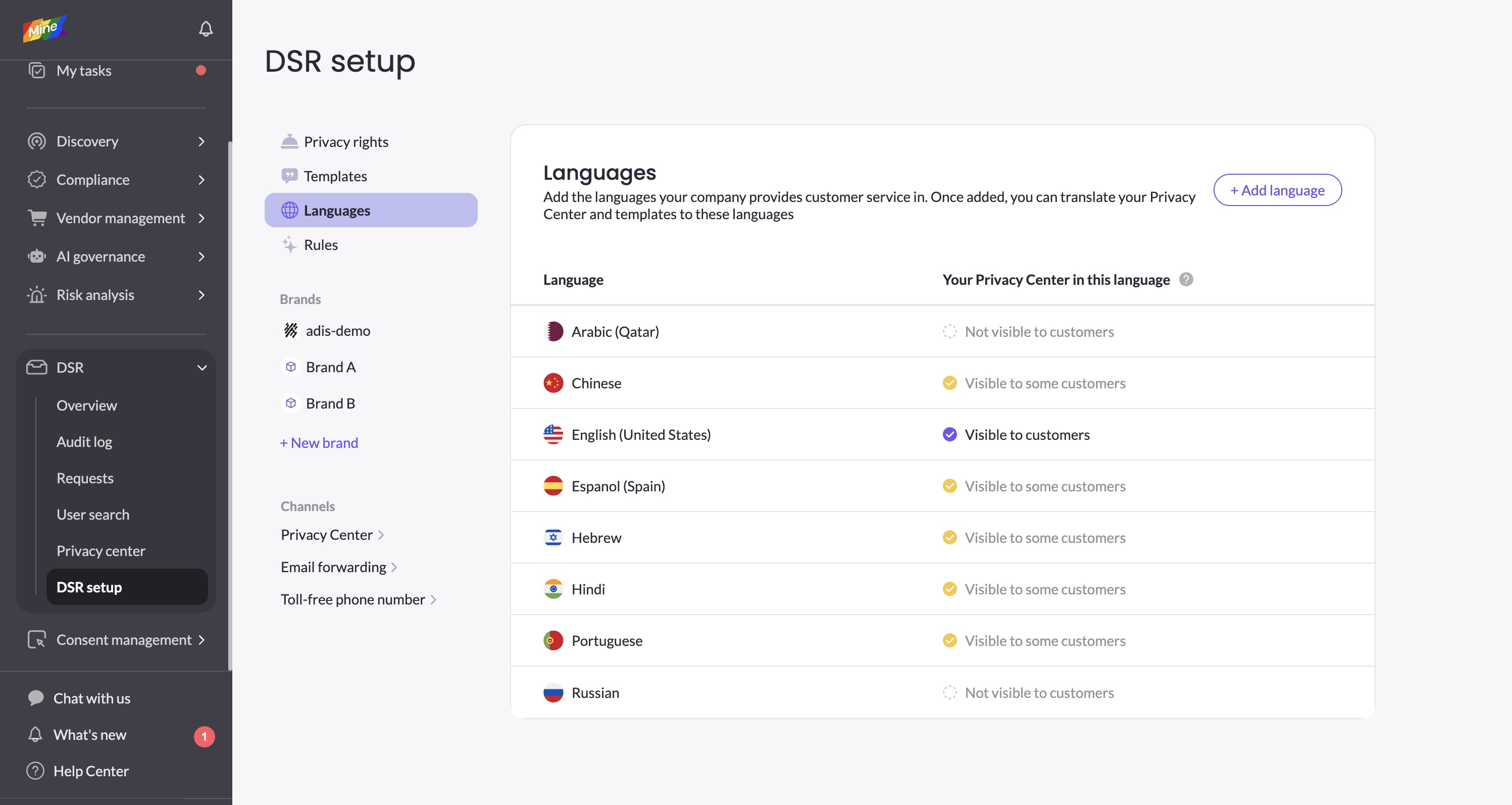
This status is based on published Privacy Centers only. If you've enabled a language in a draft but haven't published yet, that Privacy Center is counted as not supporting that language.
Languages in the Privacy Center — controls which languages appear in the language dropdown that data subjects see on the form. Configured per brand in the Languages tab. A language must be enabled globally in DSR Setup before it can be enabled here. More information in this article.
Form translations — the translated content of every element in the Privacy Center form (titles, placeholders, answer options, etc.). Configured per brand in the Form details tab, via the translation panel or auto-translate. These translations are specific to each brand's Privacy Center. More information in this article.
Rights translations — the translated names and descriptions of privacy rights (e.g. "Delete my data", "Get a copy of my data"). These are configured in DSR → DSR setup → Privacy rights and are global — they apply to all Privacy Centers across all brands in your account.
Template translations — Template translations: The language a data subject selects when submitting a form sets the language of every later communication MineOS sends them, such as verification emails and status updates. Unlike the Privacy Center form and privacy right names, email templates have no auto-translate option, so all template translations must be added manually. Making sure every template in use is translated into every language enabled in your Privacy Center is your responsibility. If a translation is missing, the data subject may receive emails in a default language (English). You can add and edit translations in DSR setup → Templates. For step-by-step instructions, see Managing Templates.
The language tab in the Privacy Center
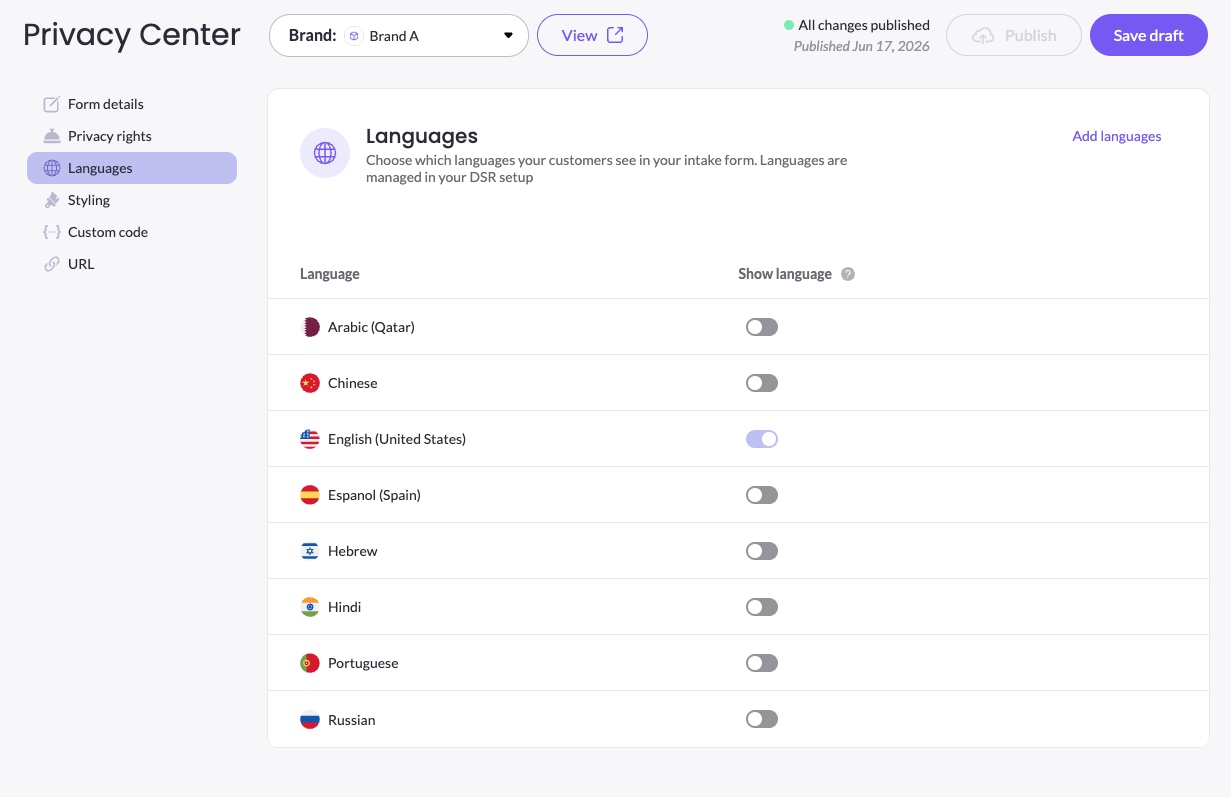
The Languages tab shows all languages that have been added to your DSR setup, each with a Show language toggle that controls whether data subjects can select that language on the live form.
Enabling and disabling languages
In the Privacy Center's Languages page, toggle a language on to make it available on the form. Toggle it off to hide it from data subjects without removing it from your DSR setup. Click Save draft after making changes.
Translations go live only after the language is enabled, all translations are saved, and the Privacy Center is published.
English (US) is always enabled and its toggle is locked — it cannot be turned off. It serves as the fallback language for any untranslated content. If you want a specific language to be presented as the default for a particular context, use the URL locale parameter — see Prefilling Fields & URL Parameters for details.
Which language does a data subject see?
When a data subject opens the Privacy Center, the form language is determined in this order:
- URL locale — if a locale code is present in the URL (e.g. for direct links or copy report pages), that language is used. See Prefilling Fields & URL Parameters for details.
- Previously selected language — if the data subject has selected a language on the form before, their saved preference is used
- Browser language — if the data subject's browser language matches an enabled language in the Privacy Center, that language is used
- Fallback — English (US)
Data subjects can always switch the language themselves using the language dropdown in the top-right corner of the live form.
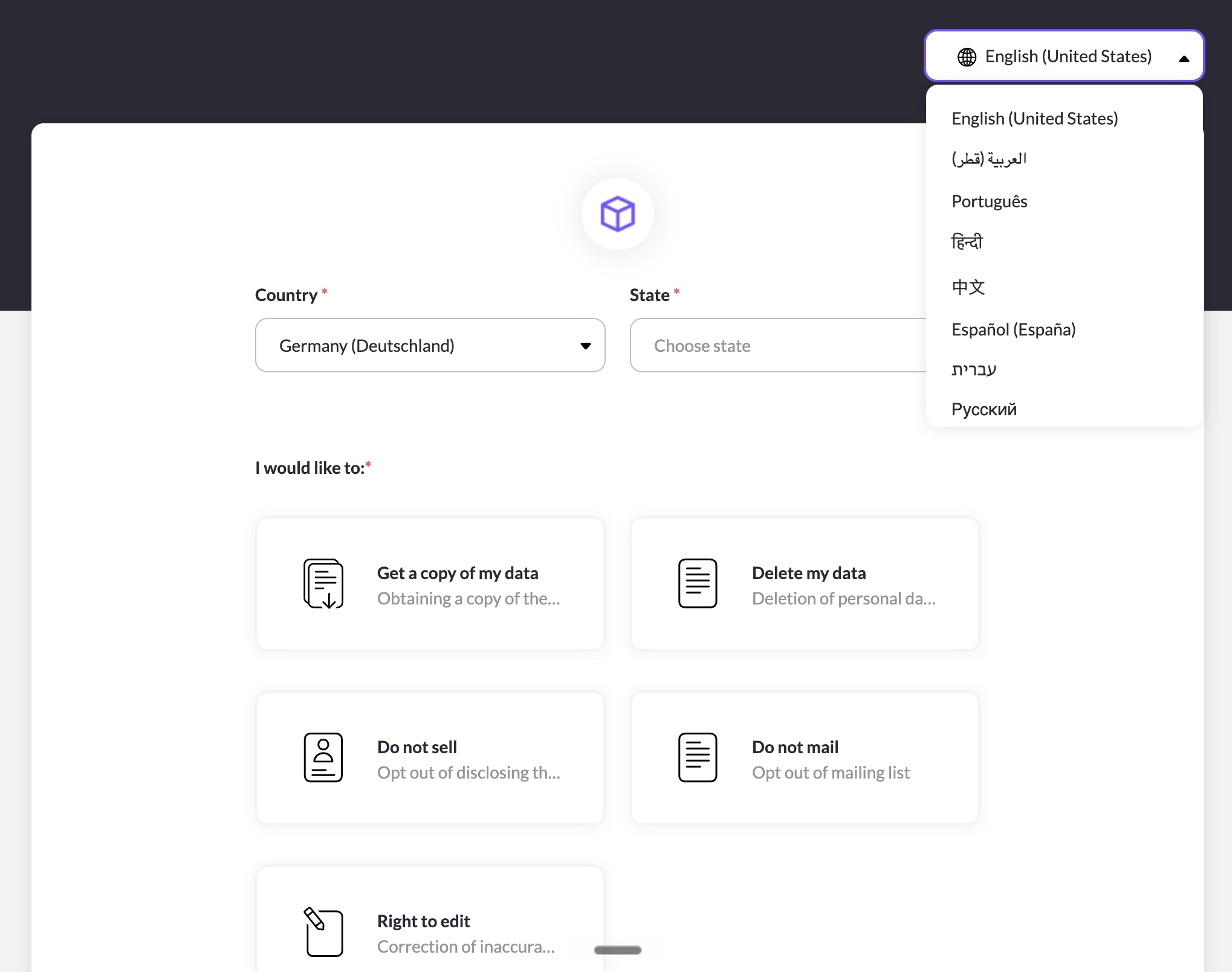
Important: The language a data subject selects affects all future communications sent to them — including verification emails and request updates. Make sure all relevant DSR email templates are translated into every language you enable in the Privacy Center. You can manage templates in DSR → DSR setup → Templates.
Translating your form
There are two ways to add translations: translating the entire form at once, or translating element by element. We recommend starting with auto-translate and then making any manual adjustments — auto-translate overwrites any existing translations, so always run it before making manual edits.
Auto-translate (whole form)
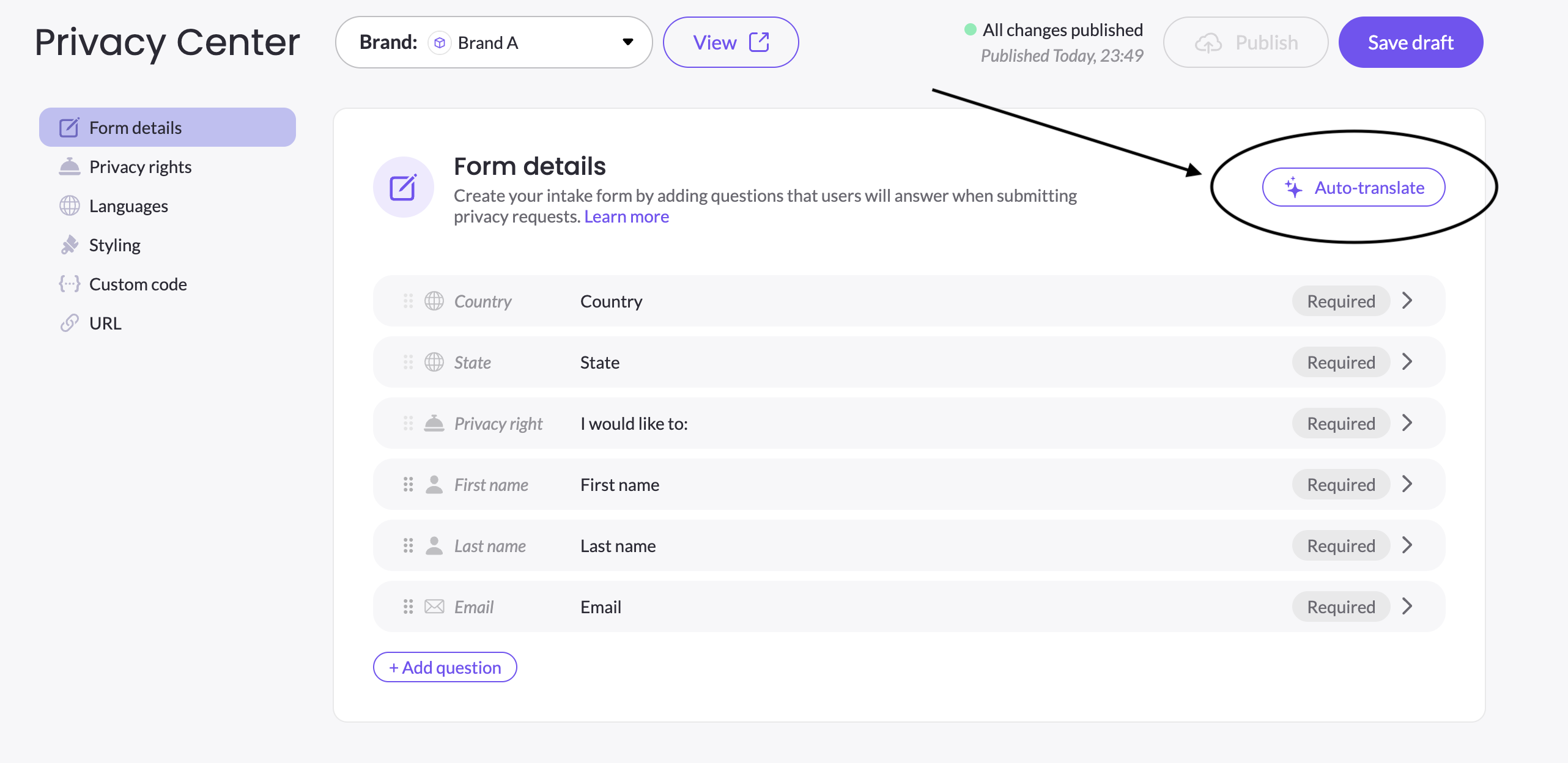
The Auto-translate button at the top of the Form details tab translates all elements across all enabled languages in one action. Clicking it opens a confirmation dialog — confirm to start. A spinner indicates the process is running.
Translating individual elements
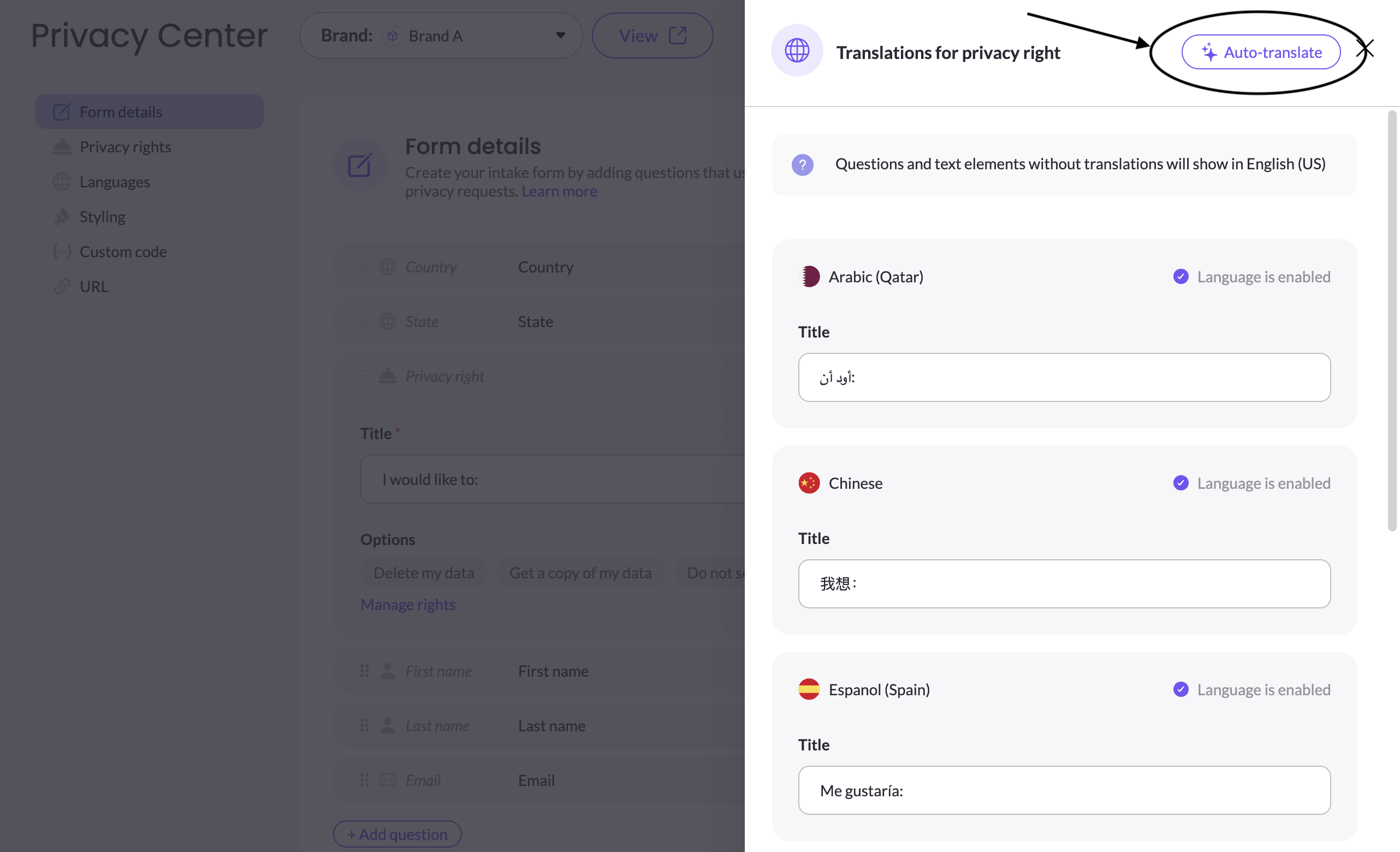
To translate a specific element, expand it in the Form details tab and click Translate in the element's right sidebar. This opens the translation panel, which slides in from the right.
The translation panel shows:
- Each enabled language as a section, with a Language is enabled / Language is disabled badge
- The translatable properties for that element (Title, Placeholder, answer options, etc.) — empty until translated
- An Auto-translate button at the top of the panel to auto-translate just this element across all languages
Edit any field directly in the panel. Click Save draft to save your changes.
Auto-translate at the element level also overwrites any existing translations for that element. Best practice is to run Auto translate first, then make manual edits as needed
Fallback behavior
If an element has no translation for a given language, it displays in English (US) on the form. This applies per property — if only the Placeholder is missing a translation, the Title still shows in the correct language.
Publish validation
When you click Publish, MineOS checks whether all enabled languages have complete translations. If any are missing, a warning dialog lists the affected languages and lets you choose to go back and fix them or publish anyway. See Save, Preview & Publish for details.
Updated 2 days ago