MongoDB DSR integrations
Automate privacy request handling by integrating MineOS with MongoDB.
Missing an action you need, or an integration we don't support yet? Contact your Customer Success Manager.
MongoDB has two DSR integrations that automate privacy requests: MongoDB and MongoDB - Custom Anonymization. In MongoDB, records are stored as documents, grouped into collections. MineOS finds the documents that belong to the requester and either deletes them or anonymizes the personal data in them.
To scan MongoDB for personal data, see MongoDB data classification integration.
How It Works
MongoDB offers two integration types available under the Integration Type dropdown in the MongoDB system page in the Inventory:
| MongoDB | MongoDB - Custom Anonymization | |
|---|---|---|
| Deletion requests | Deletes matching documents | Anonymizes chosen fields and keeps the documents |
| Get a copy and preview | Supported | Not supported |
| Collections | One per integration | Any collection you add rules for |
Choose MongoDB - Custom Anonymization if other records link to the person's documents, or if you need to keep the documents for reporting or legal reasons.
MongoDB
- Preview: before MineOS deletes or copies anything, you can preview the matching documents it found for the requester.
- Delete: MineOS deletes every document in the configured collection where the field you specify contains the requester's email address, ignoring letter case. Whole documents are deleted, not only the matching field. Preview the matches first to confirm they belong to the requester.
- Get a copy: MineOS sends the requester a copy of the matching documents.
Each integration covers one database and one collection. If a person's data is spread across several collections, set up a separate instance for each.
MongoDB - Custom Anonymization
- Finding the requester: MineOS looks for the requester's email in the email fields you choose, ignoring letter case. If you don't choose any, it searches every field in each collection that has rules.
- Anonymizing: MineOS replaces the value of each field you choose. The Replace with input matches the field type. Leave it empty to use the default:
REDACTEDfor text,0for numbers,1970-01-01for dates,falsefor true/false fields andREDACTED-{random}for unique fields. - Arrays: the whole array is replaced by default. You can choose to replace only the entries that hold the requester's email and keep the others.
- Empty values: fields that are already empty are left unchanged.
Note: The field list is built from a sample of your documents, so in rare cases a field that appears in only a few documents may not be listed.
Before You Start
- Have your MongoDB cluster connection string ready, including the database URL, username and password.
- Create a database user for MineOS with the built-in role Read and write to any database (
readWriteAnyDatabase). In MongoDB Atlas: Database Access → Add New Database User → Built-in Role. - MineOS must be able to reach your cluster. Add the MineOS IPs for your region to the cluster's IP access list (in Atlas: Network Access → IP Access List). See IP & Email Whitelisting.
Setting Up
- Log in to MineOS. On the left sidebar, click Inventory → Add data source, search for MongoDB and add it.
- Open the MongoDB system and go to the DSR & integrations tab. If the system already has an instance, click Add instance.
- Under Action for fulfilling requests, select Integration. In the Integration Type dropdown, select MongoDB, then click Set up integration.
- In the setup wizard, enter your MongoDB cluster connection string.
MongoDB
- Fill in the Database Name and Collection Name fields with the database and collection MineOS should search and delete from.
- In the Parameter Name Field, enter the path of the field that holds the requester's email address, such as
emailoruser.email. - Click Finish.
You're done! MineOS has been connected to your MongoDB cluster.
MongoDB - Custom Anonymization
In step 3 above, select MongoDB - Custom Anonymization in the Integration Type dropdown instead of MongoDB. Then:
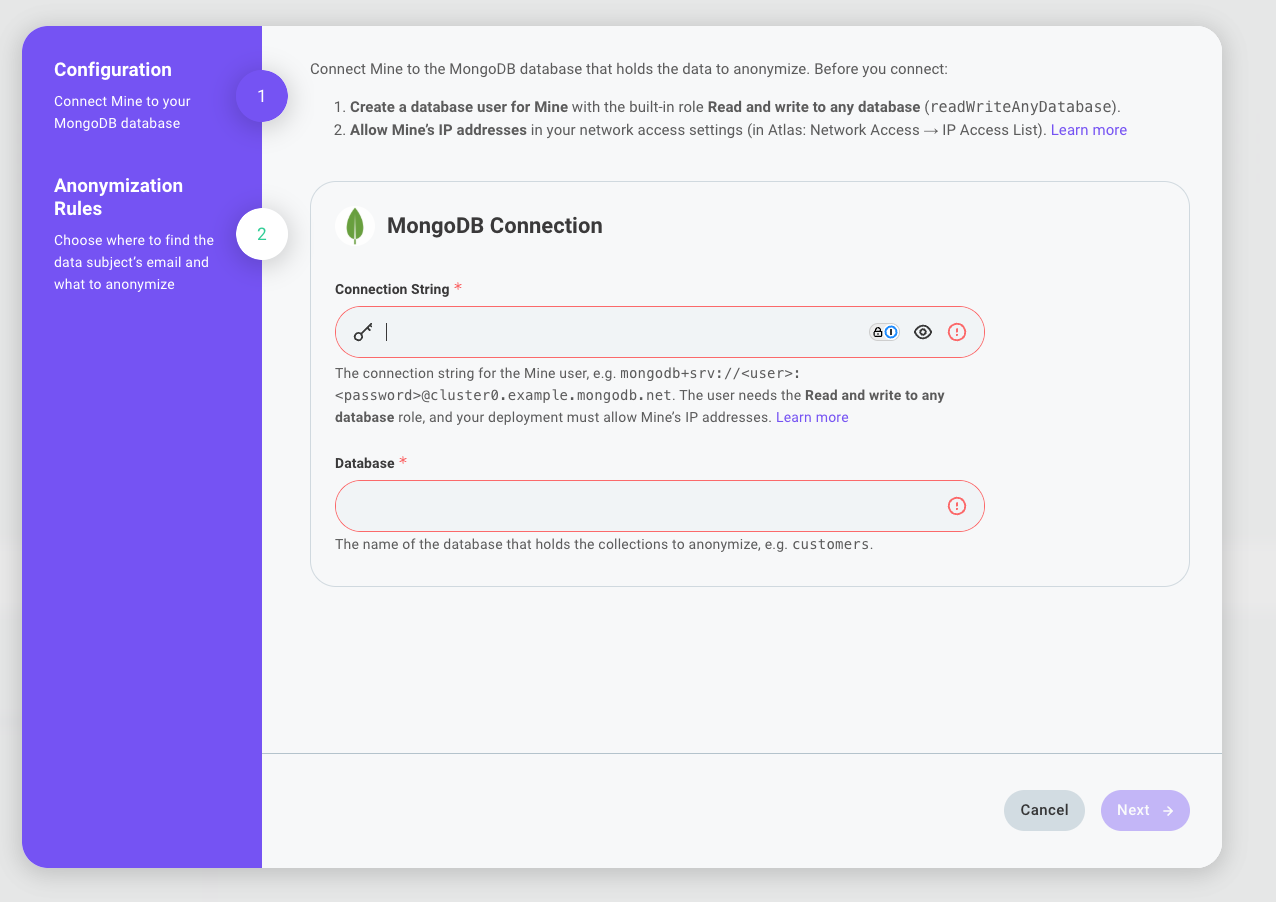
-
On the Configuration page, enter the Connection String and the Database that holds the collections to anonymize, then click Next.
-
Under 1. Which fields hold the data subject's email? (optional), click Add to Email fields and choose the Collection › field that holds the email, such as
users › email. Add one for each collection that stores it. This step is optional but recommended, because it makes requests faster and more precise.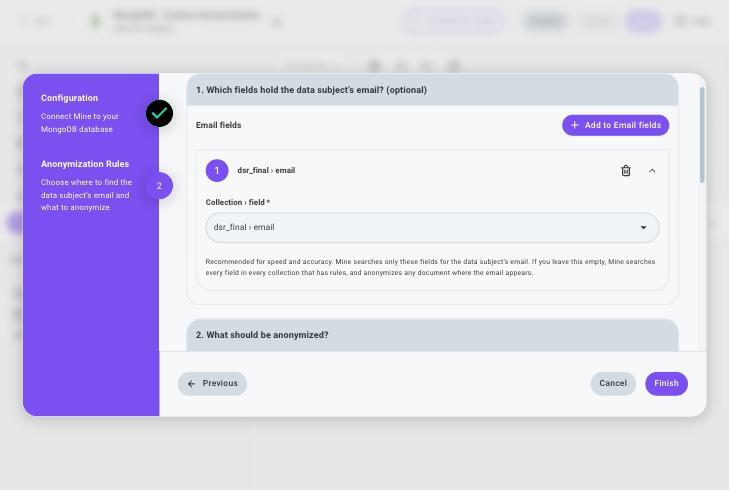
-
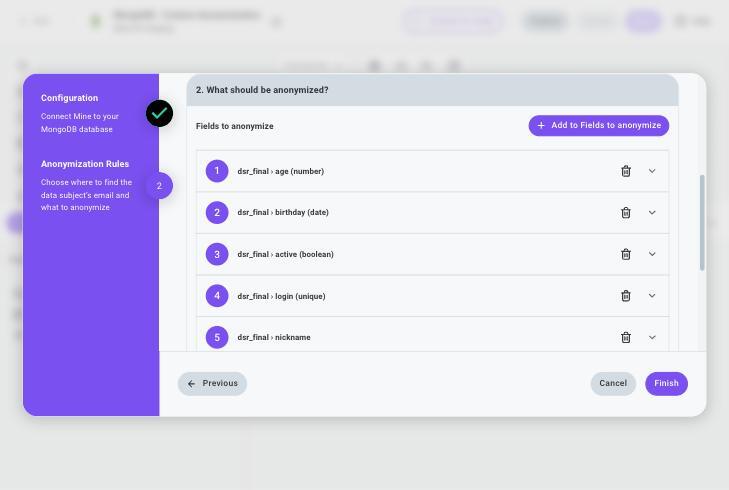
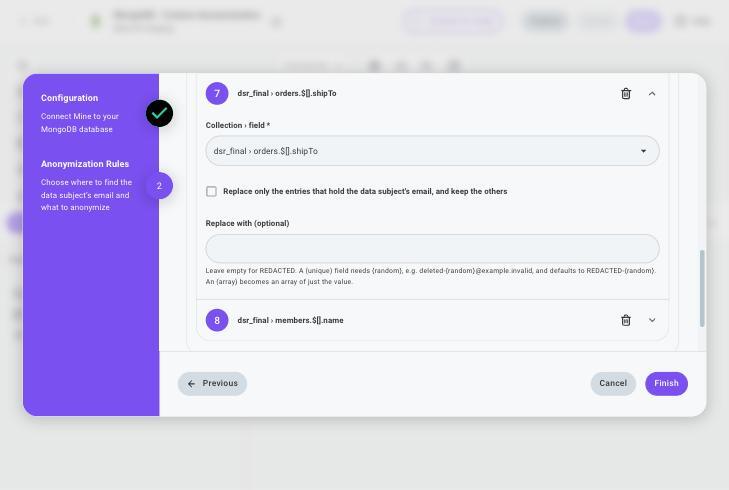
Under 2. What should be anonymized?, click Add to Fields to anonymize and choose each field to anonymize. For each field, you can:
-
Enter a Replace with value, or leave it empty to use the default. For a field marked (unique), include
{random}so each value stays unique, such asdeleted-{random}@example.invalid. -
For a field inside an array, select Replace only the entries that hold the data subject's email, and keep the others to keep the other entries.
-
-
Click Finish.
You're done! MineOS has been connected to your MongoDB database.
Using the Integration in Requests
To handle requests automatically, add the MongoDB or MongoDB Custom Anonymization integration to the workflows of the privacy rights it should handle, according to your needs. See each integration's scope under How it works section.
Troubleshooting
The connection fails or times out
MineOS can't reach your cluster. Check that the connection string is correct and that the MineOS IPs for your region are in the cluster's IP access list. In Atlas, changes can take a few minutes to apply.
Authentication fails
The username or password in the connection string is wrong. Check for extra spaces, and URL-encode special characters in the password (for example, @ becomes %40).
A permission error appears
The MineOS user is missing the required role. Assign Read and write to any database to the user in MongoDB.
The connection drops during deletion requests
Add retry and write-concern options to the end of the connection string, such as ?retryWrites=true&w=majority.
A field isn't in the anonymization field list
The list is built from a sample of your documents, so a field that appears in only a few documents may be missing. Contact your Customer Success Manager for help adding it.
Need Help?
If you need any help with this integration, please contact your Customer Success Manager. They will be happy to assist you!
Updated less than a minute ago