
Collaborating on Assessments
Invite internal teammates or external stakeholders to contribute to an assessment — while keeping ownership and final control centralized.
Collaborating on Assessments
Invite internal teammates or external stakeholders to contribute to an assessment — while keeping ownership and final control centralized. Collaborators can edit answers, upload supporting files, use Mira AI, leave comments, and mark their work as done. The assessment owner retains full control over access, permissions, and completion at all times.
When to use collaboration
Collaboration is useful any time completing an assessment requires input from people outside your privacy team:
- Vendor assessments — send a security questionnaire directly to a vendor so they can fill in DPA details, certifications, and sub-processor lists themselves, rather than you chasing them over email.
- Privacy reviews for new projects — loop in the product manager or data engineer responsible for a new processing activity to complete the data sources and data flow sections, while you retain control of the legal-basis conclusions.
- AI Governance assessments — bring in the AI lead or development team to answer technical questions about model behaviour and risk controls, then review and approve their answers before finalising.
- DPIA with multiple stakeholders — assign different sections to IT, Legal, and the business unit simultaneously; use comments to flag questions, discuss edge cases, and sign off — all in one place.
Inviting collaborators
Open any assessment → click the Share icon in the top-right corner → enter the collaborator's email address → optionally add a personal message → click Invite.
The collaborator receives an email with a secure login code. They verify their identity, authorize access, and land directly in their collaboration workspace.
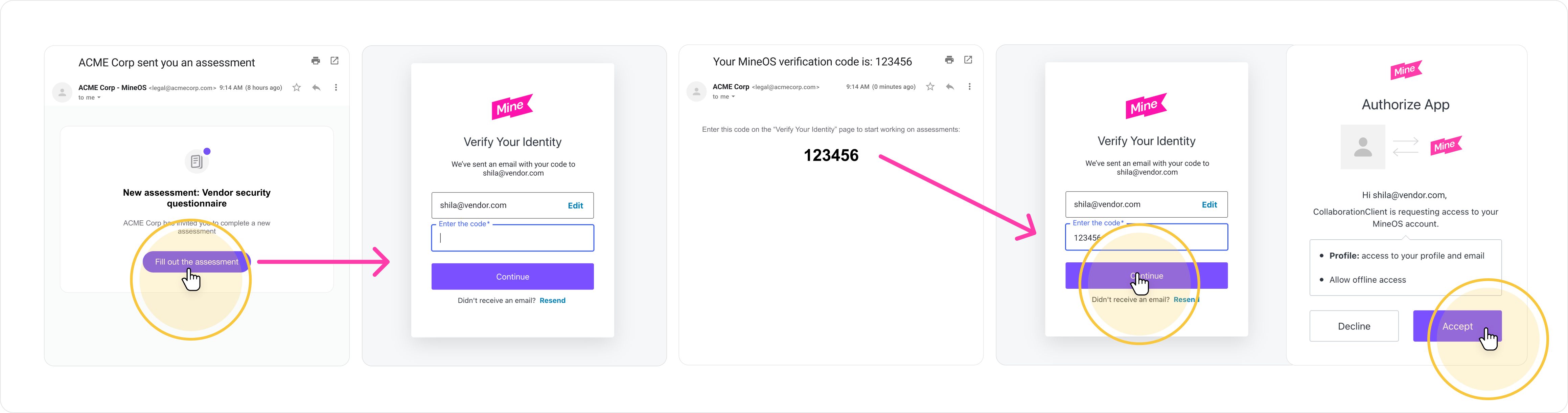
The assessment owner must be set before inviting collaborators. The owner receives email notifications when collaborators mark their work as done.
Hide sections from collaborators
Some sections are meant for your team only, such as internal risk analysis, scoring or approval notes. You can hide these sections from collaborators, so they see only the questions they need to answer.
Hide a section
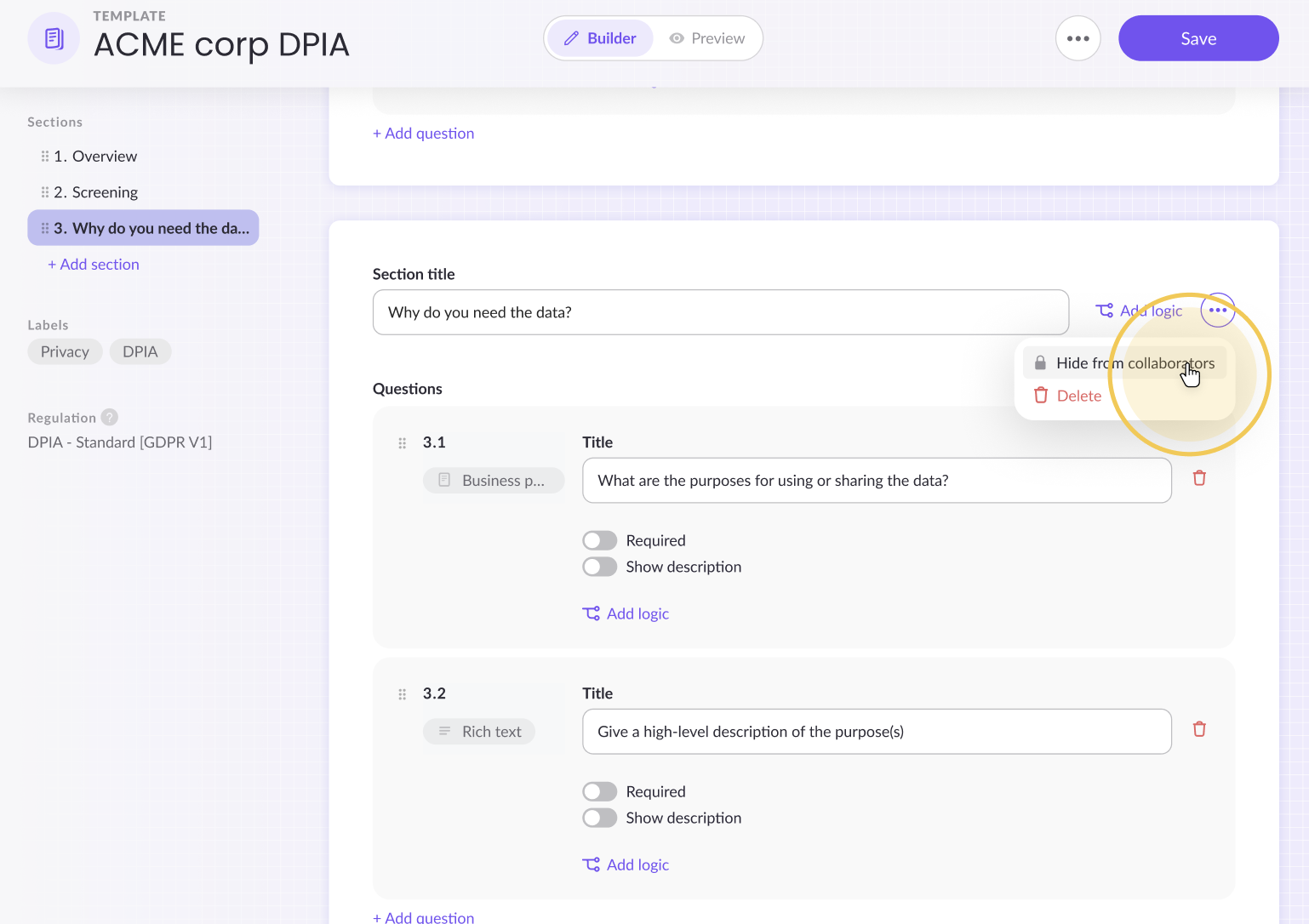
Click the ⋯ menu on a section and select Hide from collaborators.
- In a template: the section is hidden in every new assessment created from that template. Assessments created earlier don't change.
- In an assessment: the section is hidden in that assessment only. You can hide or show sections at any time.
Hidden sections stay marked on your side, so everyone on your team can see what collaborators can't.
Choose what each collaborator sees
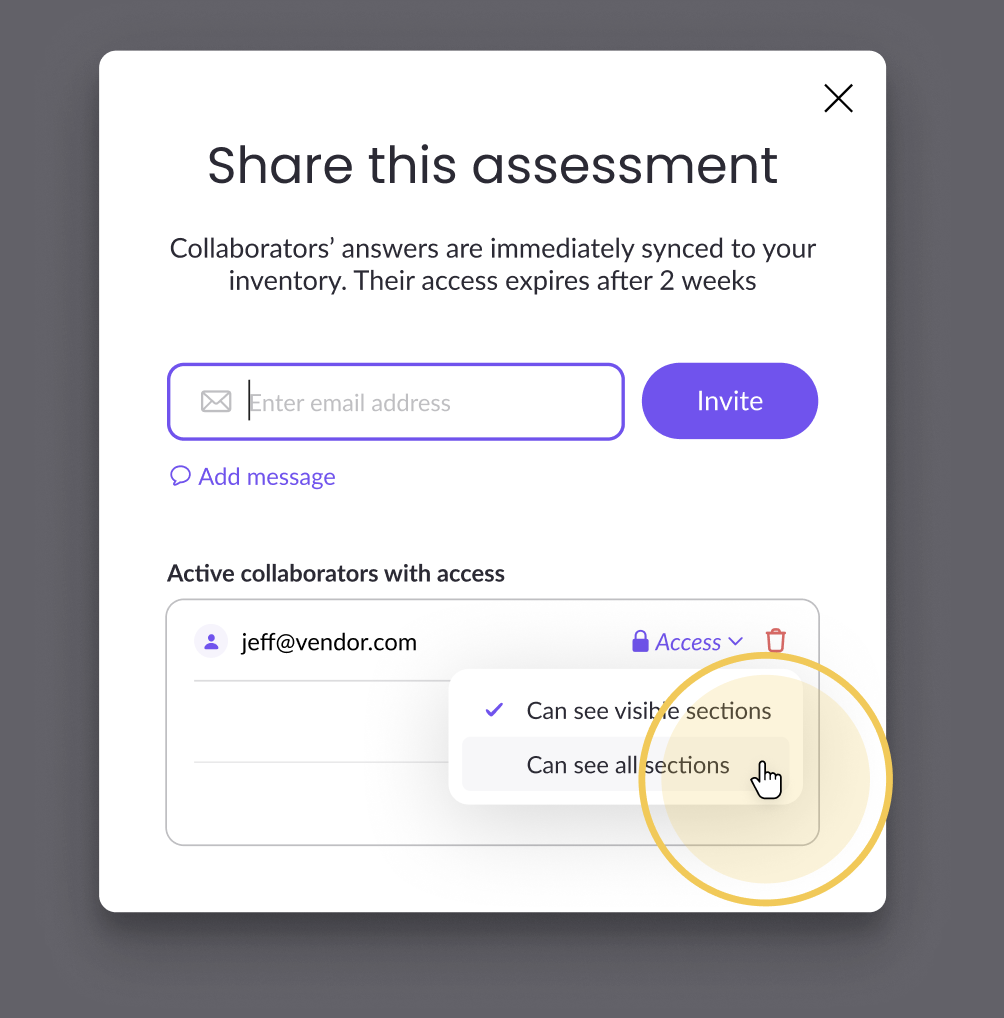
Each collaborator in the Share dialog has an Access setting:
- Can see visible sections (the default): hidden sections stay hidden from this collaborator.
- Can see all sections: this collaborator sees the full assessment, including hidden sections.
You can change a collaborator's access at any time. The change applies immediately.
What collaborators with limited access don't see
When a collaborator can see visible sections only, they can't see the following for any hidden section:
- Its title, questions or answers
- Comments on it, and they can't be @mentioned there
- Mira AI suggestions for its questions
- Risk sources that point to its questions
The collaborator workspace
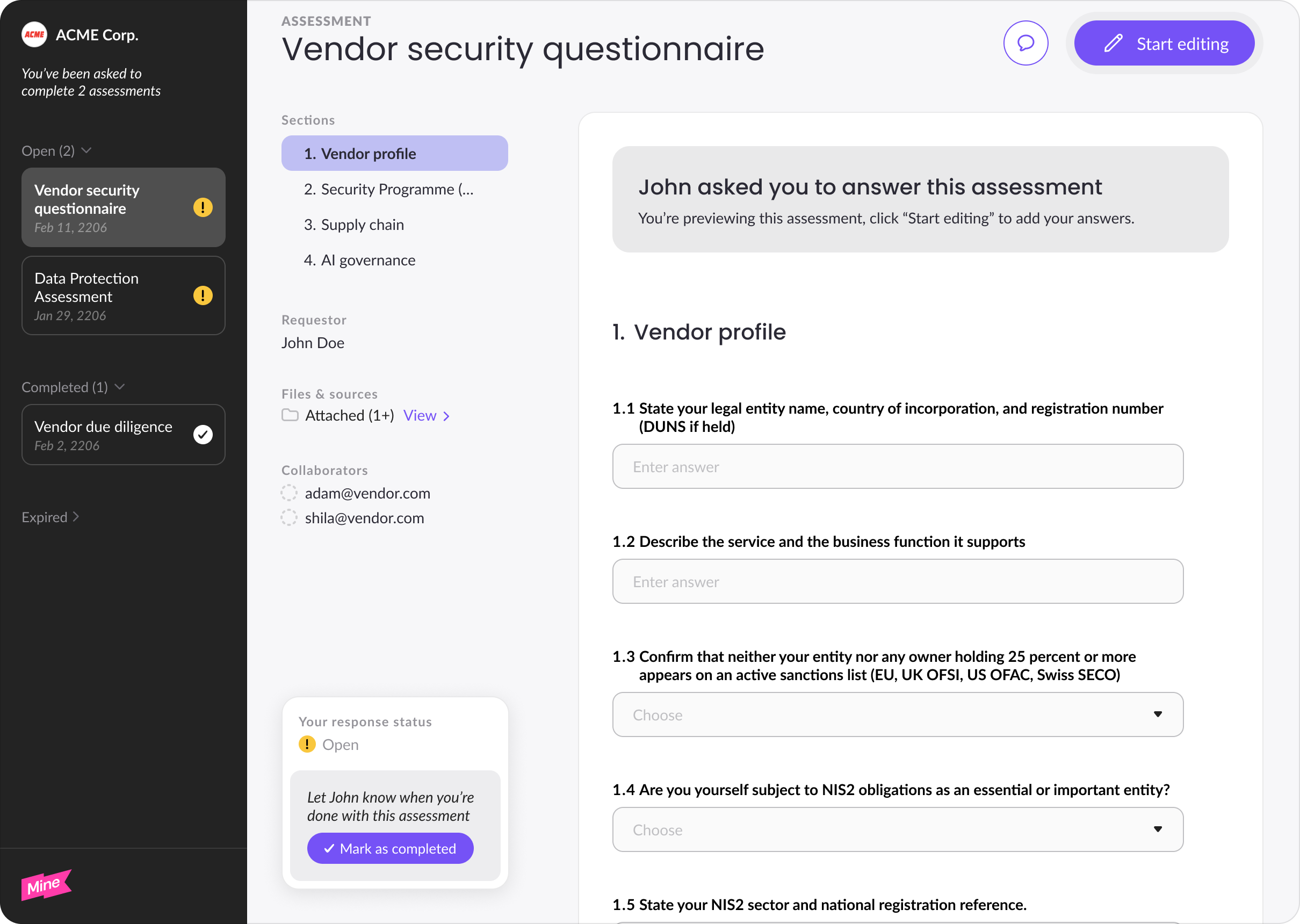
Collaborators have a dedicated workspace showing every assessment they've been invited to, grouped into three sections:
- Open — assessments actively awaiting their input
- Completed — assessments they've marked as done
- Expired — assessments where access has been revoked, or the assessment has been completed or deleted by the owner
Collaborators can re-enter any open assessment at any time without a new invite. The workspace shows the requester, other collaborators, and the date each assessment was shared.
Editing: how the lock works
Only one person can edit an assessment at a time. When a collaborator clicks Start editing, they take an edit lock — others see a banner saying the assessment is locked and who holds it.
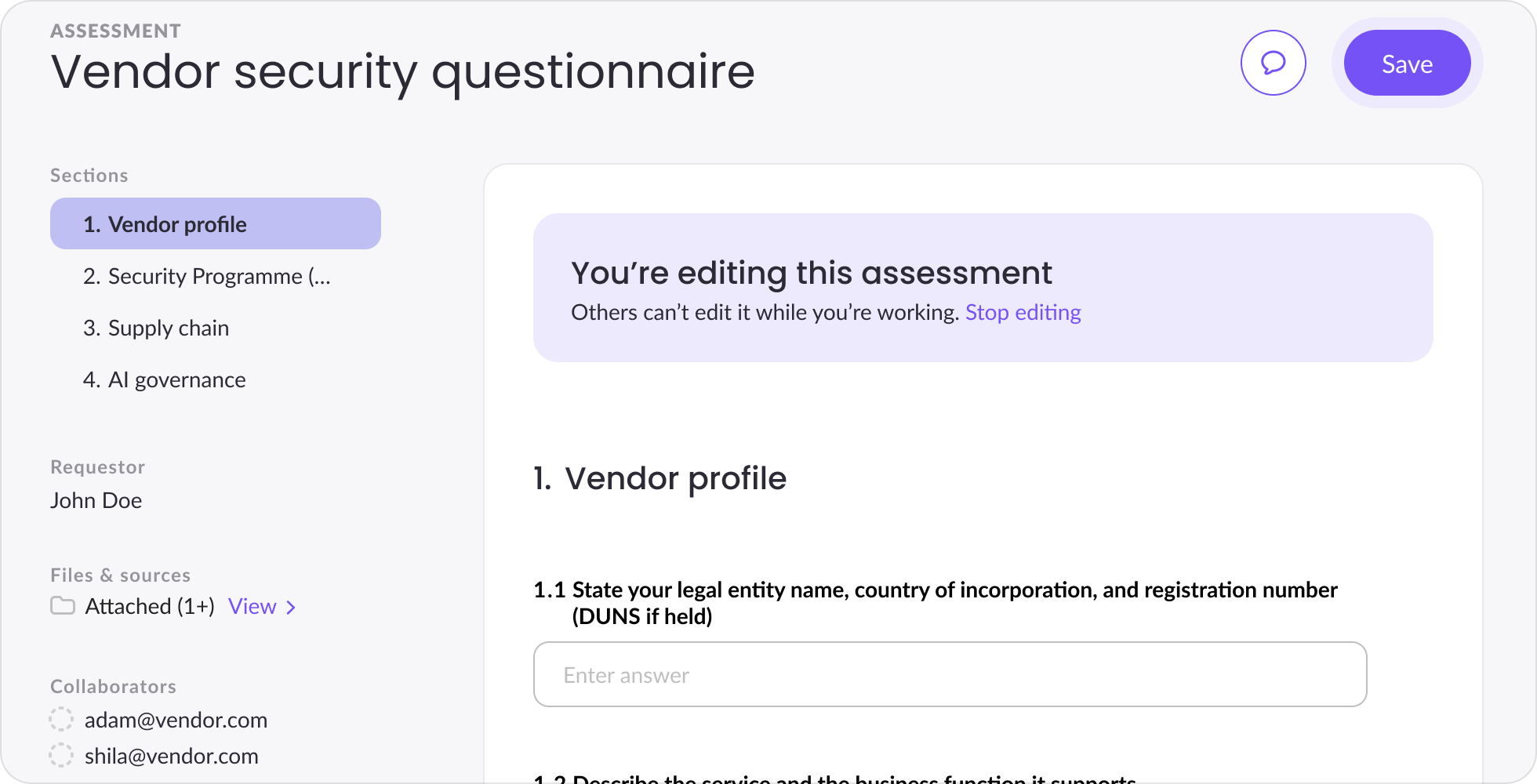
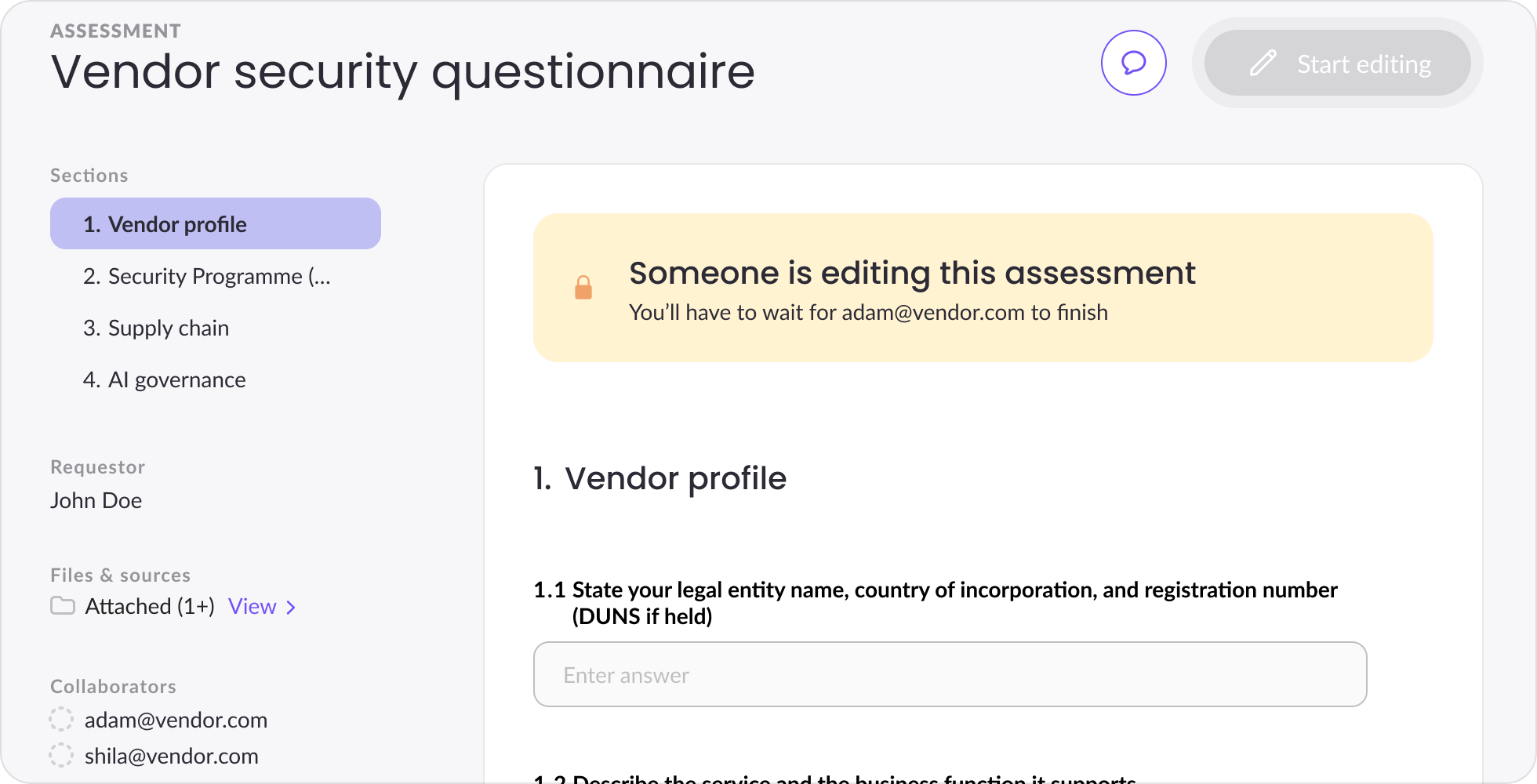
While in edit mode, collaborators can modify answers and save. When they're done with a session, they click Stop editing to release the lock so others can take over.
Owner override: Assessment owners can take over the edit lock from a collaborator at any time, without waiting for the collaborator to stop editing.
What collaborators can and cannot do
Collaborators can:
- Enter and exit edit mode
- Modify and save answers
- Mark their own work as done (and undo it)
- Leave comments and @mention colleagues
- Upload supporting files for Mira AI
- Use Mira AI to autofill suggestions (if enabled by the owner)
Collaborators cannot:
- Add or remove sections or questions from the assessment
- Create new custom values, data subjects, or systems
- Change the assessment owner, review date, or status
- Delete the assessment
- Revoke access for themselves or others
- View sections hidden from them, unless you give them access to all sections
Marking work as done
When a collaborator has finished their contribution, they click Mark as done in the response status panel at the bottom-left of the assessment.
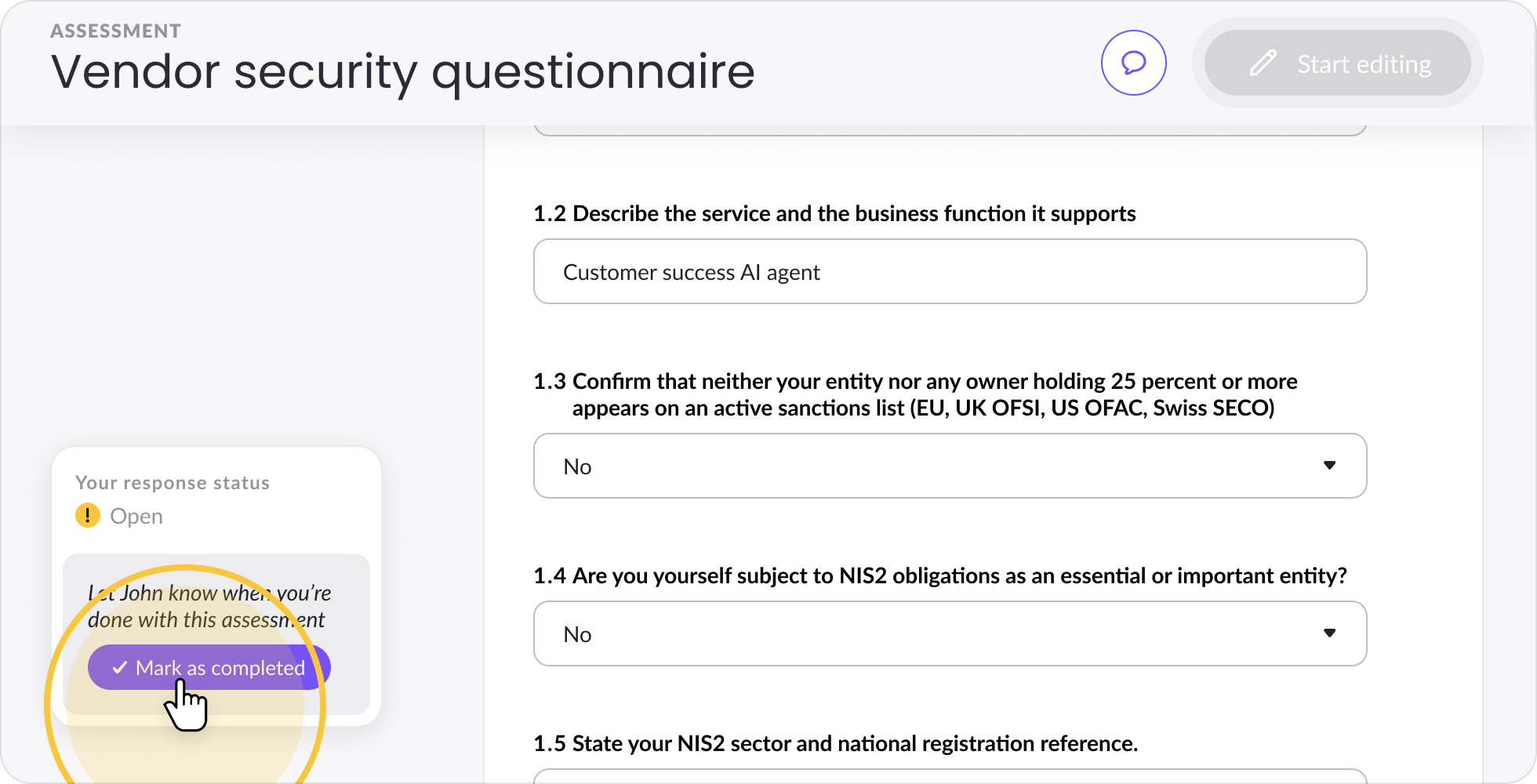
A confirmation dialog appears — Mark everyone as completed sends a notification to the assessment owner that the collaborator has completed their input. Optional: Collaborators can submit without notifying the owner by unchecking Mark everyone as completed & notify owner.
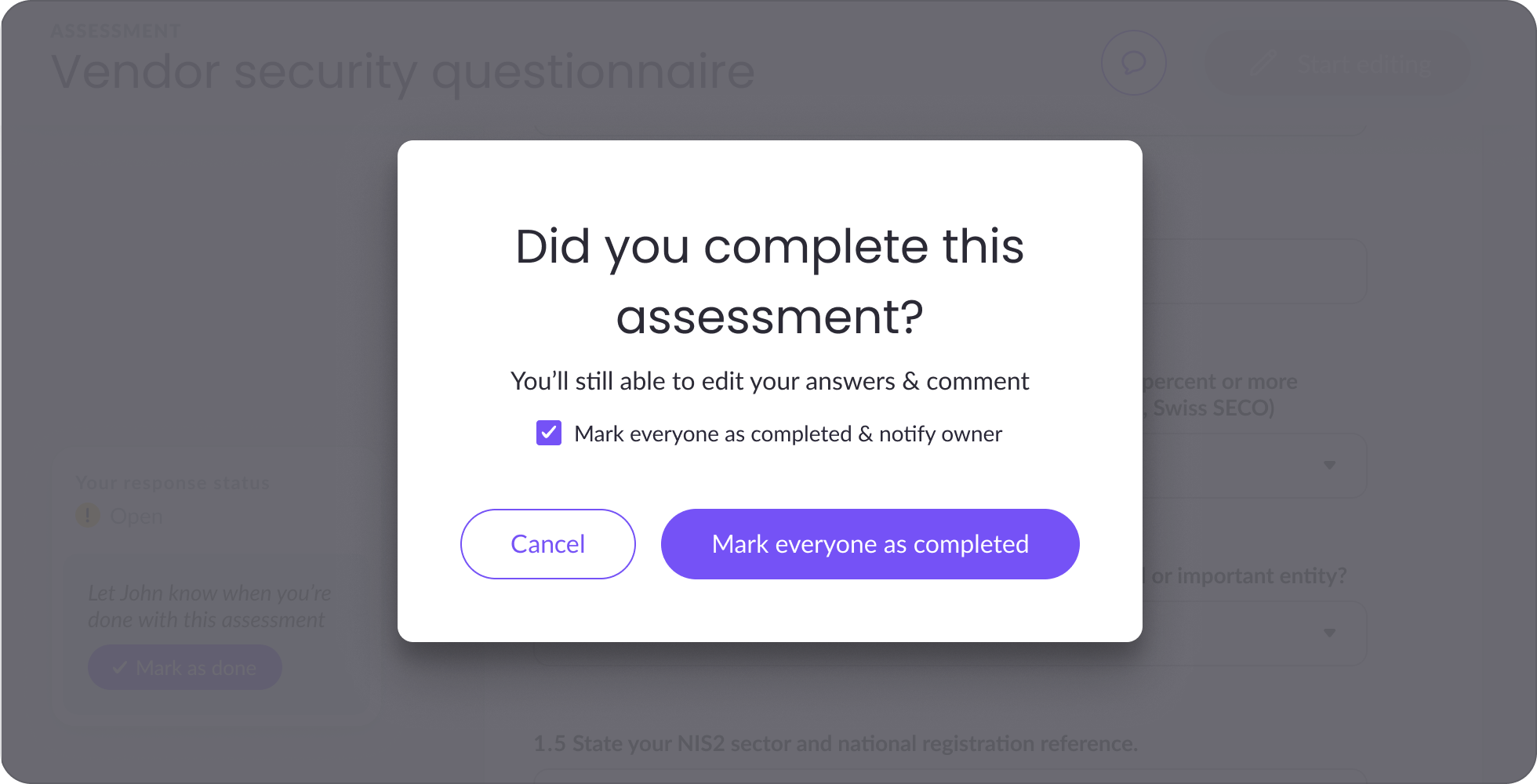
After confirming:
- The collaborator's status updates to Completed in the sidebar and in the owner's assessments table
- The collaborator retains full access to the assessment — they can still edit, comment, and view
- The owner receives an email notification
- The collaborator can Undo at any time and mark as done again as many times as needed
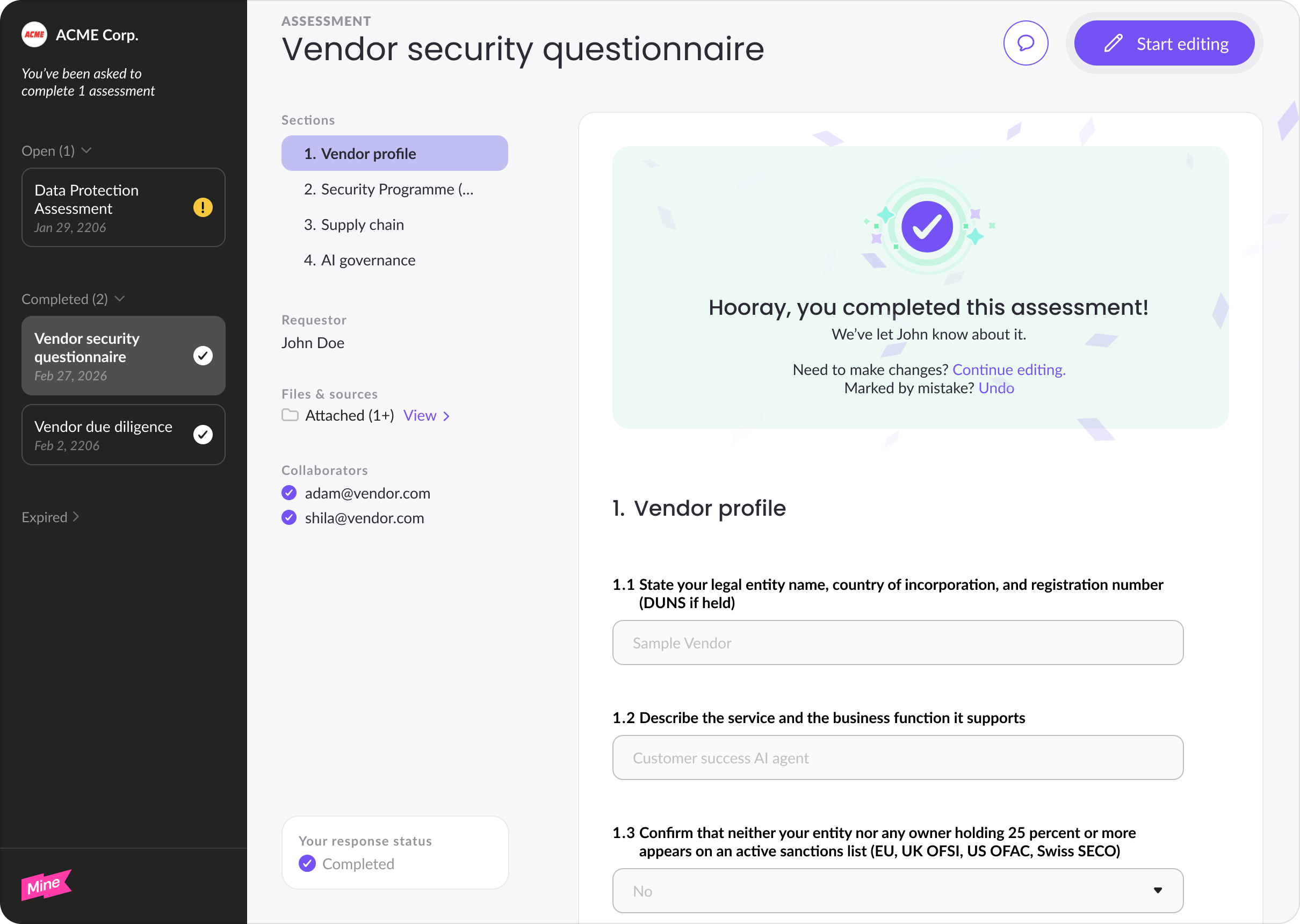
Required questions must be answered before marking as done is allowed.
Tracking progress from the owner side
Owners can monitor collaborator progress from the assessments table and from inside each assessment. The Collab. response column in the table shows how many collaborators have marked their work as done out of the total invited.
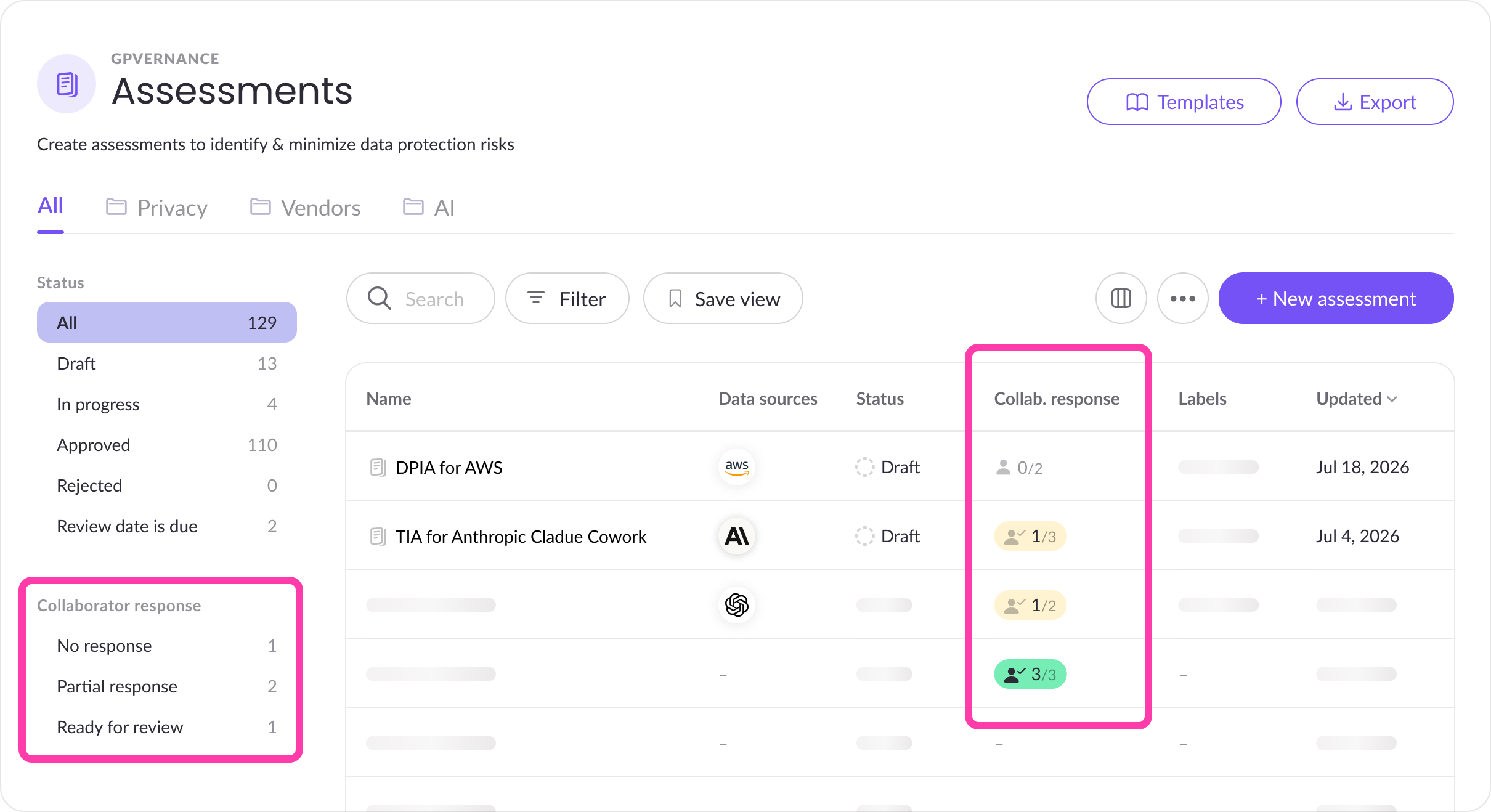
Inside an assessment, the sidebar shows each collaborator's current status with a checkmark when they've marked as done. Owners can use the Collaborators filter in the left sidebar to quickly find assessments waiting on contributor input.
Revoking access
Only owners can revoke collaborator access — individually per collaborator, or all at once using Remove all in the Share dialog.
When access is revoked:
- The collaborator still sees the assessment in their workspace, listed under Expired
- They can no longer open, edit, or comment on it
- The assessment shows a clear message that access was revoked and by whom
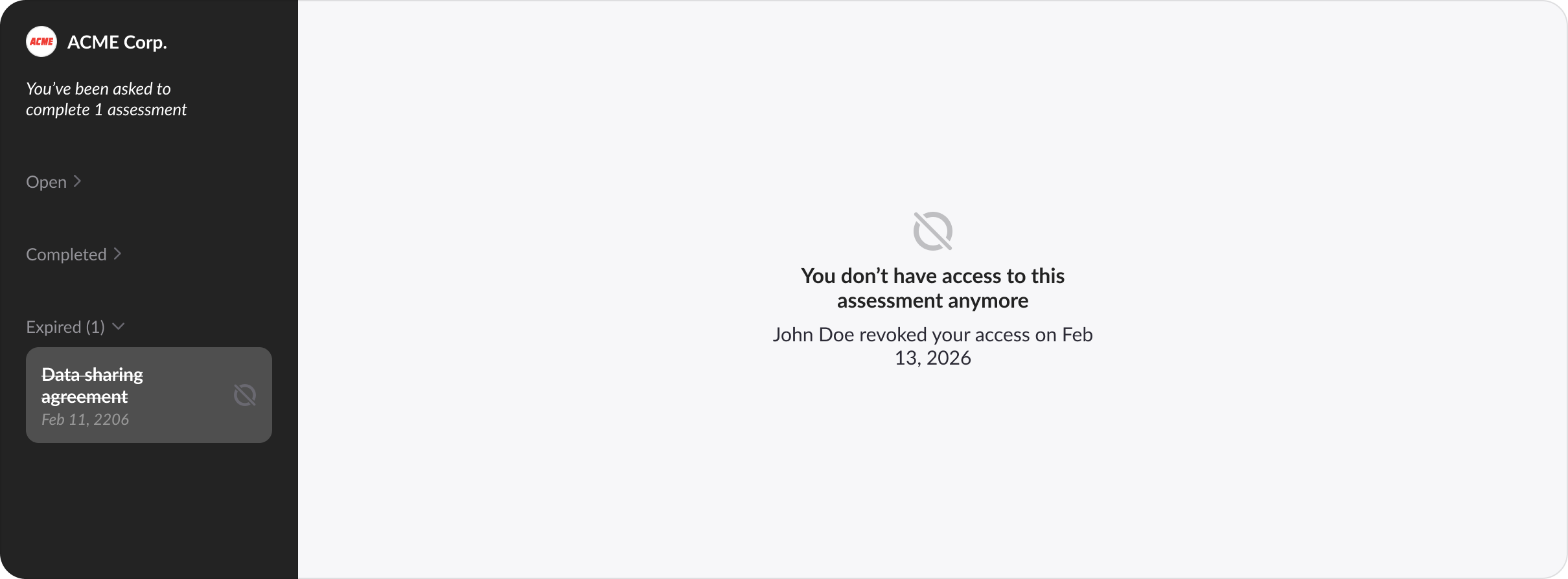
When the owner marks an assessment as completed, all active collaborator invitations are revoked automatically and the assessment moves to Expired in every collaborator's workspace.
Comments and @mentions
Comments let owners and collaborators ask questions, flag concerns, and discuss specific answers directly on the question they relate to — keeping all communication in one place instead of scattered across email threads.
Adding a comment
Click the bubble icon next to any question title. A text box appears in the Comments Pane on the right side of the screen. Type your message and click the arrow to add it. Once a comment exists on a question, a blue indicator shows the comment count on that question's icon.
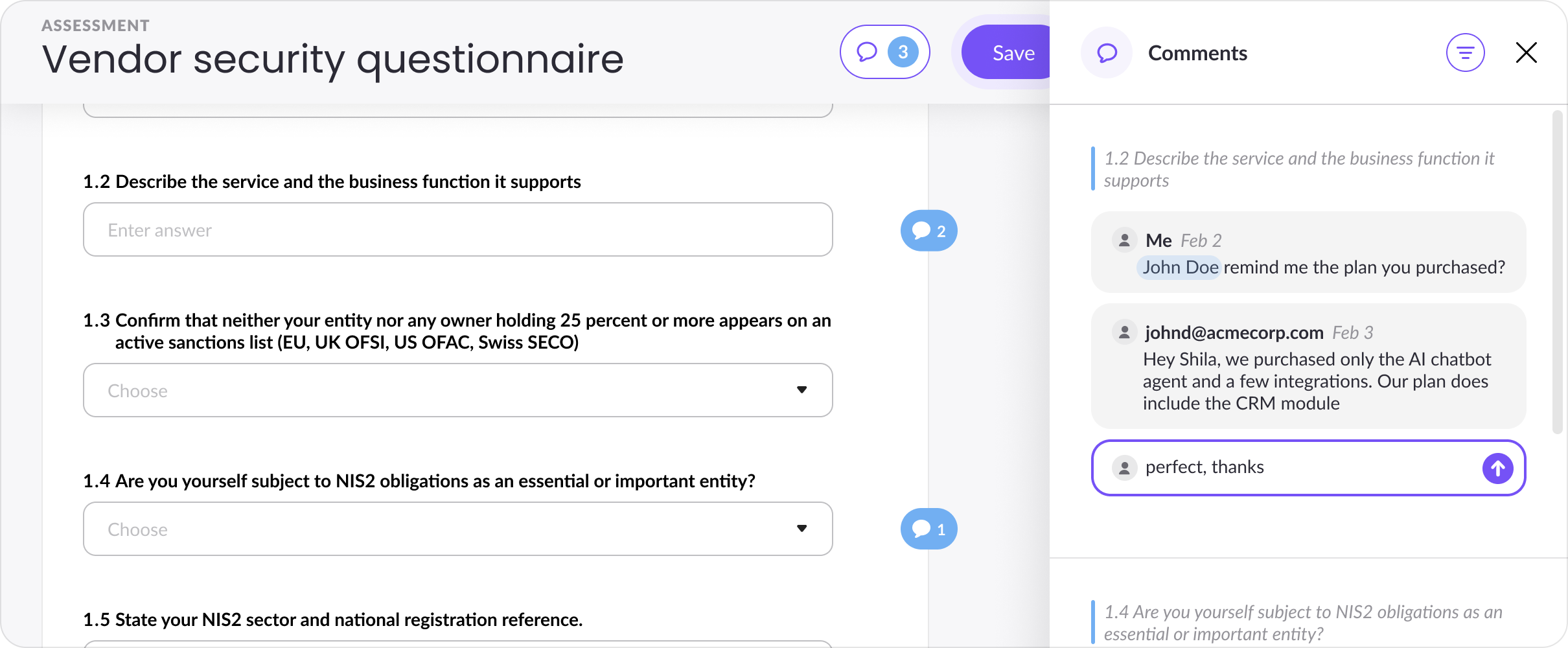
The Comments Pane
Open the Comments Pane in two ways:
- Click the bubble icon at the top-right of the assessment to see all comments across the assessment, with the most recently active conversations at the top
- Click the comment icon on a specific question to open the pane filtered to that question only
Each comment displays the question reference, the message, the author's email, and the date. Click any comment to jump directly to the corresponding question in the assessment.
Comments within a question are sorted chronologically (oldest first). Questions themselves are sorted by most recent activity, so active discussions surface to the top.
Tagging colleagues
Type @ inside a comment to bring up a list of all agents and collaborators who have access to the assessment. Select a name to tag them — they'll receive a notification, as will anyone else already in that conversation thread.
Comments for Me
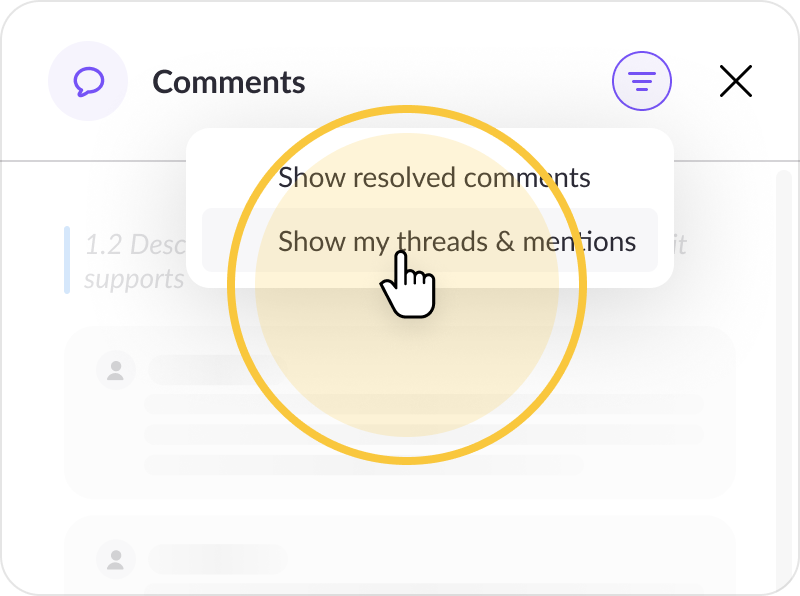
Open the Comments Pane and click Filter button > Show my threads & mentions to filter the list to only comments where you've been tagged. Useful when you're a collaborator on multiple assessments and need to quickly find what needs your attention.
Deleting a comment
Find the comment in the Comments Pane and click the Checkmark (Resolve) button. Deletion is permanent — the comment is removed for everyone with access and the comment count updates immediately.
Mira AI for collaborators
If the assessment owner has enabled Mira AI for collaborators, collaborators can run Mira, upload supporting files, and accept or reject suggestions — the same way an owner would. See the Autofill Assessments with Mira AI article for details.
Updated 11 days ago