
Format Rules (Regex)
Enforce a specific input format on form fields — validate entries against a regex pattern and show a custom error message when the format doesn't match.
Format rules let you restrict what data subjects can enter in certain fields. When a data subject submits a value that doesn't match the pattern you've defined, they see your custom error message and cannot proceed until they correct their input.
Supported elements
Format rules are available on the following element types:
- Short answer
- Mobile number
- URL
Enabling format rules
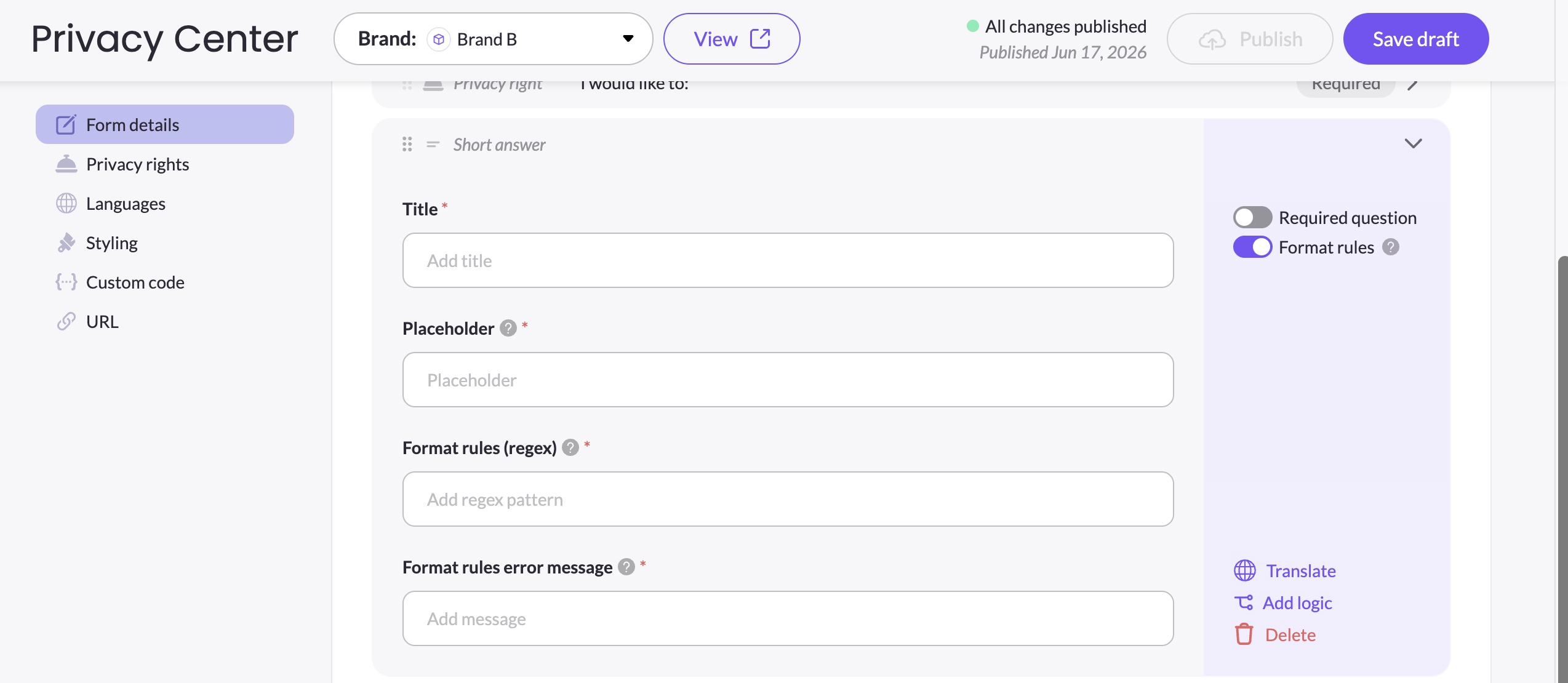
- Expand the element in Form details
- Toggle on Format rules in the element's right sidebar
- Two fields appear:
- Format rules (regex) — enter a valid JavaScript regex pattern (e.g.
^\+?[0-9\s\-]{7,15}$) - Format rules error message — the message shown to the data subject when their input doesn't match the pattern
- Format rules (regex) — enter a valid JavaScript regex pattern (e.g.
Both fields are required when format rules are enabled. You cannot save the element until both are filled in.
How validation works on the form
When a data subject enters a value in a field with format rules enabled:
- If the value matches the pattern — the field passes validation and the form can be submitted
- If the value does not match — your custom error message appears below the field and submission is blocked until the value is corrected
Translating format rules
The error message is translatable — open the element's translation panel and you'll find the error message field listed alongside the other translatable properties. Translate it into each enabled language so data subjects always see the error in their own language.
The regex pattern itself is not translated — the same pattern applies across all languages.
Things to keep in mind
- Format rules apply on top of the Required validation — if a field is both required and has format rules, an empty submission triggers the required error, not the format error.
- Disabling the Format rules toggle removes the pattern and error message — re-enabling it requires entering them again.
- Always test your regex pattern on the draft form before publishing to make sure it behaves as expected. See Testing & Troubleshooting for guidance.
Updated 3 months ago