
Reviewing findings
Review the systems discovery finds in Radar, add the ones you use to your inventory, mark the rest as unused, and spot shadow IT.
Discovery finds every system your organization interacts with, including tools in daily use, legacy systems nobody remembers, and accounts left behind by former employees. Radar is where you review these findings and decide what belongs in your inventory, so it reflects the systems your organization actually uses.
Open Radar
In the left navigation, under Data mapping, select Radar.
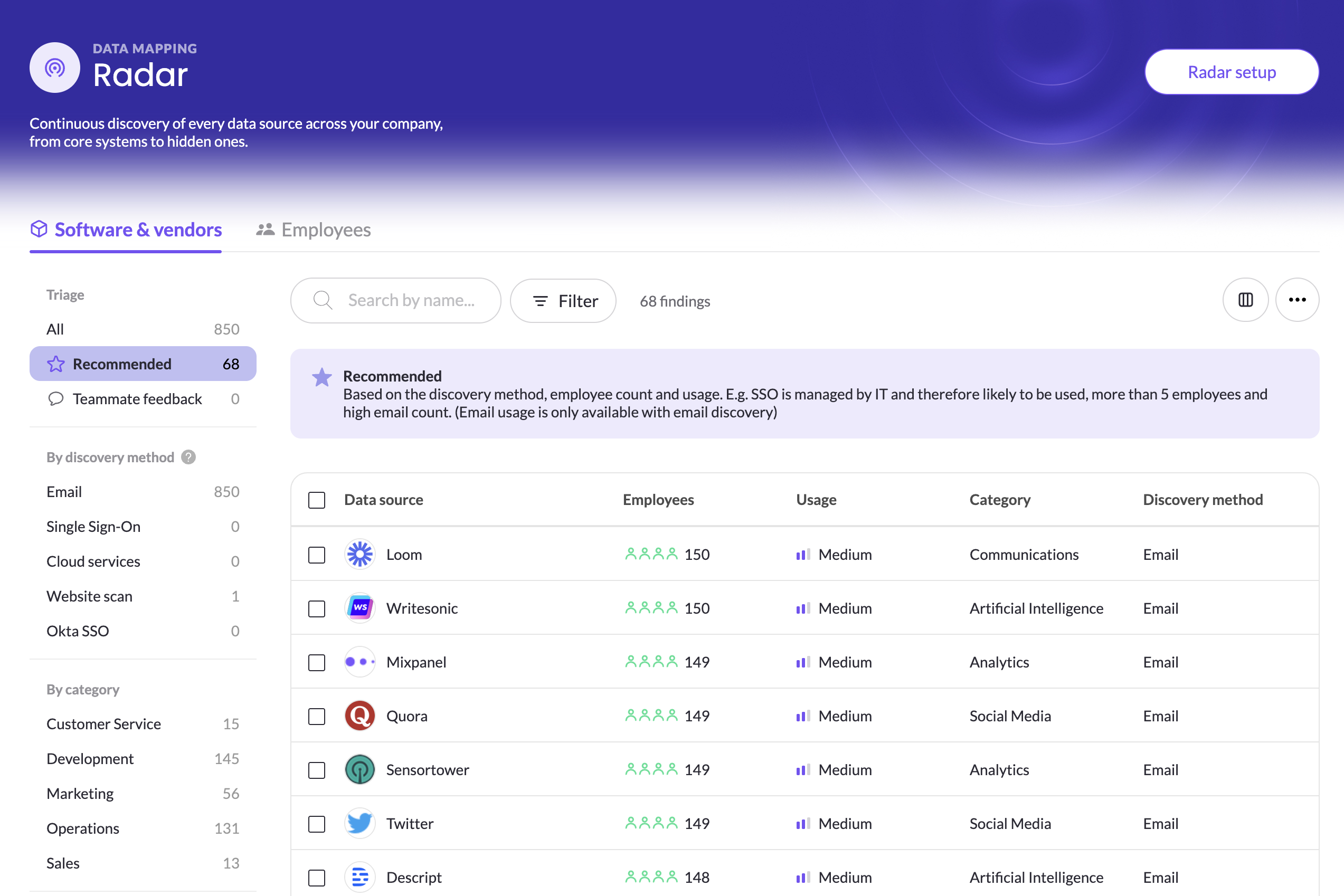
Findings are grouped into two views:
| View | What it shows | Start here when |
|---|---|---|
| Recommended | Systems with high usage, based on how many employees use them and how often | You're building your inventory for the first time |
| All | Every finding, including low-usage and legacy systems | You've added your recommended systems and want full coverage |
What each finding tells you
Select a finding to see the details that help you decide whether it belongs in your inventory:
| Detail | What it means |
|---|---|
| Employees | How many employees use the system |
| Usage | How often they use it |
| Departments | Which departments those employees belong to, based on your company directory |
| Last login | When the system was last used [confirm label] |
| Account status | Whether the employees' accounts are active in your company directory |
| Discovery method | How the system was found: email, SSO, cloud or website |
Systems found only through Microsoft Entra ID SSO don't show a last login date. This is expected, because Entra ID shares which apps are assigned to users, but not when each user last signed in.
Review recommended findings
- Select Recommended.
- Review each finding's usage and employees.
- For systems your organization uses, click Add to inventory.
Start with recommended findings to build the core of your inventory quickly.
Review findings in bulk
When you have many findings to work through, act on several at once instead of one by one.
- In Recommended or All, select the checkbox next to each finding you want to act on. To select every finding in the current view, use the checkbox at the top of the list. [confirm: select-all behavior]
- Choose an action:
- Add to inventory to add all selected findings to your inventory
- Mark as unused to remove all selected findings from Radar
Combine bulk actions with filters to move quickly. For example, filter All by discovery method or category, review the list, then mark all the legacy tools as unused in one step.
Review all findings
All includes systems with low usage, which are often legacy tools or one-off sign-ups. Use the filters to work through them by discovery method or category, for example all systems used by marketing, or all data stores found in your cloud.
For each finding, either:
- Add to inventory, if your organization uses it, or
- Mark as unused, if it doesn't. The finding is removed from Radar. Consider asking IT to offboard it, so accounts and data don't linger.
If you're not sure whether a system is in use, ask the employees or department using it by using the Ask teammate button.
Unknown findings
Some findings can't be matched automatically to a known system, usually because the name your SSO provider shares isn't detailed enough, such as custom_integration_2. These appear in a separate Unknown findings section in Radar, and you map them to the right data source yourself. See Resolve unknown findings.
Spot shadow IT
Findings are also an early warning for risk. Look out for:
- Tools used by many employees that you didn't know about, which may hold company or customer data without review
- Systems with inactive accounts, such as tools used by former employees, which can leave data exposed
- New AI tools, which may need an AI assessment before wider use
After you add a system
Added systems appear in your inventory, where MineOS suggests their data types and processing activities. From there:
- Assign a business owner and a status. See Navigate Your Inventory.
- Run Vendor scout to fill in vendor details. See Research Vendors with Mira AI (Vendor Scout).
- Review suggested processing activities. See Map business purposes with processing activities.
Related articles
- Discover your data sources with Radar: set up discovery
- Analyze business impact across your data sources: compare systems by usage, access, sensitivity and cyber posture
Updated 21 days ago