
Send a questionnaire to a vendor
Invite a vendor contact to complete an assessment in MineOS, pre-fill it with Mira AI so they only answer what’s missing, and review their responses.
Some questions only the vendor can answer, such as how they encrypt data, who their sub-processors are, or how they handle incidents. Instead of emailing spreadsheets back and forth, you can invite the vendor to complete the assessment directly in MineOS. They answer in a secure workspace, you see every change as it happens, and their answers stay connected to the vendor's record, risks and inventory.
Before you send it
1. Choose the right assessment
Open a vendor assessment for the vendor, for example a security or privacy questionnaire. See Creating Assessments.
Make sure the assessment has an owner. You can't invite collaborators until one is set, and the owner is notified when the vendor finishes.
2. Pre-fill what you already know
Vendors respond faster when they only need to confirm and fill gaps. Before inviting them:
- Upload the vendor's existing documents to the assessment, such as their DPA, SOC 2 report, ISO 27001 certificate or a previously completed questionnaire.
- Run Mira AI to draft answers from those documents, the vendor's inventory details and Vendor scout research.
- Review and accept the suggestions you're confident in.
See Draft Assessments with Mira AI.
3. Hide internal sections
If the questionnaire includes sections for your team only, such as internal risk analysis, scoring or decision notes, hide them from collaborators before you invite the vendor. Vendors see only the sections they need to answer. See Hide sections from collaborators.
To hide the same sections in every vendor questionnaire, hide them in the template.
Invite the vendor
- Open the assessment.
- Click the Share icon in the top-right corner.
- Enter the vendor contact's email address.
- Optionally, add a personal message, for example the deadline and what you need from them.
- Click Invite.
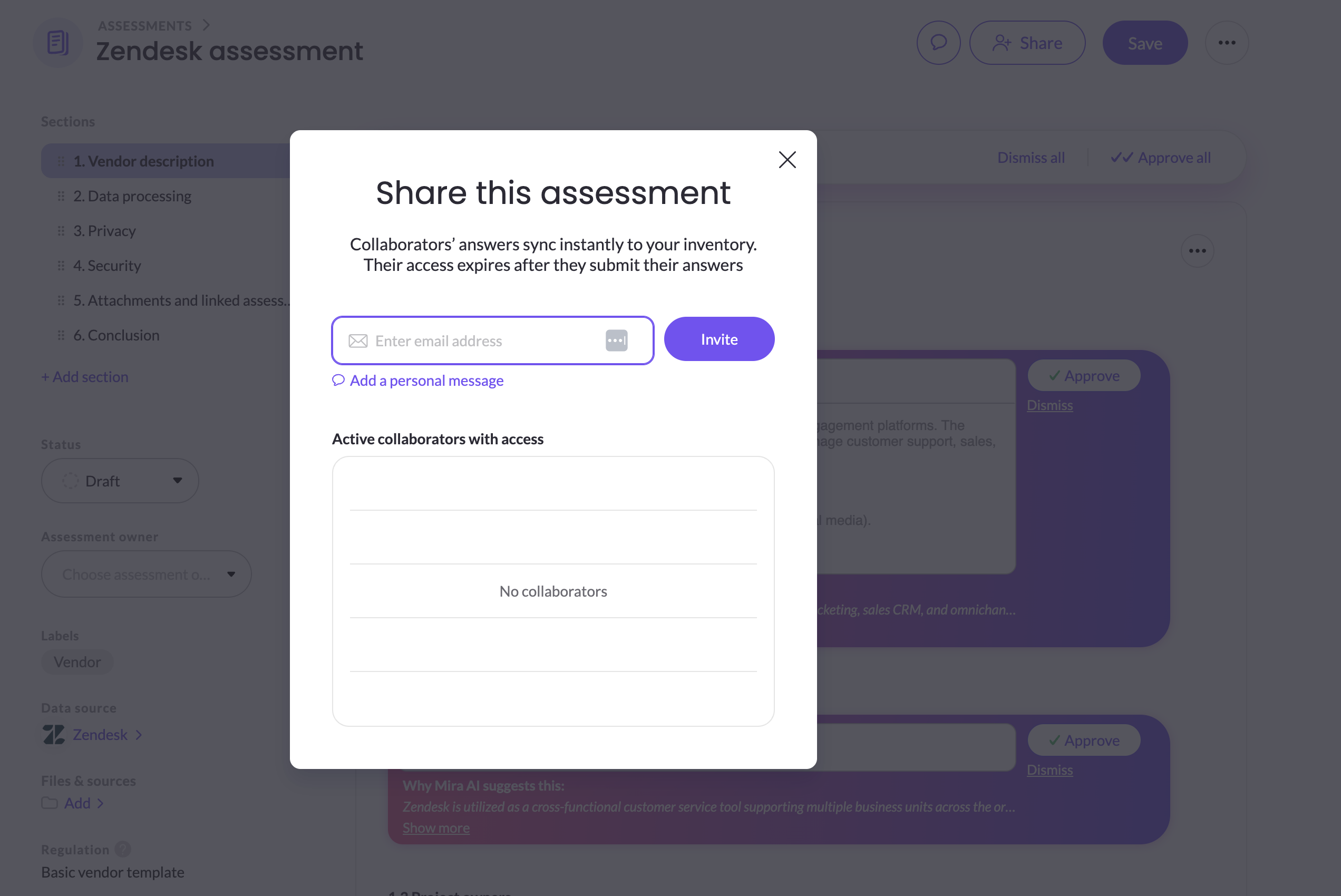
You can invite more than one person, for example the vendor's security lead and its account manager.
What the vendor sees
- The vendor receives an email with a secure login code. They verify their identity, then land in their collaboration workspace. They don't need a MineOS account.
- Their workspace lists every assessment they've been invited to, grouped as Open, Completed and Expired.
- To answer, they click Start editing, update answers, and save. Only one person can edit at a time, so they click Stop editing when they're done for the session.
- They can upload supporting files, leave notes, and use Mira AI if you've allowed collaborators to use it.
- When they've finished, they click Mark as done, then Mark as done & notify to let the owner know.
Vendors can't change the assessment's structure, owner, review date or status, link it to other records, or invite others. They also can't see your business profile.
Review the vendor's responses
When the vendor marks their work as done, the owner receives a notification.
- Open the assessment and review the vendor's answers. To see exactly what they changed, open the activity log. See Track changes and export assessments.
- If anything is missing or unclear, leave a note for the vendor. They can return to the assessment from their workspace at any time while it's open.
- Flag any risks the answers reveal. See Flagging risks in assessments.
- When you're satisfied, complete the assessment. The vendor's access then moves to Expired in their workspace.
Tips
- Set a clear deadline in your invitation message, and set a review date on the assessment to keep it on track.
- Upload documents before inviting, so the vendor only answers what's genuinely missing.
- Let vendors use Mira when they'll upload their own documents. It speeds up their responses, and you still review everything. Turn this on in the Assessment autofill settings under Mira AI agents.
- Automate invitations for new vendors with workflow rules that invite collaborators when an assessment opens. See Automate privacy by design with workflows.
Related articles
- Collaborating on Assessments: how collaboration works for all assessments
- Onboarding and assessing vendors: the full vendor review process
Updated 10 days ago