
SSO discovery - Microsoft Entra ID
Connect Microsoft Entra ID to discover the managed systems your employees sign in to through SSO, and who has access to each.
SSO discovery finds the systems connected to your identity provider and shows which employees have access to each one. Connecting Microsoft Entra ID (formerly Azure Active Directory) discovers the managed systems your employees sign in to with their Microsoft account.
Before you start
You'll need Microsoft Entra ID admin permissions to approve the connection and a MineOS enterprise account.
To register your app with Azure AD, see Microsoft's Quickstart: Register an application with the Microsoft identity platform
How to create an app on AzureAD:
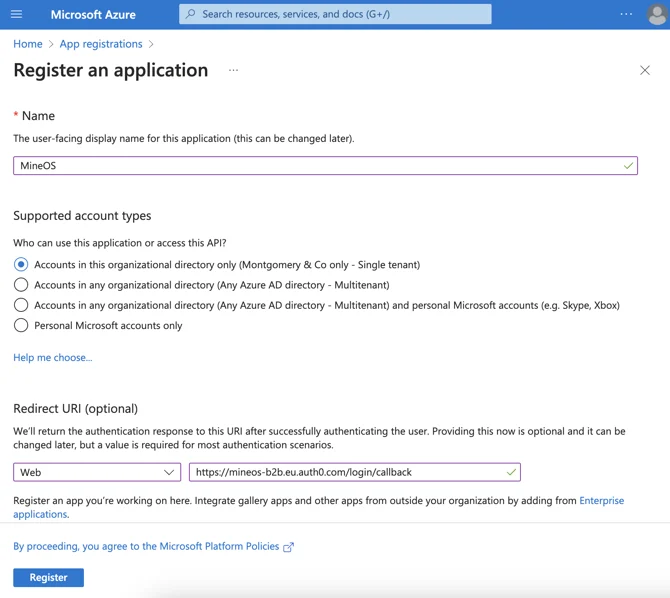
During registration, configure the following settings:
- Name: MineOS (or any relevant name you prefer)
- Supported account types: To allow users from external organizations (like other Azure AD directories), choose the appropriate multi-tenant option. Multi-tenant options include the following: Accounts in any organizational directory (Any Azure AD directory - Multi-tenant).
- Redirect URL: Select the Web platform, and enter:
https://mineos-b2b.eu.auth0.com/login/callback
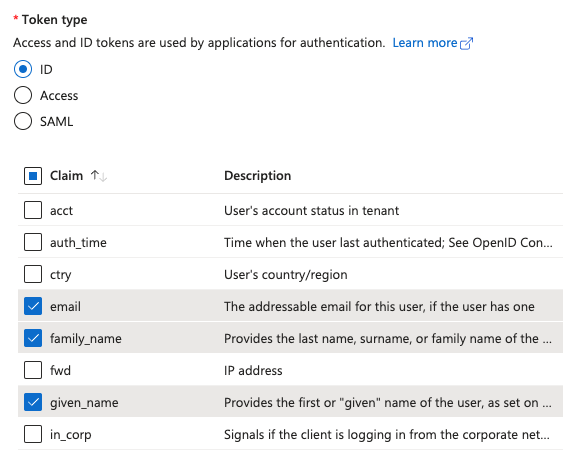
- On the left side menu, click Token Configuration.
- Click Add optional claims, select ID and check email, family_name, and given_name
- Click Add
- On the left side menu, click API Permissions
- Click "Grant admin consent for
- Wait a few seconds, and confirm that the Status column has changed to Granted (Green checkmark) for all permissions.
Creating a Client Secret on AzureAD
To create a client secret, See Microsoft's Quickstart: Configure a client application to access web APIs - Add Credentials to your web application
If you set up an expiring secret, please make sure to record the expiration date. You will need to renew the key before that day to avoid a service interruption.
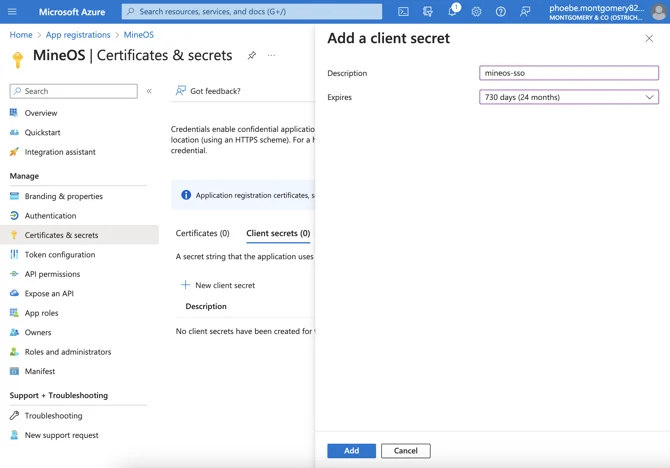
When the secret is created, Azure displays two strings: Value and Secret ID.
- The Value: This is the actual password/credential. Copy this immediately.
- The Secret ID: This is a metadata reference used by Azure for internal tracking. It will not work for the SSO handshake.
Note: Azure masks the Value forever once you leave this screen. If you didn't copy it, you must delete it and generate a new one.
Share the following information to your MineOS customer success manager:
- Azure AD primary domain (you can find it under Azure -> Active Directory -> Primary Domain) e.g., my-company.com
- Email Domain e.g., [email protected] - only company.com. You should provide several values if your users have different domains.
- Application (client) ID (this can be found in the app's overview page)
- Client Secret Value
- Supported account types (multi-tenant or single organization)
Don't forget to assign this app to users in your organization that need access to MineOS.
Permissions
| Permission | Why MineOS needs it |
|---|---|
User.Read.All | Sync your employee list and their properties, and show who has access to each system |
Directory.Read.All | Read your directory, such as users, groups and apps, to show which employees have access to which systems |
All permissions are read-only. For details, see Microsoft's Graph permissions reference.
What happens next
Discovered systems appear in Radar, with the employees who have access to each one. Discovery continues automatically, so new systems appear as they're added to Entra ID. See Reviewing findings.
A few things to know:
- No last sign-in dates. Systems found only through Entra ID don't show a last sign-in date. Entra ID shares which apps are assigned to users, but not when each user last signed in.
- Unknown findings. Entra ID sometimes shares only a technical app name, such as
custom_integration_2. These appear as unknown findings that you map yourself. See Resolve unknown findings.
Related articles
- Discover your data sources with Radar: all discovery methods and the security FAQ
- Connect Microsoft 365 email: add email discovery for wider coverage
- Employees discovery: see who uses each system
Updated 20 days ago