
Vendor Scout
Vendor Scout automatically researches and enriches vendor records using uploaded documents and public sources — so your inventory stays accurate without the manual work.
Vendor Scout is an AI agent that automatically researches and enriches vendor records in MineOS. It combines your uploaded vendor documents with external intelligence — vendor websites, trust centers, privacy policies, and security documentation — to suggest missing information such as certifications, subprocessors, retention policies, AI capabilities, and custom fields defined in your settings.
By automating vendor research, teams can reduce manual work, improve data quality, and accelerate vendor onboarding across TPRM, compliance, and AI governance workflows.
Where to find it
Go to any vendor page in your Data Inventory → click Vendor Scout in the top-right corner.
Vendor Scout works on vendors in any status (Draft, In Progress, etc.) and can be re-run at any time to refresh outdated information. It runs asynchronously, so you can continue working while research is in progress.
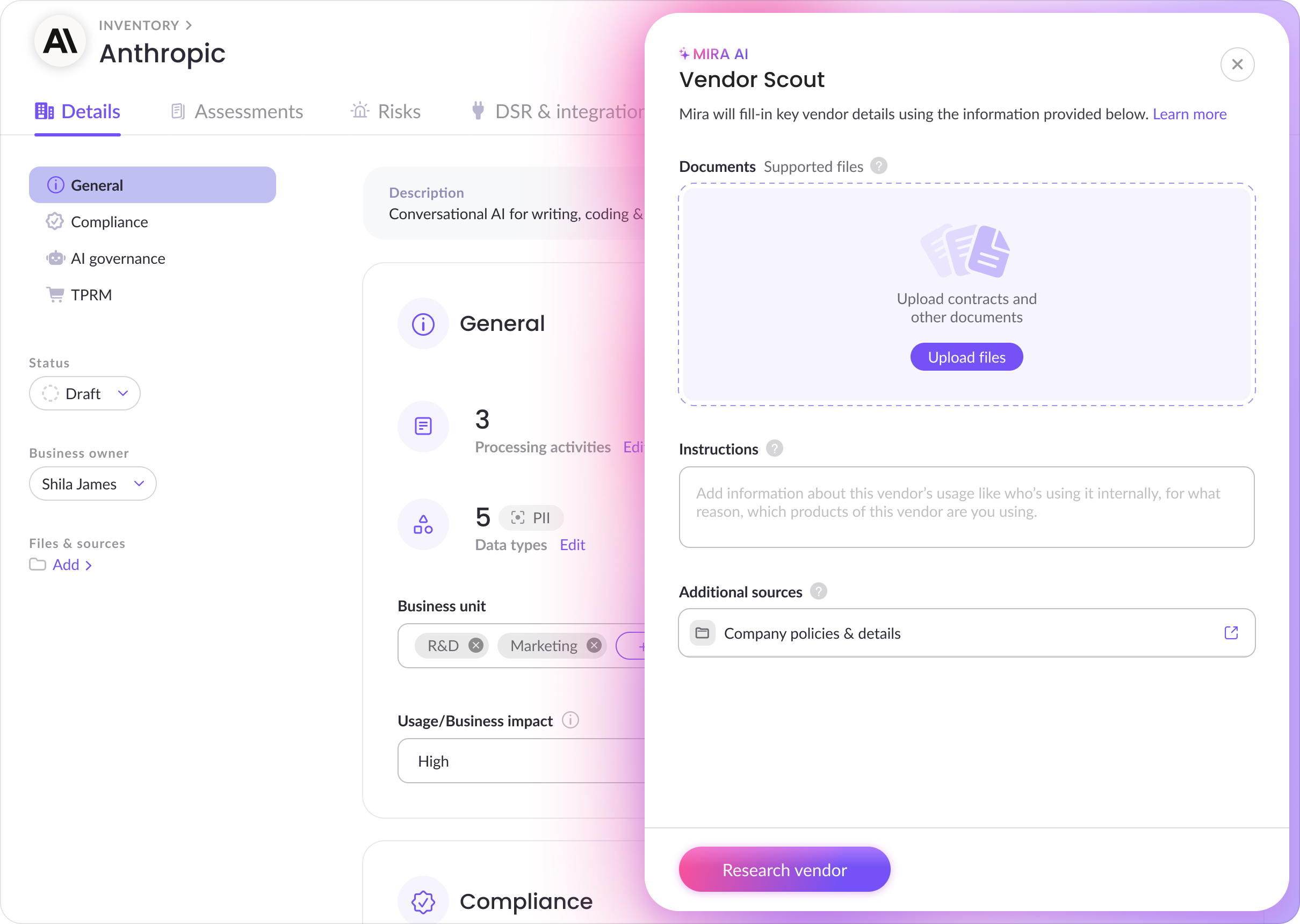
The Mira AI panel
Clicking Vendor Scout opens a side panel. Configure three sections before running:
Documents
Upload the vendor's Data Processing Agreement (DPA), privacy policy, security documentation, or any other reference material. Mira uses these to look up key vendor details, suggest values on this vendor page, and as reference when suggesting autofill in related assessments.
Files are indexed asynchronously — Mira will only use a file once it finishes analyzing it. The Files & sources indicator in the vendor sidebar updates to reflect attached files. Click View to re-open the panel at any time.
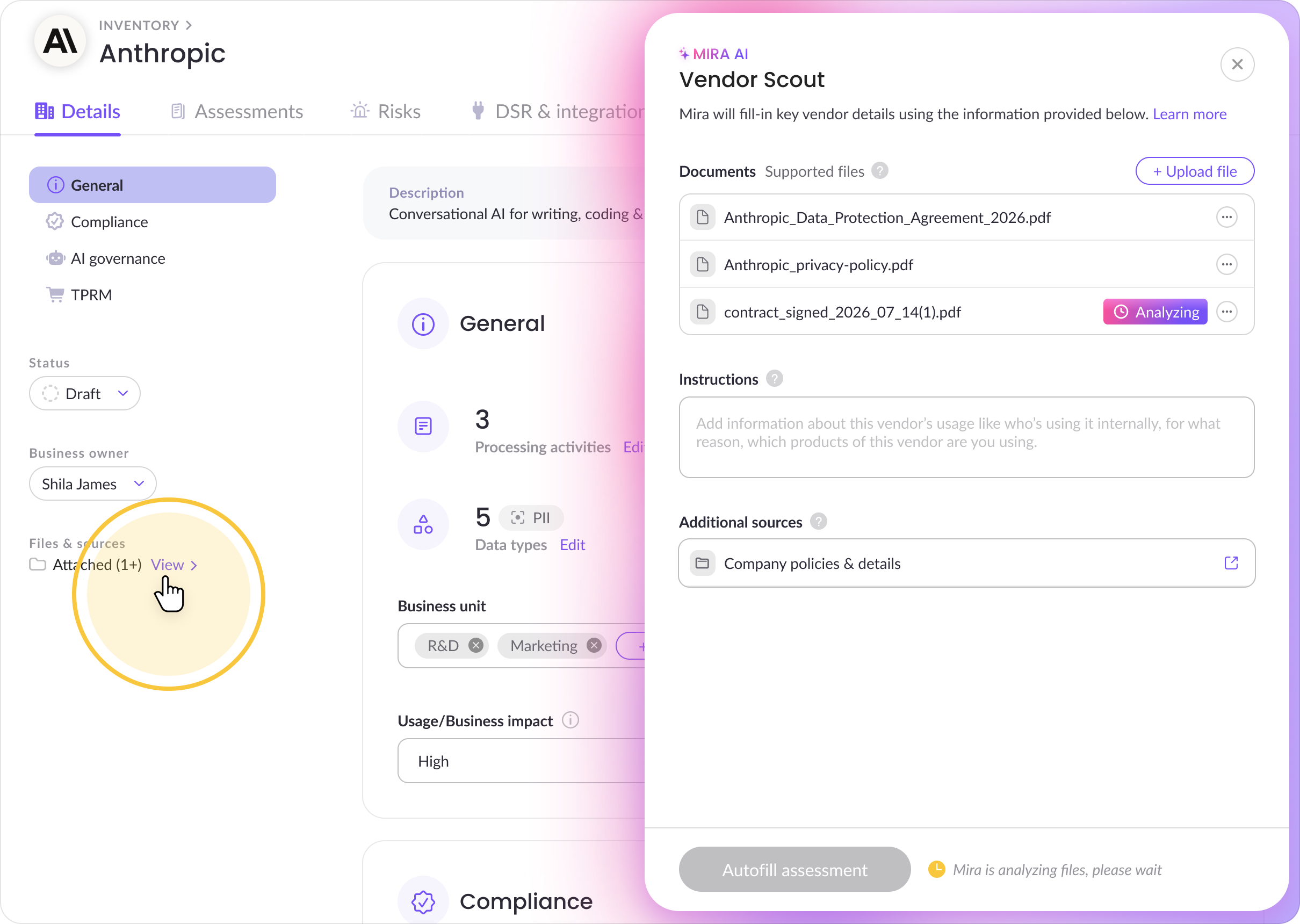
Note: Vendor Scout is unavailable while a document is still uploading.
Instructions
Add a free-text prompt scoped to this vendor. Use it to give Mira context about how your organization uses this vendor, which products or modules you use, or any known risks to focus on.
Examples:
- "Cloud service used by the finance team; EU hosting only."
- "We use HubSpot's marketing module and make use of their AI chatbot."
- "SaaS CRM processing EU customer data; check for SCCs and subprocessors in Ireland."
Additional sources
This section shows what Mira will automatically pull from — no action needed, but you can review what's linked:
- Company policies & details — your business profile (industry, regions, regulatory scope). Click the external link icon to review or update it.
- Submission details - Any information coming from an integration (Typeform, Jira, ZipHQ) submitted in your organization, linked directly to the vendor
Running Vendor Scout
Once your documents and instructions are set, click Research vendor at the bottom of the panel.
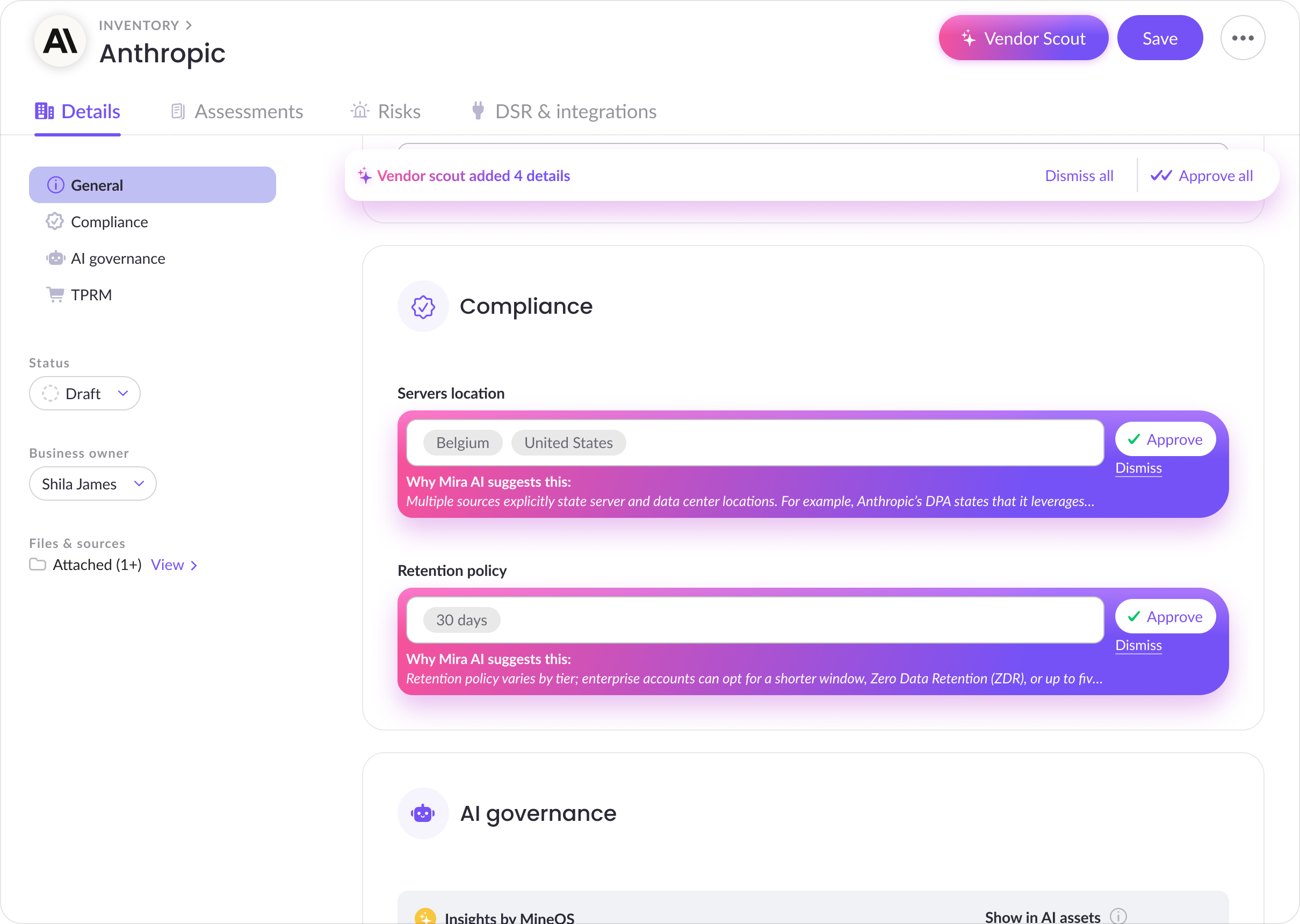
Vendor Scout runs in the background. When it finishes, a results banner shows the number of suggested updates. You can navigate away and return — suggestions persist until you review them.
Reviewing suggestions
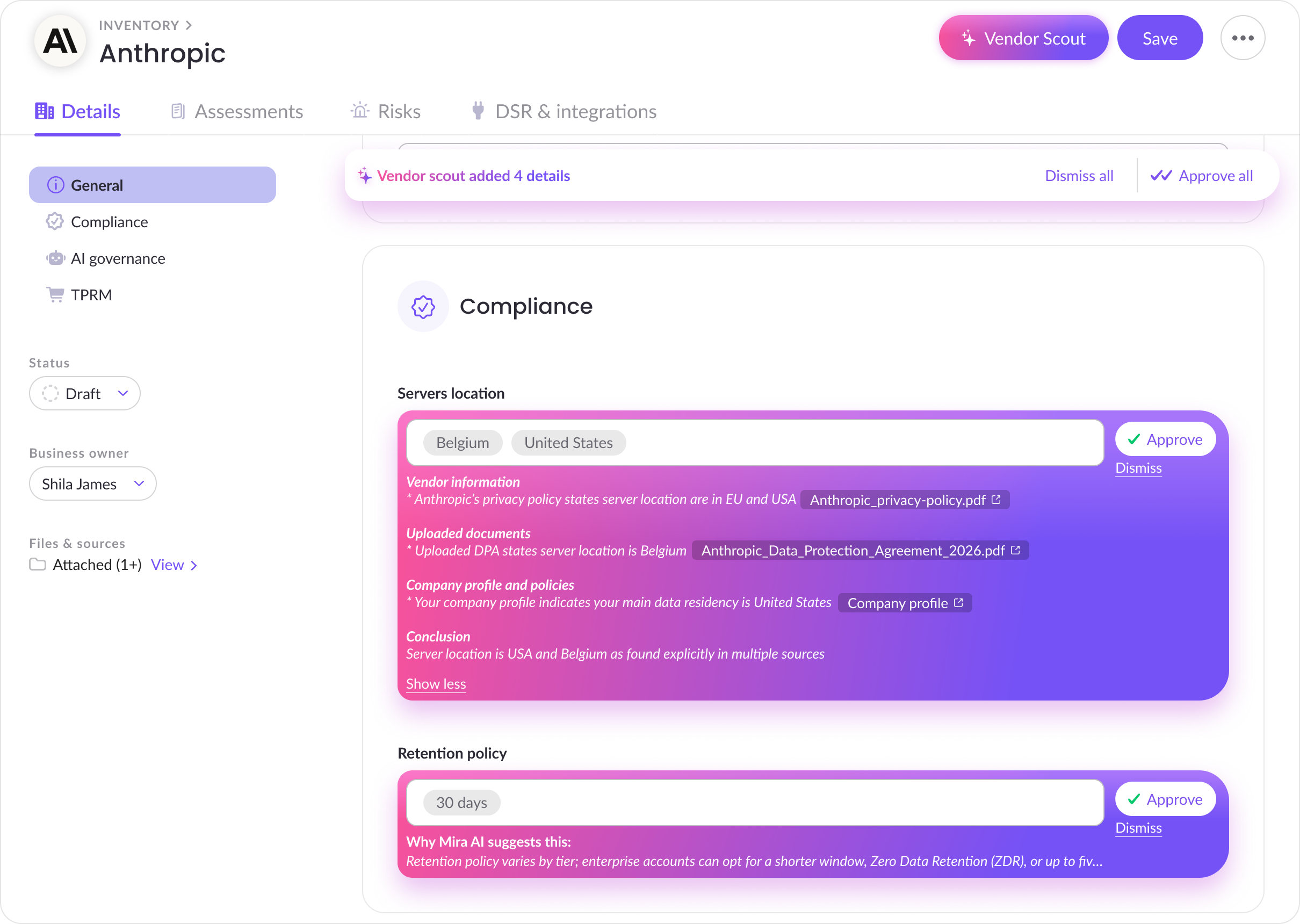
Each suggestion appears inline alongside your existing field values with a "Why Mira AI suggests this" explanation showing a reasoning preview. Click Show more to expand the full evidence, or Show less to collapse it.
The expanded evidence breaks down Mira's reasoning by source type:
- Uploaded documents — findings from the uploaded DPA or vendor documentation, tagged with the source or link (e.g. DPA)
- Vendor information — findings from the uploaded DPA or vendor documentation, tagged with the source or link (e.g. DPA)
- Company profile and policies — what your business details and policies contributed to the answer, tagged with the source (e.g. Privacy policy)
- Conclusion — Mira's final reasoning combining all sources into its recommendation
Per-field actions:
- Approve — applies the suggestion to the field
- Dismiss — removes the suggestion
- Edit — available for select and multi-select fields; lets you modify the suggested value before approving
Bulk actions:
Use Approve all or Dismiss all in the results banner to apply or dismiss all suggestions at once.
After reviewing, click Save to confirm all accepted updates. Vendor Scout never overwrites existing data — suggestions are only applied after you accept and save them.
Evidence is saved with accepted answers
Once you approve a suggestion and save, the evidence and reasoning are stored as part of that field's answer. Anyone on your team can open the field later to review why that value was chosen — useful for audits or vendor reviews. You can also delete saved reasoning from a field if it's no longer relevant.
Automatically adding context with workflows
You can configure MineOS workflows to automatically populate vendor context — so Mira always has what it needs without manual steps.
Examples:
-
ZipHQ → DPA upload — When a contract is signed in ZipHQ, the vendor's DPA is automatically attached to their record in MineOS. Vendor Scout and any linked assessment autofill both have the DPA available as context without anyone uploading it manually.
-
Jira → Vendor creation — A Jira ticket (e.g. a software procurement request) can automatically create a new vendor record in MineOS and attach the ticket as context. When Vendor Scout runs, it uses the procurement details from the ticket alongside public sources.
Workflows are configured in Settings → Integrations. For more details on available automations, see the Workflows guide.
What Vendor Scout uses
| Source | Details |
|---|---|
| Uploaded documents | DPAs, privacy policies, security docs — any files attached in the Documents section (can be populated automatically via workflows) |
| Instructions | Your free-text prompt scoped to this vendor |
| Company policies & details | Your business profile: industry, regions, regulatory scope, hosting locations |
| Existing vendor data | Domain, description, systems, data types, processing activities |
| Submission details | Any information coming from an integration (Typeform, Jira, ZipHQ) submitted in your organization, linked directly to the vendor |
| Public sources | Vendor websites, trust centers, security pages, privacy policies, LinkedIn |
| Custom fields & values | Your configured fields and allowed values from Settings → Vendor Fields |
Setting up custom fields
Vendor Scout works best when your vendor profile includes the fields that matter to your organization. Create custom fields in Settings → Vendor Fields, and Vendor Scout will research and suggest values for them.
Capturing this information drives key decisions in vendor risk management:
Triggering AI assessments — If Vendor Scout detects generative AI features, your team can initiate an AI risk assessment.
Identifying data transfer risks — Subprocessor information helps identify downstream data flows and cross-border transfer risks. If subprocessors are located outside your operating region, additional transfer safeguards may be required.
Supporting security reviews — Security control fields provide an early view of a vendor's security posture. Missing controls can prompt requests for additional documentation or risk mitigations.
Evaluating data lifecycle practices — Retention information helps determine whether vendor data handling aligns with your internal data minimization policies.
Monitoring tracking and cookie risks — Tracking technologies can flag vendors that may require additional privacy review or consent mechanisms.
Overall, these fields ensure vendor records contain the information needed for vendor risk classification, security assessments, AI governance reviews, privacy and cookie compliance checks, and risk mitigation planning.
Company Profile (AI context for all agents)
The Company Profile in your Settings provides context that all Mira AI agents use when generating suggestions. Include details such as:
- What your company does, your industry, and business model
- Company size and headquarters location
- Operating regions and server hosting locations
- Regulatory scope (GDPR, HIPAA, DORA, EU AI Act)
Keeping this profile updated improves accuracy across vendor enrichment, assessments, and AI governance features.
Tips & best practices
Upload a DPA before running. Vendor contracts and DPAs dramatically improve suggestion quality — give Mira time to index them first.
Use workflows to automate DPA delivery. ZipHQ can attach DPAs automatically when contracts are signed, so Vendor Scout is ready to run without manual uploads.
Use the Instructions field for usage context. Mira can't infer which products or modules you use from public sources alone.
Re-run before renewals. Vendor policies and subprocessors change — a fresh run surfaces any updates.
Keep your Company Profile updated. A complete profile improves accuracy across all Mira agents.
Use together with Assessment Autofill. A well-enriched vendor record gives Assessment Autofill better context when generating answers for vendor-linked assessments.
FAQ
Does Vendor Scout overwrite existing data?
No. Suggestions appear alongside your existing values and are only applied after you accept and save them.
Can I run Vendor Scout while editing other vendors?
Yes. Vendor Scout runs asynchronously, and results remain available until reviewed.
Are custom systems supported?
Custom systems are currently not supported. Vendor Scout works on vendors added from the catalog.
Where do the suggestions come from?
Suggestions are generated from your vendor record, your company context, uploaded documents, and verified public sources including privacy policies, trust centers, and vendor websites. All outputs follow your configured field rules and value structures.
Updated 22 days ago