
Email discovery - Google Workspace
Connect your Google Workspace email to discover the systems your employees use, including unmanaged tools and dormant accounts.
Email discovery finds the systems your employees use by reading the metadata of emails they receive from companies, such as sign-up confirmations and service notifications. It never reads email content or attachments. Connecting Google Workspace gives you the widest discovery coverage, including unmanaged tools, shadow IT and dormant accounts left by former employees.
Before you start
You'll need Google Workspace super admin access to set up domain-wide delegation.
Step 1: Authorize MineOS in Google Workspace
-
Sign in to the Google Admin console.
-
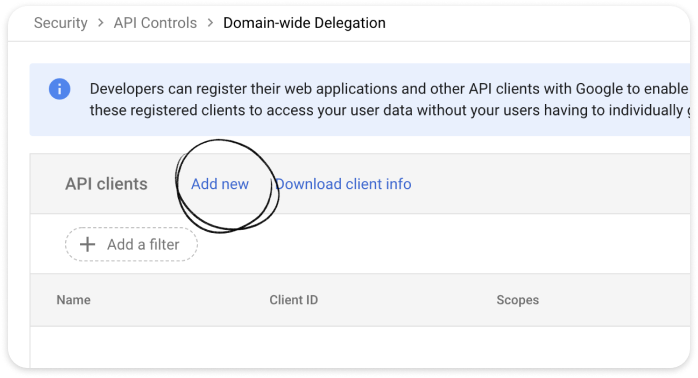
Go to Security › Access and data control › API controls, and click Manage Domain Wide Delegation. You can also go there directly: domain-wide delegation.
-
Click Add new.
-
In Client ID, paste:
102012030286883160384
- In OAuth scopes, paste:
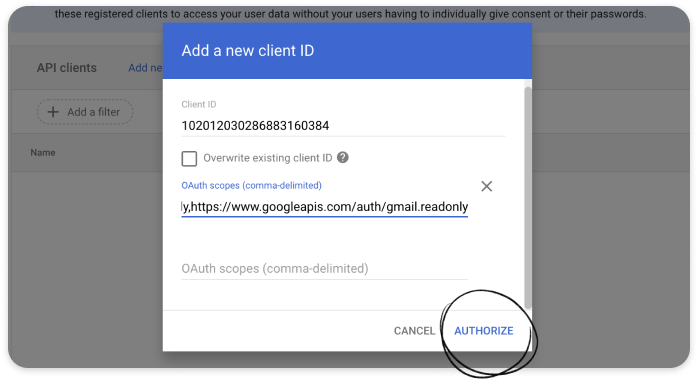
- Click Authorize.
Step 2: Connect in MineOS
- Sign in to MineOS.
- In the left navigation, under Data mapping, select Radar.
- Click Radar Setup.
- Under Email, select Google.
- Click Sign in with Google and complete the authorization flow.
A message confirms the connection was successful, and discovery starts.
Permissions
| Scope | Why MineOS needs it |
|---|---|
admin.directory.user.readonly | Read your employee directory, to show which employees use each system |
admin.directory.group.readonly | Read groups, to show departments |
gmail.readonly | Read the metadata of emails employees receive from companies, such as sender, recipient, date and subject |
All permissions are read-only.
Step 3: Choose what MineOS scans
After you sign in, choose which employees MineOS should scan for discovery.
- Under Set up discovery, choose an option in What should MineOS scan?:
- Entire organization: discover systems used by all your employees. We recommend this for the widest coverage.
- Specific groups: discover systems used only by members of the groups you select. [confirm: how groups are selected]
- Click Scan your organization.
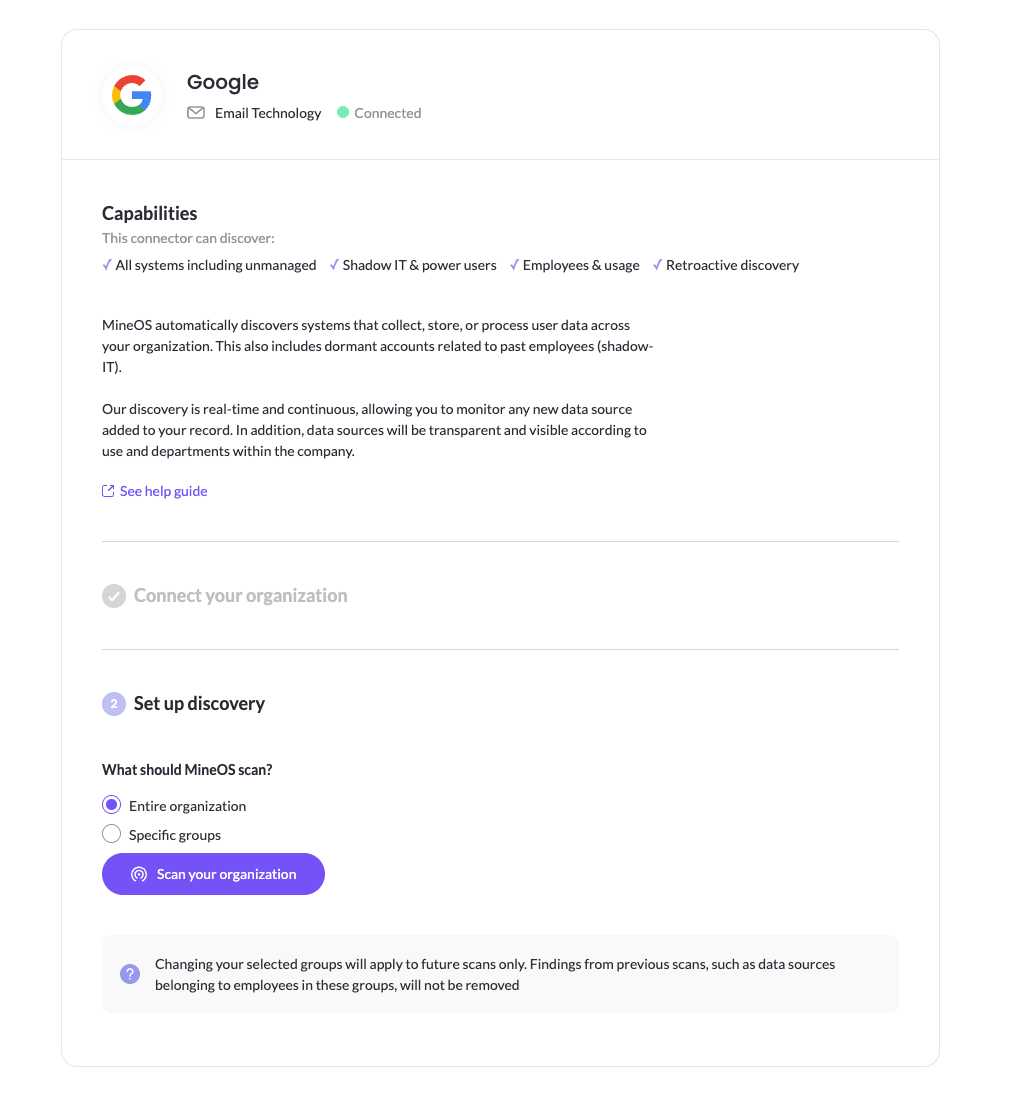
Discovery starts, and continues automatically.
Change which groups are scanned
You can change your selection at any time from the same screen. Changes apply to future scans only. Findings from earlier scans, such as data sources used by employees in groups you've removed, stay in Radar and your inventory.
What happens next
Discovered systems appear in Radar as they're found, with the employees who use each one and how often. Discovery continues automatically, so new systems appear as employees start using them. See Reviewing findings.
Related articles
- Discover your data sources with Radar: all discovery methods and the security FAQ
- Connect Google Workspace SSO: add SSO discovery for managed systems
- Employees discovery: see who uses each system
Updated 20 days ago