
Assign Coworker: Create a Task on Jira
Open a Jira task for a co-worker on every deletion request, and let MineOS complete the request when the task is done.
When a system is owned by another team, MineOS can open a Jira task for them every time a deletion request involves that system. Your co-worker works the task in Jira as usual, and when they move it to Done, MineOS completes the system in the request automatically, so you don't have to chase updates or mark anything by hand.
This is one of the two ways to assign a coworker to a system. The other is sending them an email.
Set up Create a task on Jira
- Open the system's page and go to the DSR & integrations tab.
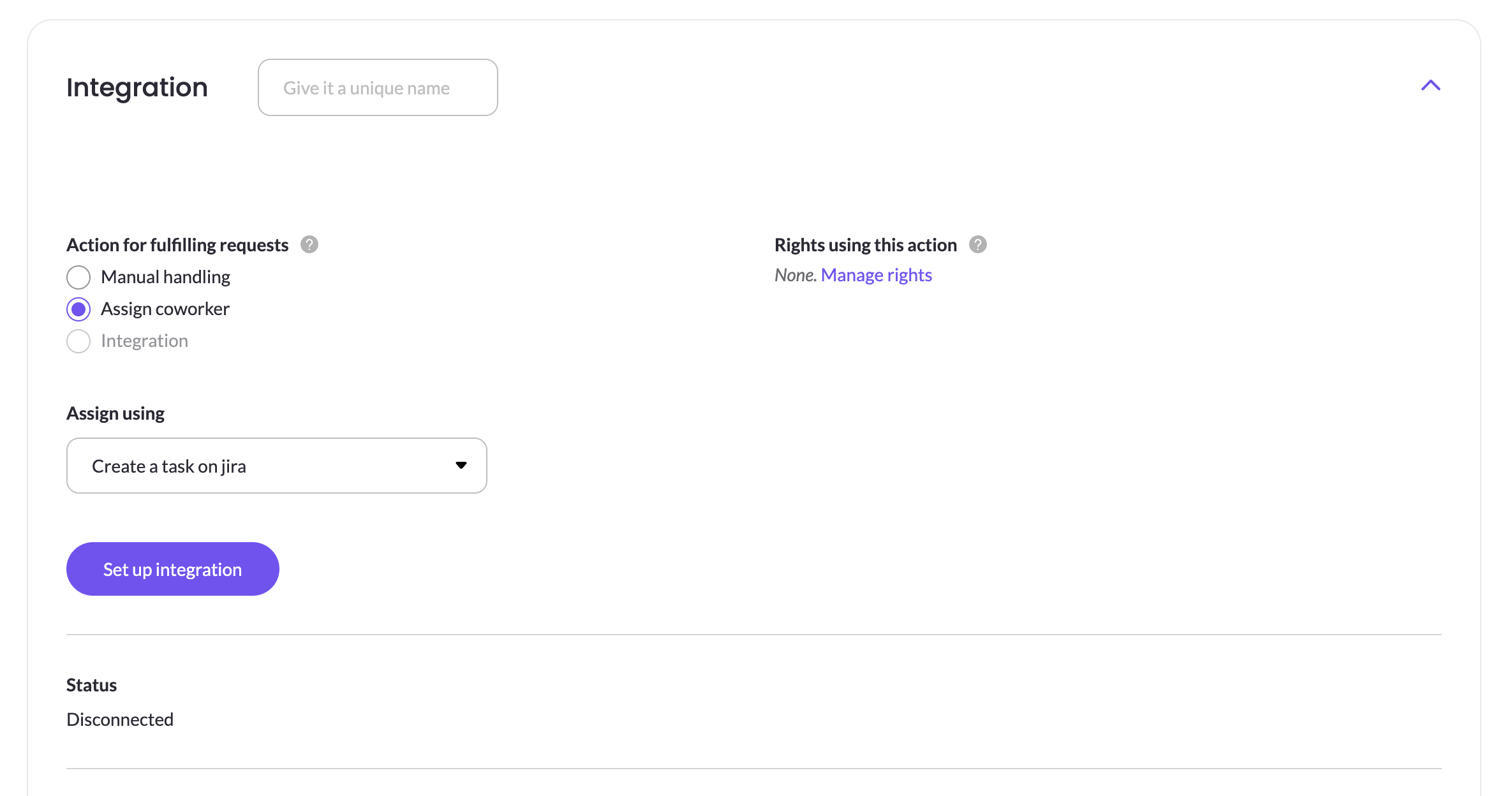
- Under Action for fulfilling requests, select Assign coworker.
- In Assign using, choose Create a task on Jira.
- Click Set up integration. A setup window opens with three steps.
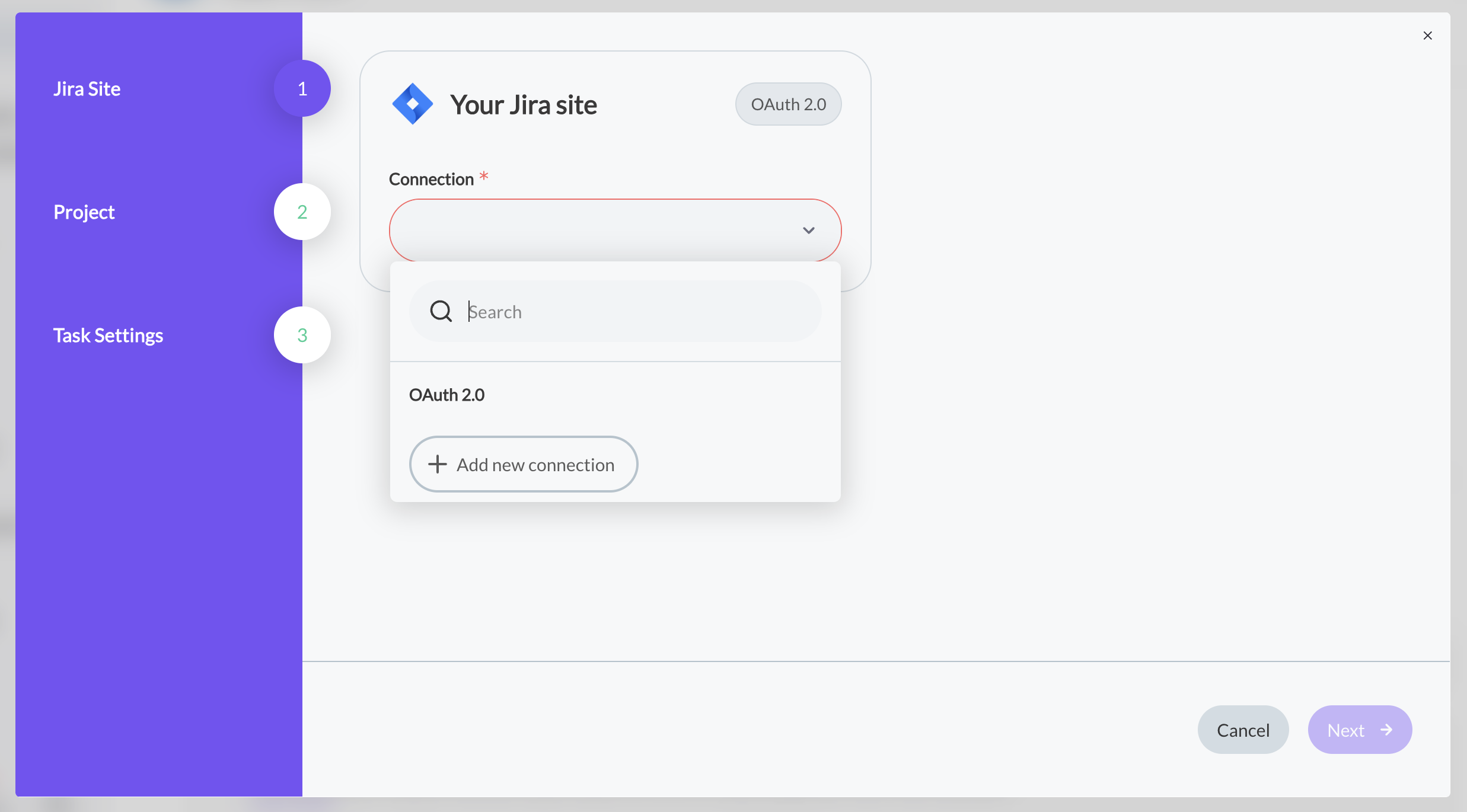
Step 1 – Jira Site
-
Connection (required): the Jira site where MineOS creates tasks. To connect a site, open the list, click Add new connection and sign in to Jira. If you already connected a site, select it from the list.
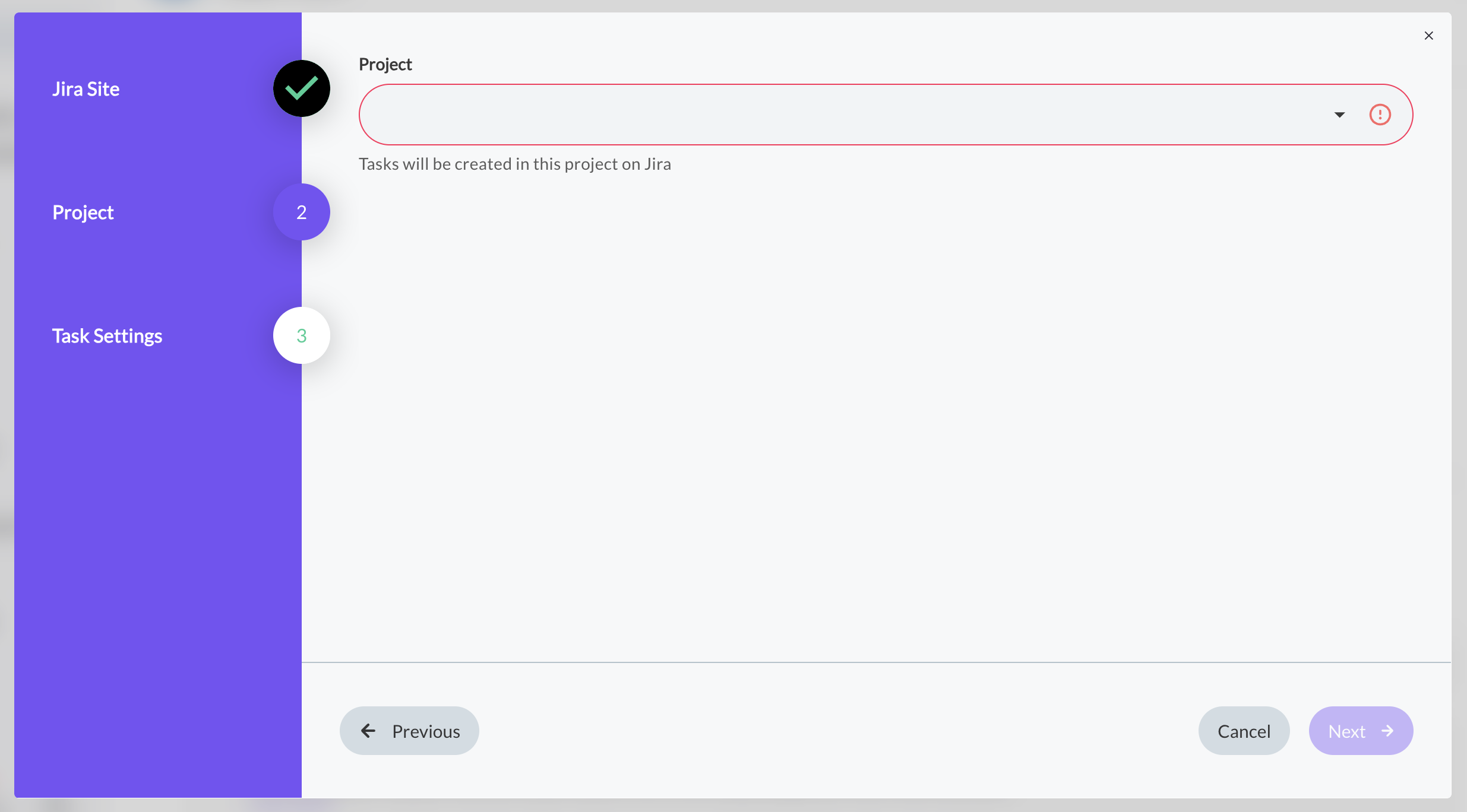
Step 2 – Project
-
Project (required): tasks are created in this Jira project.
Step 3 – Task Settings
-
Issue type (required): tasks are created as this type, for example Task.
-
Component (optional): tasks are created under this component. Leave it as None if your team doesn't use components.
-
Days to complete (optional): the due date of the Jira task, in days from when the task is created. For example, enter 7 to give your co-worker one week. Leave it as - to use the MineOS request's due date (the request's SLA). A shorter deadline helps your team finish well within the legal response period, such as one month under GDPR Article 12(3).
-
Completed resolutions: the Jira resolutions that count as done, separated by commas. The default is Done, Fixed. A task moved to Done with one of these resolutions, or with no resolution, completes the system in MineOS. Add your own resolution names here if your team uses them.
-
Custom fields (toggle): when on, the MineOS request's custom fields are added to the Jira issue description, so your co-worker has the full context without opening MineOS.
-
Jira labels (toggle): when on, closing the Jira task copies each of its labels to the MineOS request as a custom field, named Jira label 1 (MACT-31), Jira label 2 (MACT-31) and so on, after the label's position and the issue key.
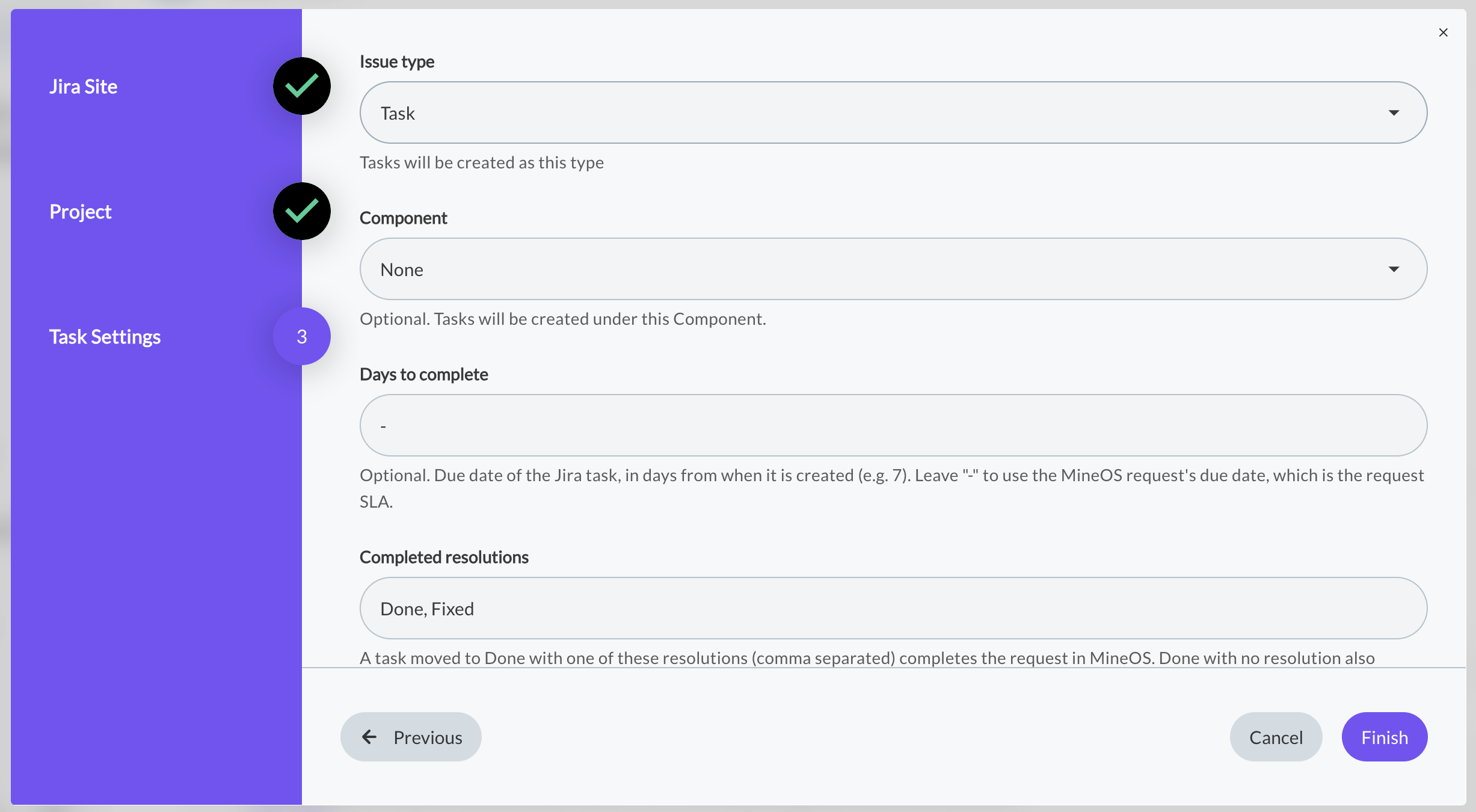
The Project, Issue type and Component lists are filled in automatically from the Jira site you connected in Step 1. You don't need to type values or create anything in Jira first.
- Click Finish. The Status on the system page changes from Disconnected to Connected.
To change the settings later, open the system page and click on Edit integration.
What happens when a request comes in
The task is created. MineOS opens a Jira issue with the request type, the request ID, the date the request was received, a link to the request in MineOS, and the requester's name and email. The system moves to In progress in the request and shows a link to the issue, for example Jira link: MINE-104. The activity log records Jira task created, MINE-104.
MineOS labels the task. Every issue MineOS creates gets two labels, MINE_ticket_id and MINE_integration_id. MineOS uses them to link the issue to the request, so don't remove them. They are added whether or not Jira labels toggle in the configuration is on, and they are never copied back to the MineOS request as custom fields.
Your co-worker closes the task. MineOS checks the task's status and updates the request for you:
| How the Jira task was closed | What happens in MineOS |
|---|---|
| Moved to a Done status with a resolution listed in Completed resolutions, or with no resolution | The system is marked Completed, showing Completed. Jira link: MINE-104, and the activity log records that the Jira task was completed. |
| Moved to a Done status with any other resolution, such as Won't Do or Duplicate | The system stays In progress, and the activity log records the resolution so you can follow up. |
| Still in a To Do or In Progress status | Nothing changes yet. |
MineOS reads the status category, not the status name, so custom workflow names such as "Closed" or "Resolved" work as long as they belong to Jira's Done category.
Once a system is completed, it stays completed, even if someone reopens the Jira task.
Stop using Jira for a system, or disconnect Jira
Note on disconnectionAll systems that use Create a task on Jira share the same Jira connection. Disconnecting a single system disconnects every one of those systems, not just the one you're on.
- To stop sending Jira tasks for one system: remove that system's instance from the right's workflow. A saved Jira integration can't be unsaved, so don't disconnect it.
- To stop Jira tasks for all systems: disconnect the Jira connection. Do this only when you want to turn off Jira tasks everywhere.
Updated 5 minutes ago